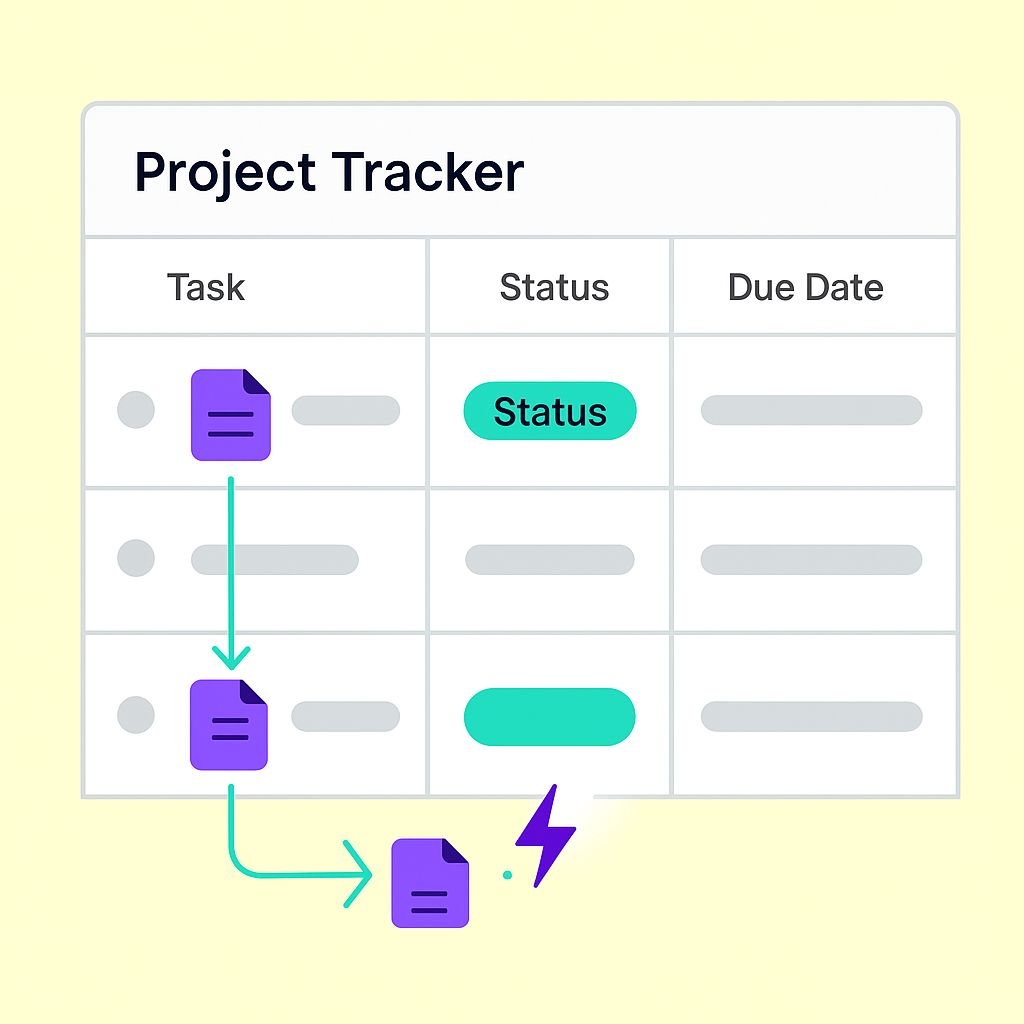
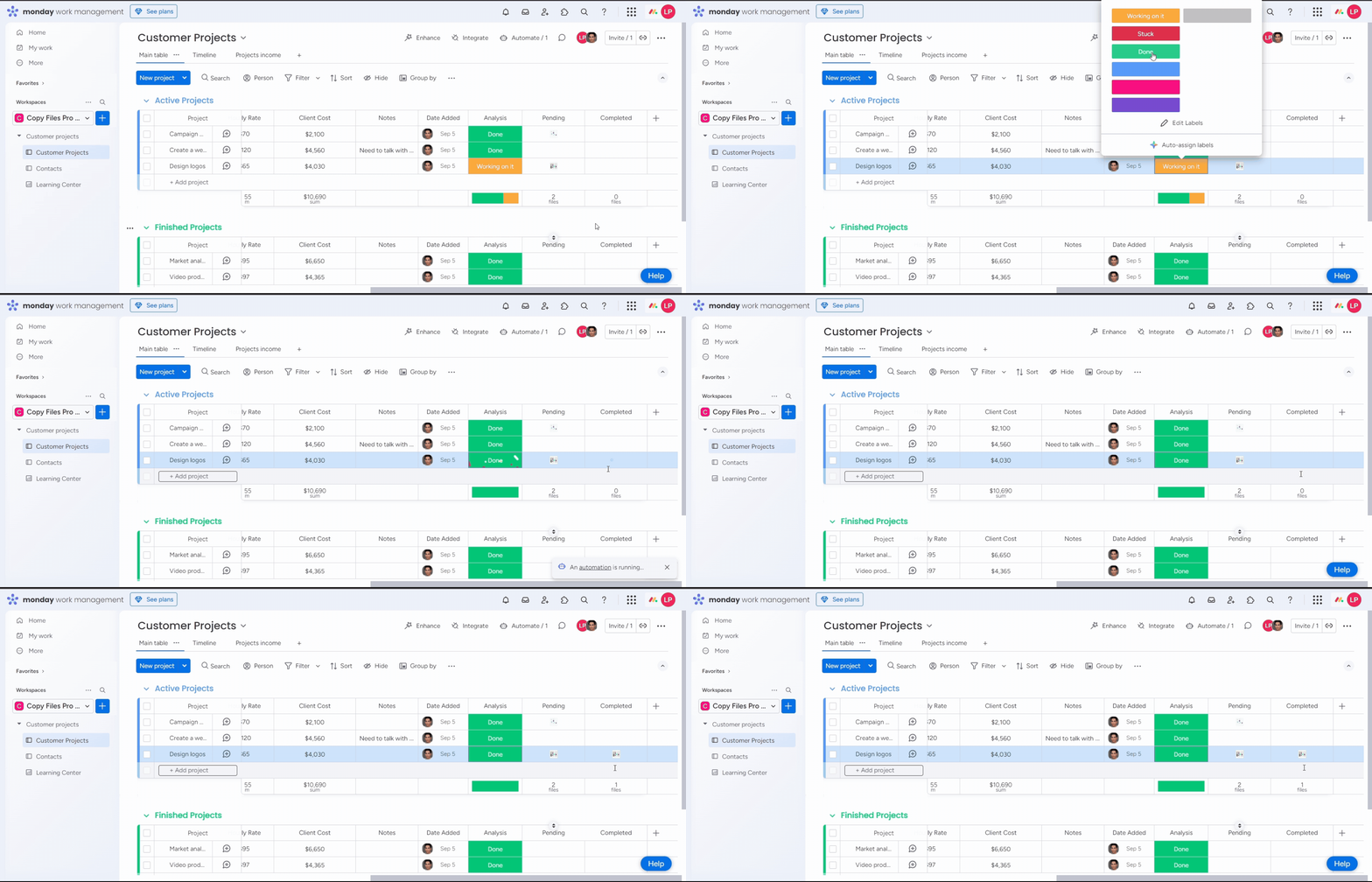
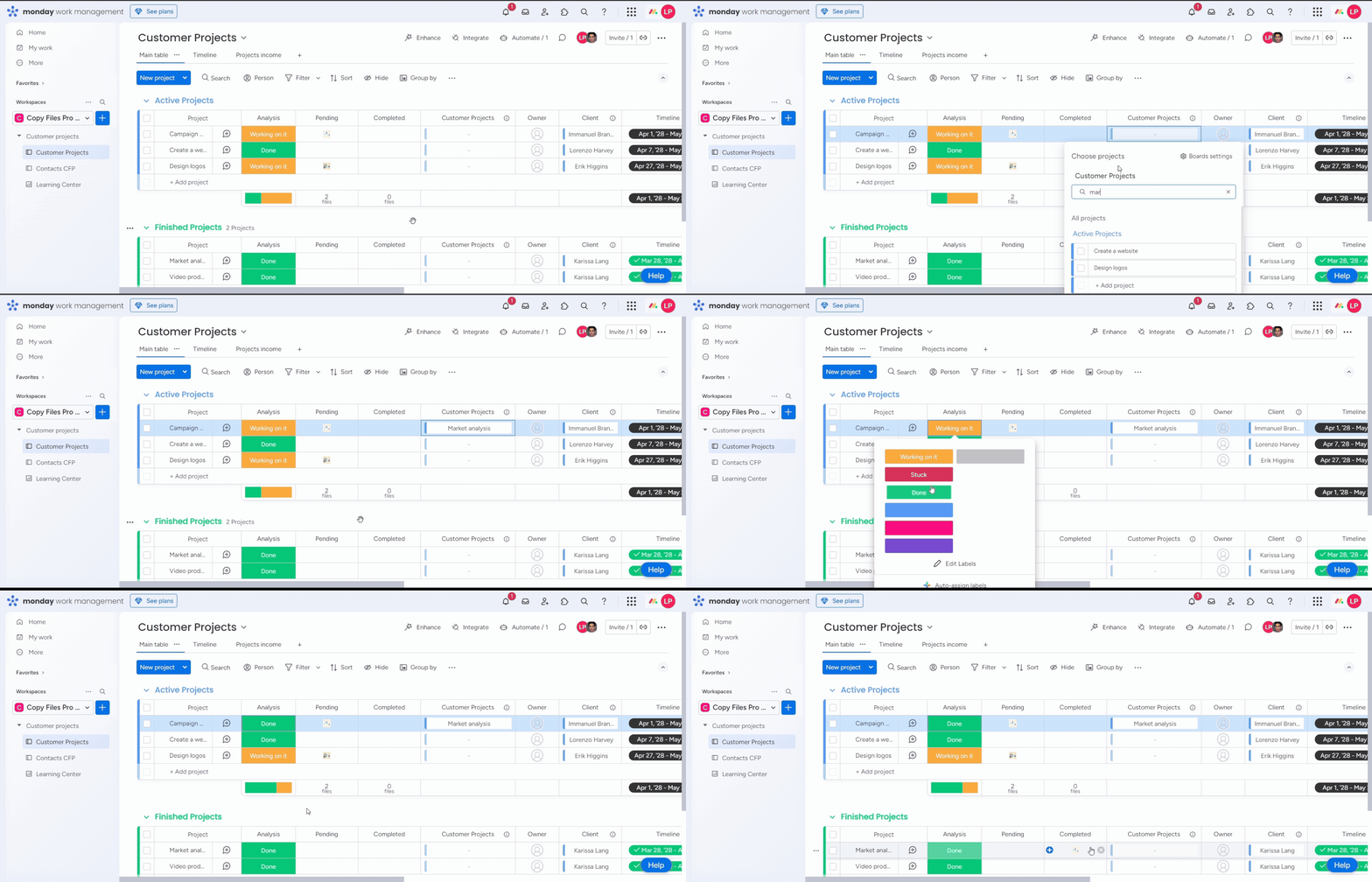
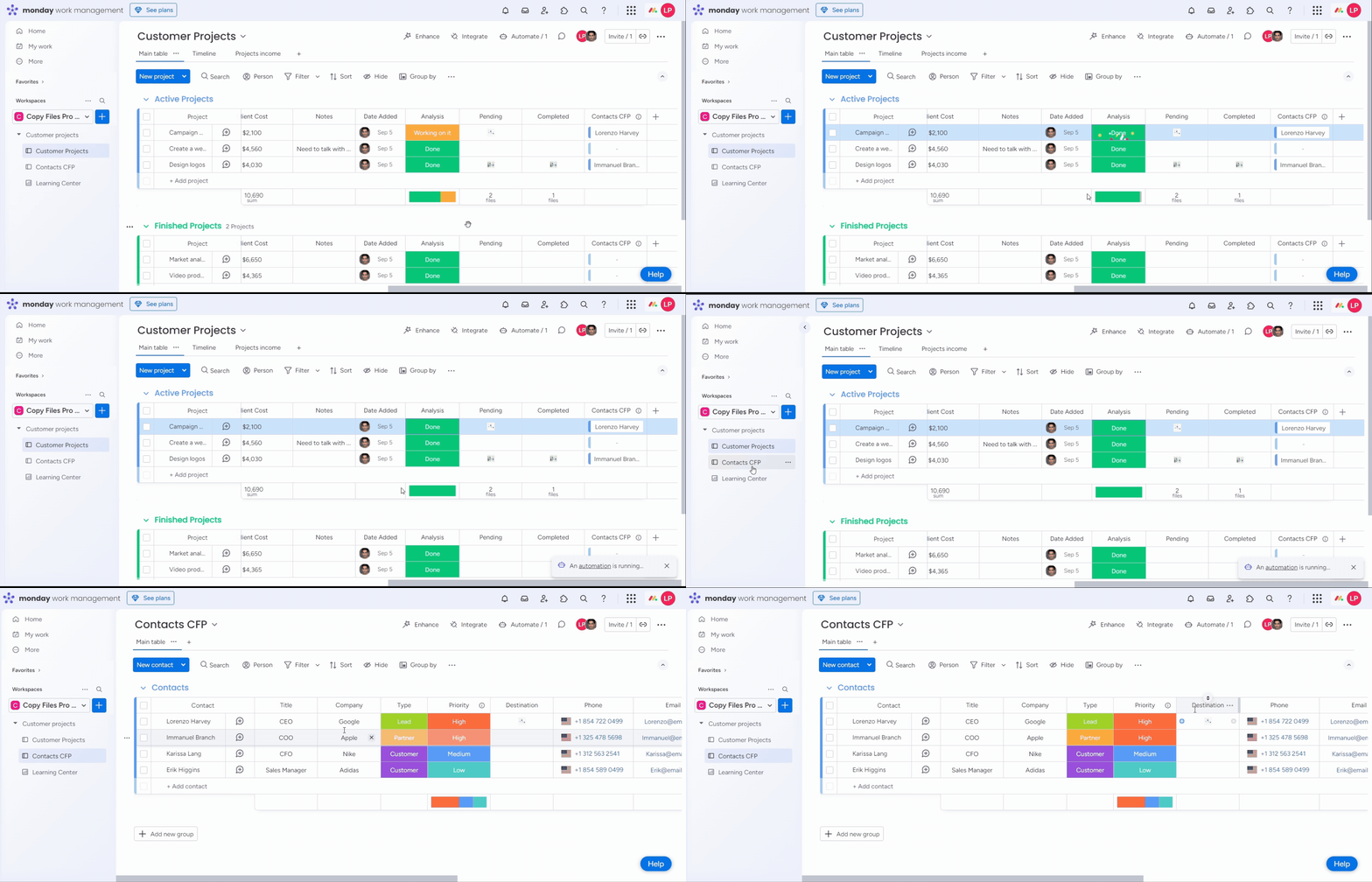
Use monday.com recipes to trigger file copies based on workflow events.
Save time on repetitive tasks
No more re-uploading the same documents.
Better collaboration
Share consistent, up-to-date files across your entire workspace.
Set it up in 3 easy steps process
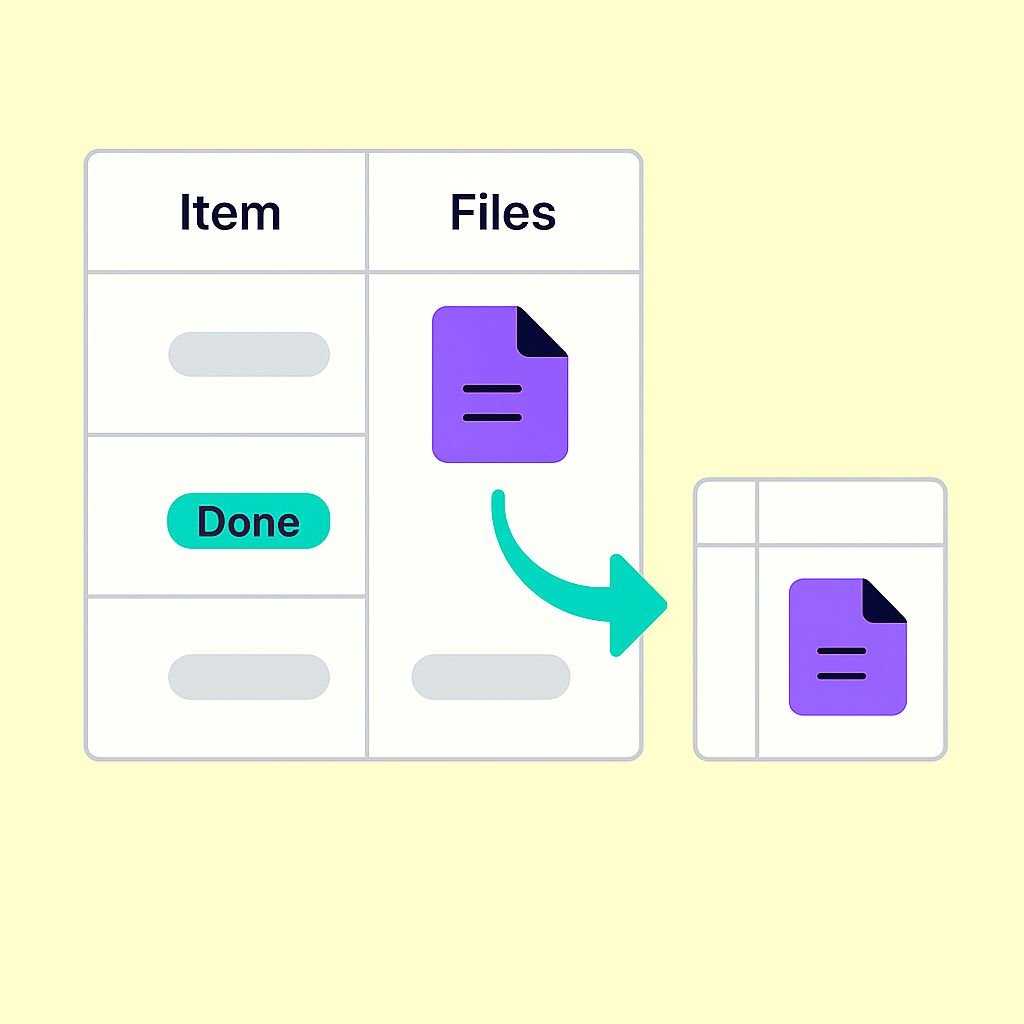
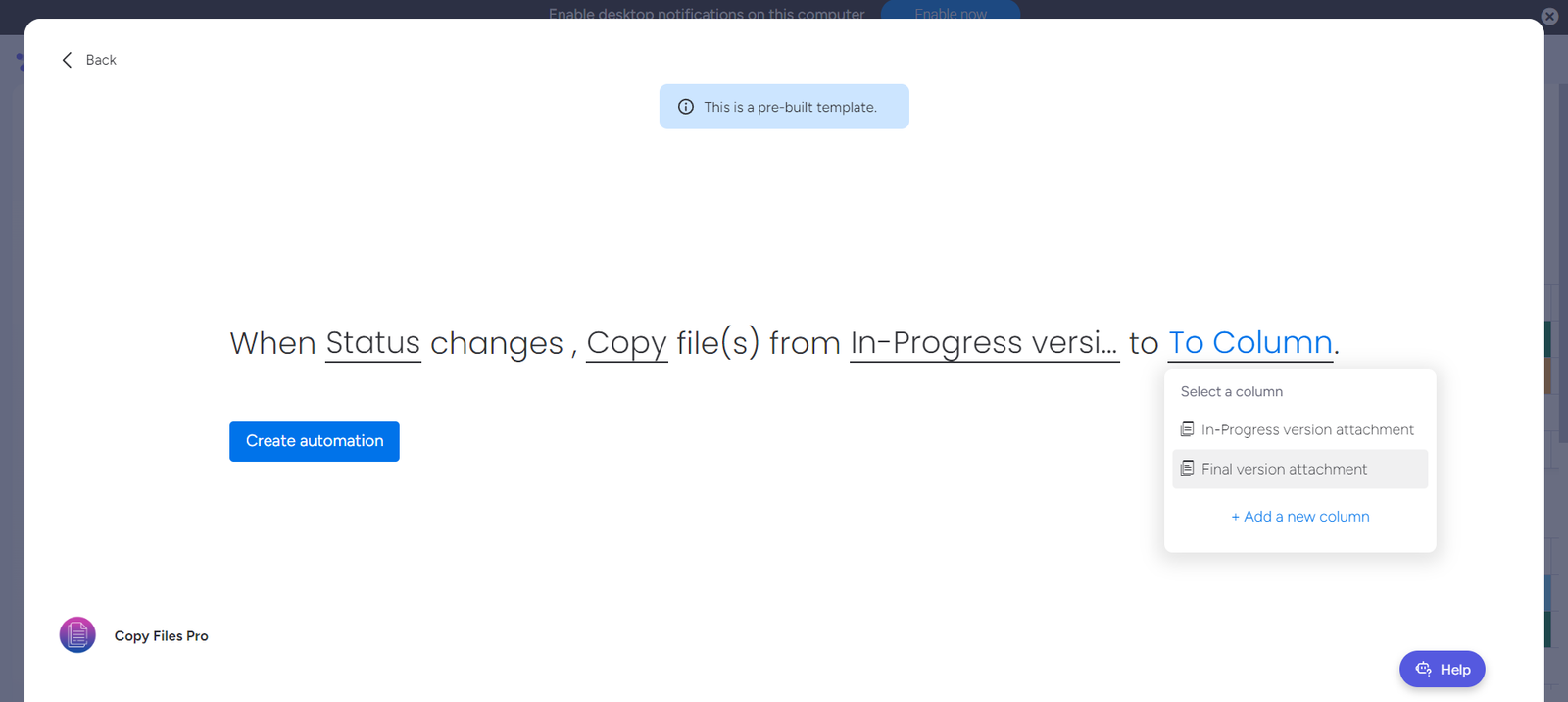
1. Select a Source Files Column and choose a Destination Files Column where it should be copied.
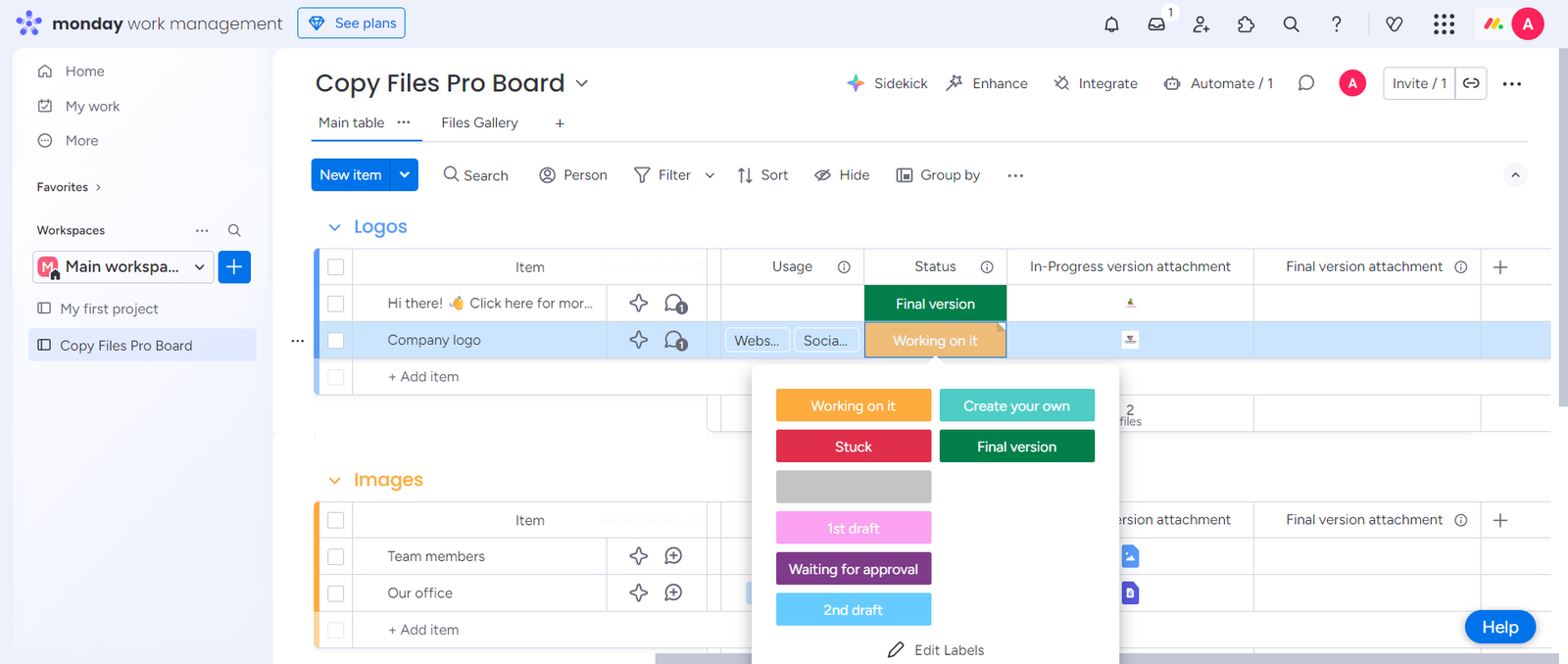
2. Use automation recipes to trigger copies when statuses or conditions change.
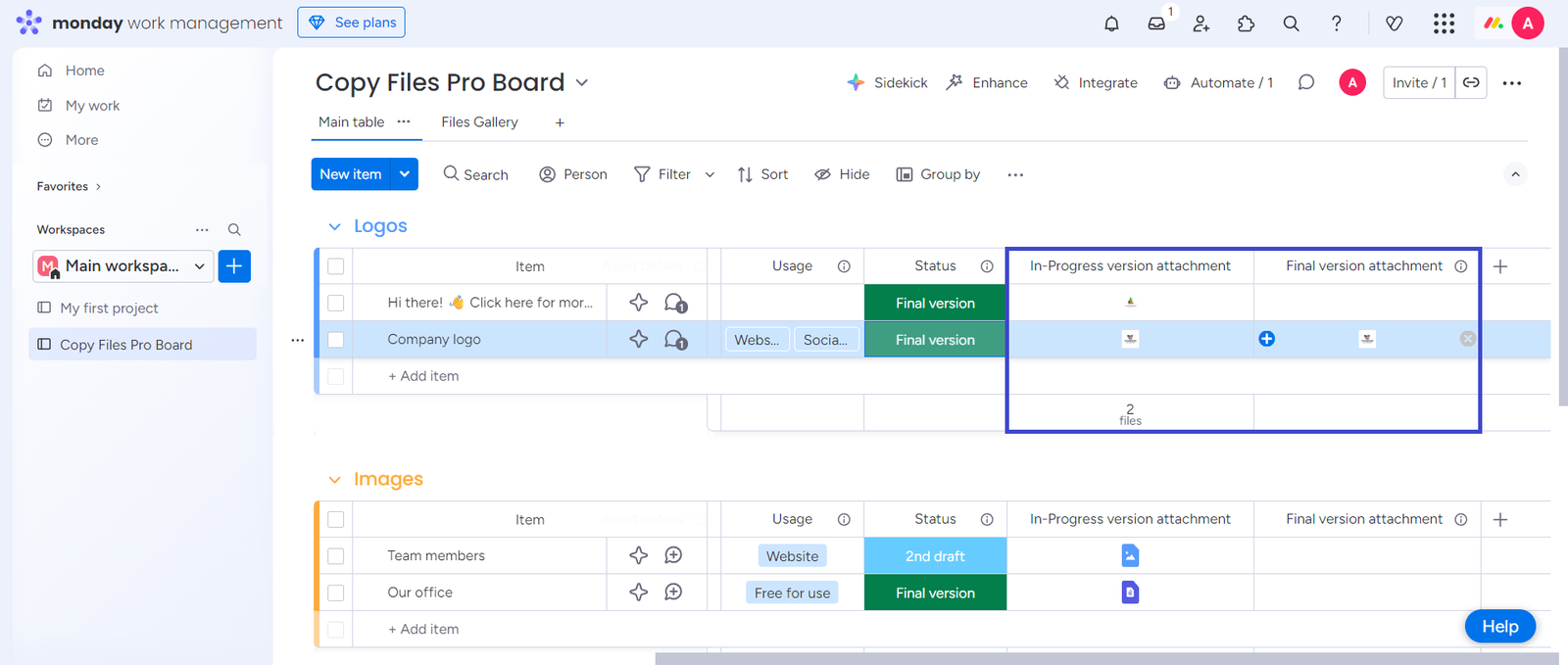
3. Instantly deliver files where they’re needed, without extra effort.
What our Users say
The ‘move file with item’ feature is a lifesaver, removing all the hassle of re-attaching files
We used to upload the same PDF into 5–6 items every time a client updated something. It was repetitive, and we always risked someone missing a step. It feels nice not having to do that anymore and we actually saw a productivity boost.
It’s such a simple thing but saves me hours every week.
Work smarter in monday.com
Automate File Copying Everywhere within monday.com with zero hassle using Copy Files Pro
Copy Files Pro is a powerful monday.com app that automates file management. It lets you copy, move, or sync files across items, columns, and boards—so your team never has to upload the same file twice.
Who can use Copy Files Pro?
Any monday.com user can install and use Copy Files Pro. It’s ideal for teams managing multiple projects, clients, or workflows where the same files need to appear in different places.
How do I install Copy Files Pro?
You can install it directly from the monday.com Apps Marketplace. Once installed, simply add it to your board, set up automation recipes, and you’re ready to go.
Do I need special permissions to use the app?
Only board admins can add the app and create automation recipes, but once configured, the automations work for everyone on the board.
What actions does Copy Files Pro support?
Copy Files Pro allows you to:
Copy files between items, groups, or boards.
Sync files so updates reflect everywhere.
Move files with items when shifting to another board.
Rename files automatically based on rules.
What’s the difference between “copy” and “sync”?
Copy: Creates a duplicate of the file in another location.
Sync: Keeps the same file connected across multiple items or boards, so changes are reflected everywhere.
Will files move when I move items between boards?
Yes. As long as the destination board has a Files column, Copy Files Pro ensures your files follow automatically with the item.
My files didn’t copy over. What should I check?
Make sure both the source and destination boards have a Files column. Without this column, files cannot be transferred.
Can I copy large files?
Yes. Copy Files Pro works within monday.com’s native file size limits. If the file is supported by monday.com, it will copy.
We know your inbox is sacred, and we promise not to clutter it with fluff. No spam. No nonsense. Just genuinely helpful tips, insights, and resources to make your workflows smoother and smarter.