Installation Guide
- You can install the app using the above link or open monday.com Marketplace, search for Files Gallery Pro > Click the Files Gallery Pro app card > Click Install.
- Now Files Gallery Pro is Installed in your System.
- You can verify this by clicking on the icon at the top right corner > clicking Administration > Apps. You will see that Files Gallery Pro has been installed.
Adding Files Gallery Pro Board View
Open a Board of your choice.
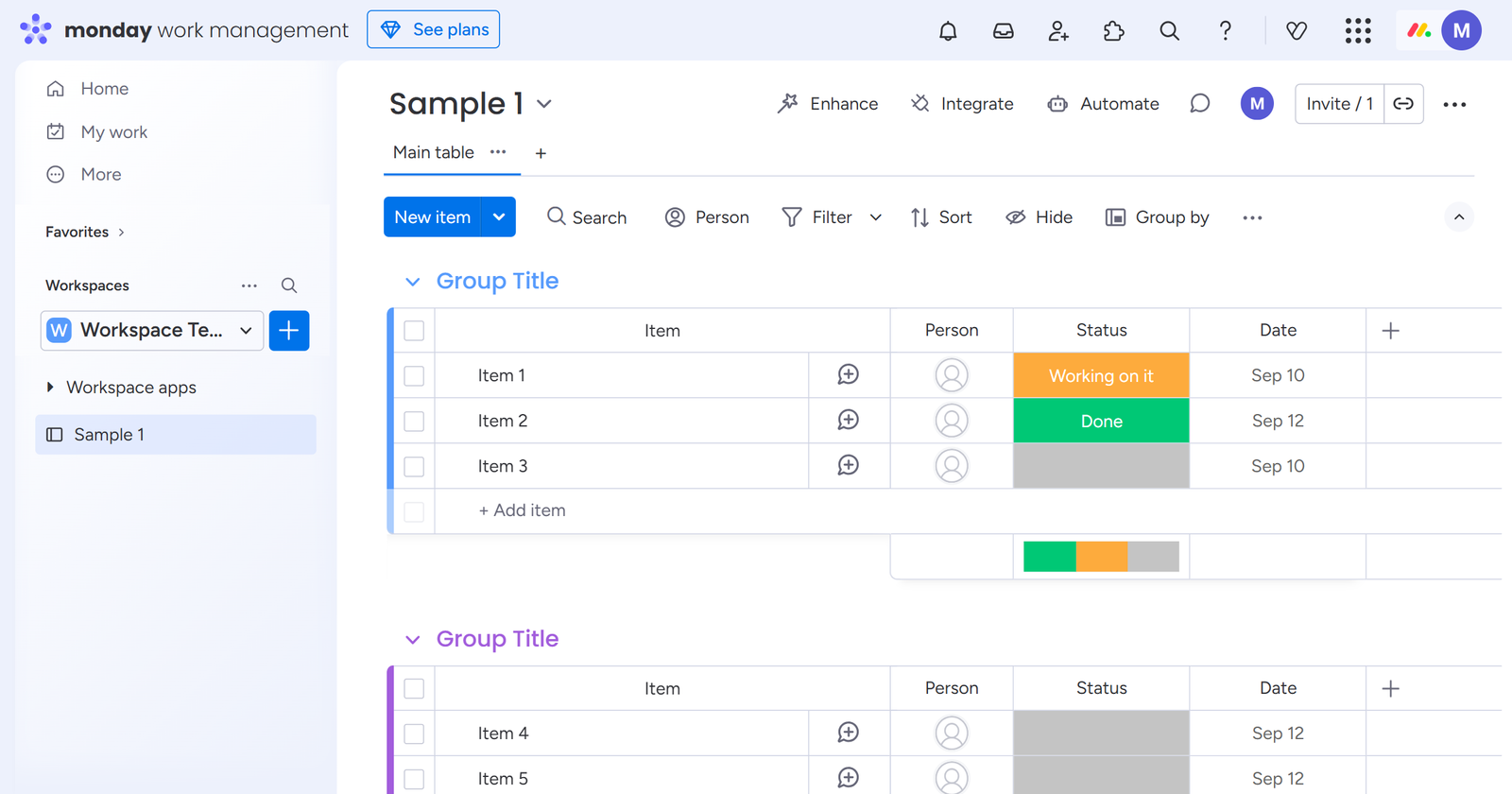
Click the Plus Sign button [ Add View] located next to the main table.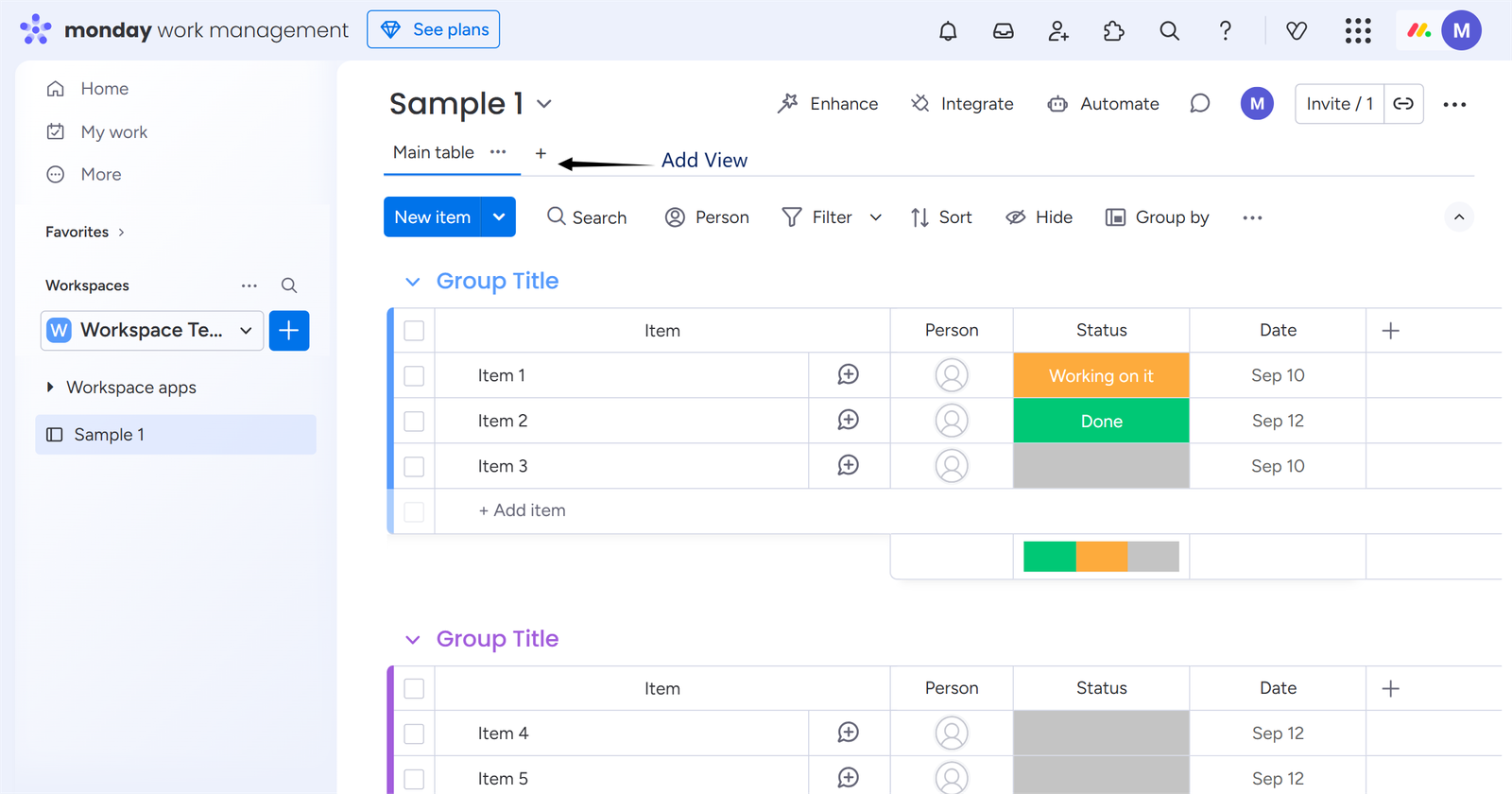 Select the Files Gallery Pro app—it will be added to the board.The app has been added to your board. Start exploring its features right away!
 Cheers! Your app is now ready to use
Getting Started with Files Gallery Pro
Upload, delete, download, and preview files — all in one place with just a few clicks.
Stay organized automatically — every uploaded file is linked to the right board or item, so you always know where everything belongs.
Work with all file types — documents, spreadsheets, images, videos, links, and text files are fully supported.
Access all board-level assets — view every monday Doc, file asset, and update file related to your board in one centralized gallery.
Keep monday Docs, item uploads, and update files organized — manage all monday.com documents and your uploaded files together, without switching views.
Use support folders for better structure — create folders to separate your own uploaded files from monday.com files for easy navigation.
Delete only your uploaded files — Files Gallery Pro protects monday.com files by allowing deletion only for files you’ve added.
Preview and download any file — whether it’s your uploaded file or a monday.com file, you can quickly preview or download both directly from the gallery.
And here’s something important to know:- Every file you upload through Files Gallery Pro is securely stored in Microsoft’s Azure cloud, inside Azure Blob Storage. That means your files aren’t just saved — they’re protected by Microsoft’s trusted cloud infrastructure, ensuring maximum security, reliability, and anytime access.
 Ready to get started? Simply open a board of your choice and unlock the full power of Files Gallery Pro today!
Files Gallery Pro — Feature Highlights
View All Board Files in One Place
See everything connected to your board — all in one place.
With Files Gallery Pro, you can instantly access every file stored at the board level, including:
- monday Docs created on your board
- File assets uploaded to items
- Update files shared through conversations

No more switching between boards or item updates to find what you need.
Files Gallery Pro brings all your files together in a single, organized view, so you can browse, preview, and download any document — quickly and effortlessly.
How to Upload Files
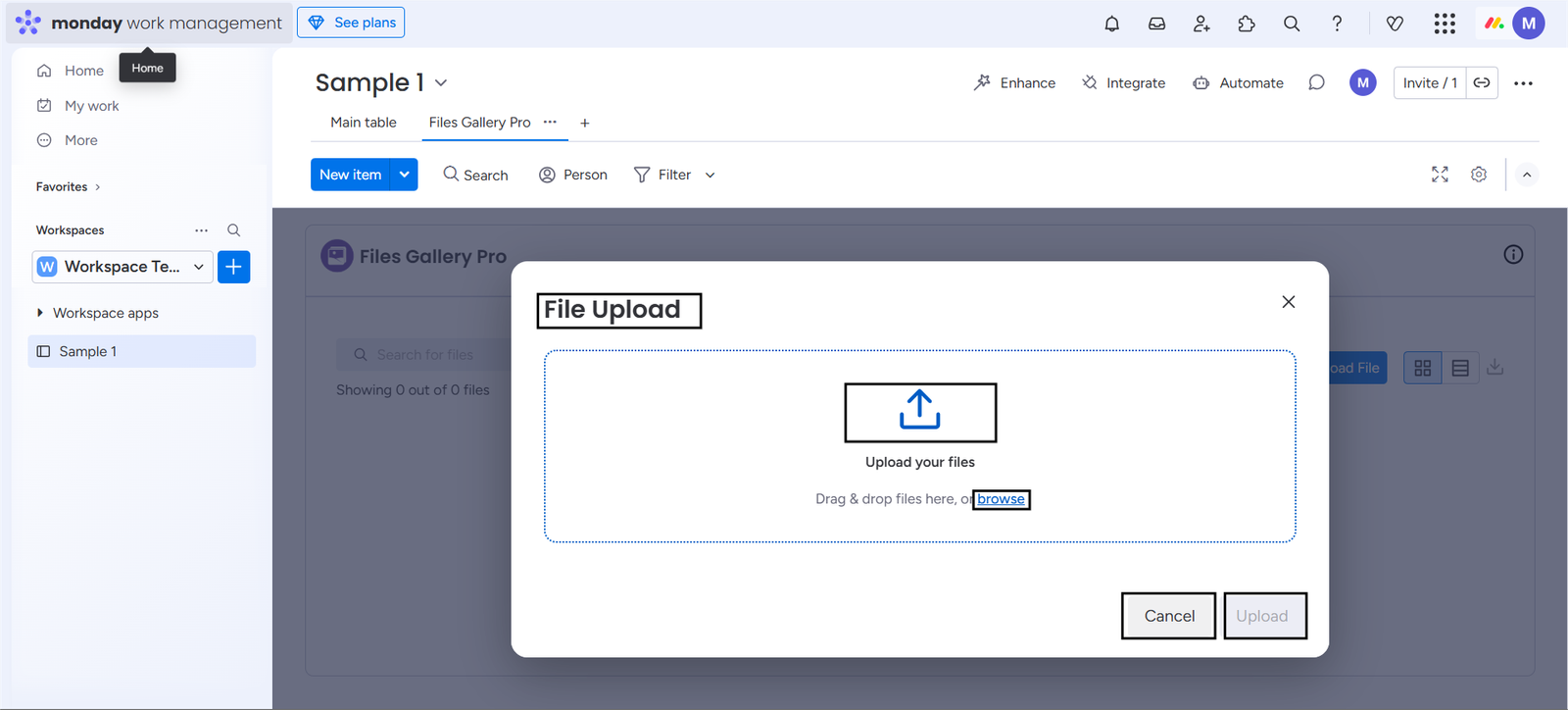
Click the “Upload a File” button — this will open the File Upload modal.
Prefer shortcuts? You can also:
- Click the upload icon, or
- Simply drag and drop your files into this section.
It’s quick, easy, and flexible — choose the method that works best for you!
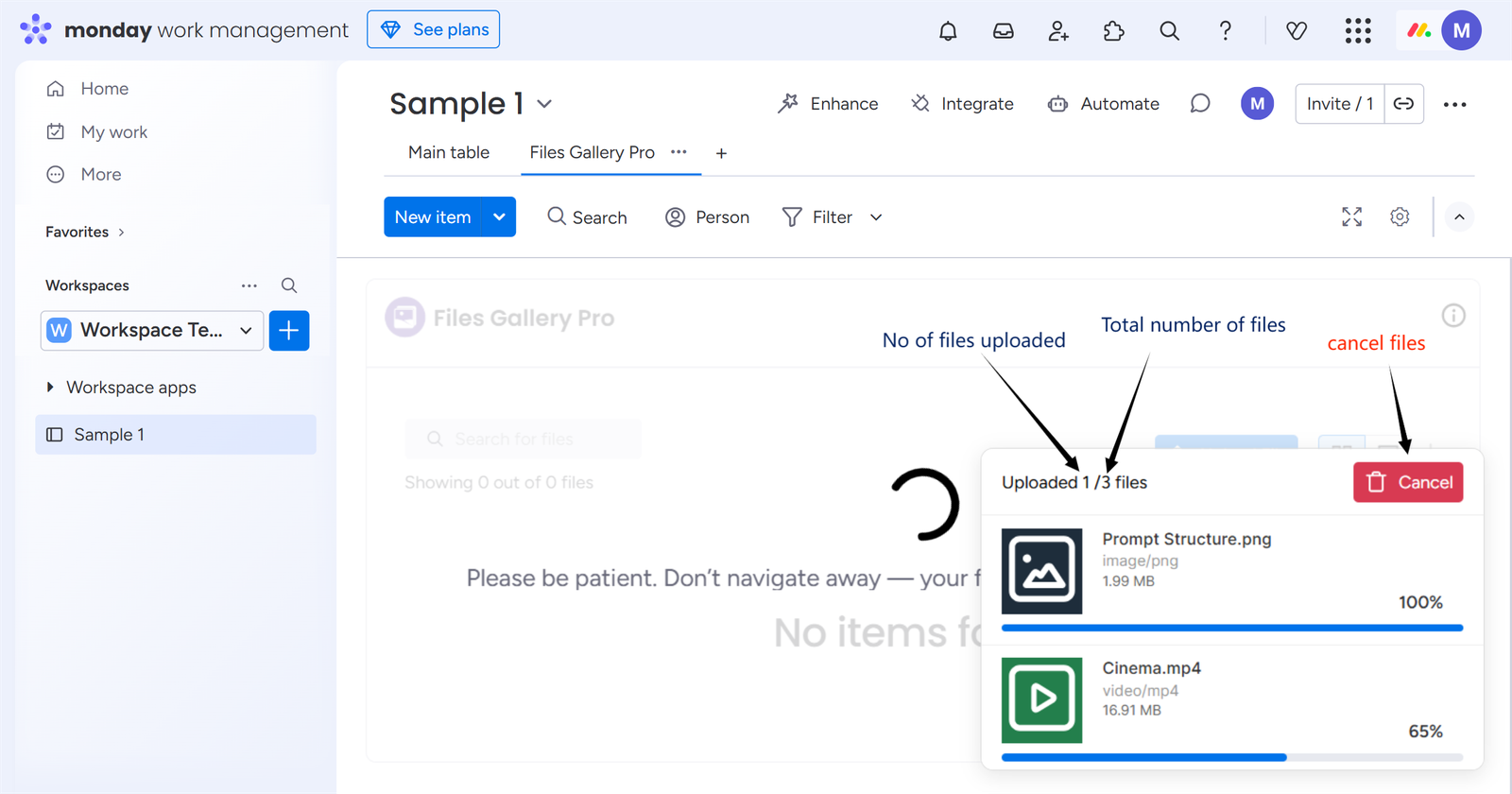
While your files are uploading, you can track the progress or cancel if necessary. However, avoid navigating away from the page, as this may interrupt the upload.

 After Uploading: Once your files are uploaded, they will appear in the Files Gallery Pro app. You can easily:
 Search by file name to quickly find what you need.
Filter files by type — Item Files, Board Files, or Update Files.
View uploader and upload time by hovering over the time icon.
 Everything is designed to help you stay organized and access your files effortlessly.
Download Your Files
Monday Docs (external files) are not supported for download.
You can download files to your device in three easy ways:
1) Bulk Download – Click the Download icon to save all files from the current board to your PC at once. Each file is downloaded separately.

2)Selected Files Download – Tick the checkboxes to select the files you want, then click the Download button to save the chosen files to your device. Each file is downloaded individually.

3) Single Download- Click the Download option from the file’s menu to save that individual file to your device.

Preview Your Files
Click the Open File button to preview a file. It opens in a modal window, allowing you to view its contents without leaving the current page.

The modal supports all Monday.com file types, including images, videos, documents, compressed files, and other formats.

Delete Files from Your Board
You can delete files directly from the app to keep your workspace organized and clutter-free.
You can only delete files that you uploaded to the board. Files belonging to monday.com cannot be deleted using Files Gallery Pro
There are two ways to delete files, depending on whether you want to remove multiple files at once or just a single file.:
1) Selective Bulk Deletion- Select your desired files using the checkboxes, then click the Deletebutton.
 Once you click, a modal will appear—confirm by selecting Delete to remove the files.
 2) Single Deletion- Selecting the Deleteoption from the menu will delete the file.

Select All Items
Checking the box selects all files, allowing you to delete, download, or move them to another folder.

Unchecking the box clears the selection, so no files are selected.

Search Files by Name
Quickly find the files you need by typing the file name in the search bar. Files Gallery Pro will filter and display all matching files across folders, making it easy to locate documents without browsing through each folder manually.

Filter Files by Type
Easily narrow down your file list by selecting the type of files you want to see. You can filter by Board Files, Item Files, Update Files, or view All Files. This makes it simple to find the right file quickly without scrolling through unrelated content.

Folder Management
You can create, delete, and rename folders to keep your files organized. Additionally, you can create subfolders within folders, allowing for multiple levels of folder organization.
Create Folders to Organize Your Files
Easily create folders to keep your files structured and easy to find. You can name your folders, create subfolders within them, and organize your content in multiple levels. This helps you manage your files efficiently and keeps your workspace clean and organized.

Rename Folder
Quickly rename any folder to keep your file structure clear and meaningful. Whether it’s a top-level folder or a subfolder, you can update its name at any time to reflect its content or purpose.


Delete Folder
Remove any folder that you no longer need to keep your workspace organized. Deleting a folder helps declutter your file structure, and you can manage both top-level folders and subfolders easily.

Move Files Between Folders
Easily move files from one folder to another — or even across multiple folders — to keep your file structure organized and ensure that all your documents are in the right place.


Open Folders to Access Subfolders
Click on the “Open Folder” option or directly on the folder name to navigate inside it and access its subfolders. This makes it easy to browse and manage files within nested folder structures.

You can browse all subfolders and their files. Use the folder trail at the top (e.g., Folder1>Folder2>Folder3) to quickly jump back to any folder by clicking its name.

