
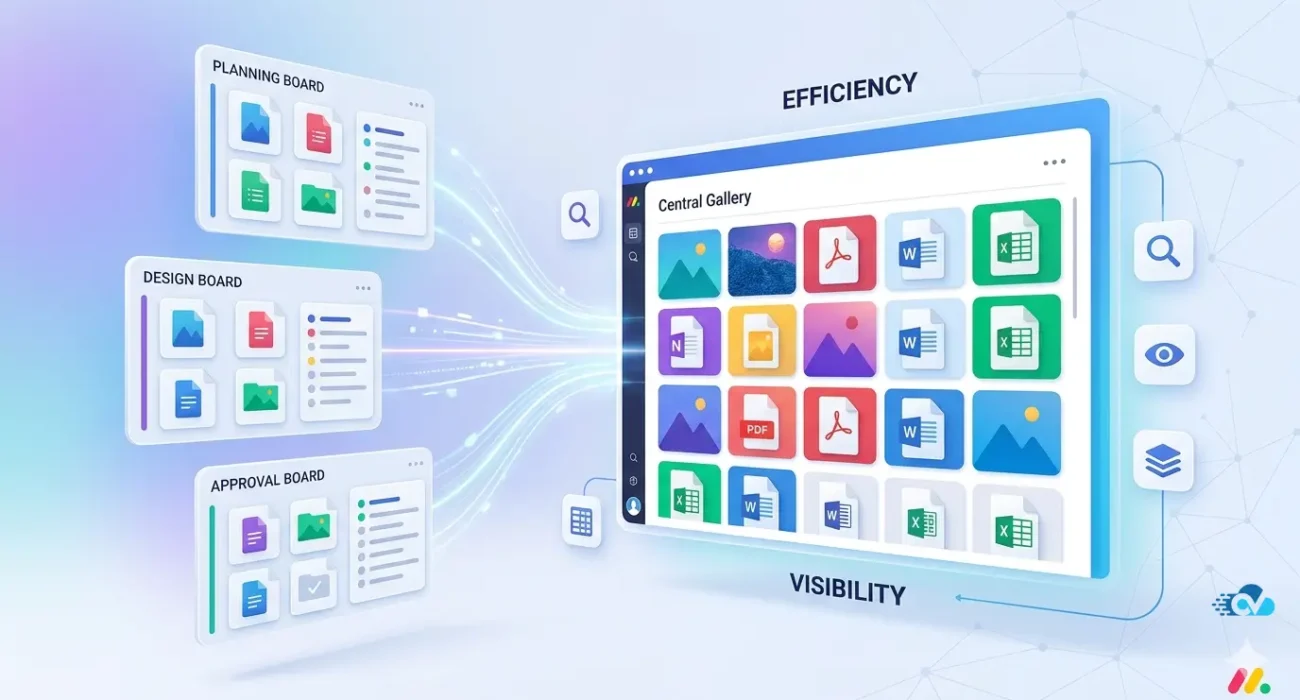
How to View Files Across Multiple Boards in monday.com
If you’ve used monday.com for any serious project management, you’ve probably noticed something interesting about how files behave.
At first, everything feels perfectly organized.
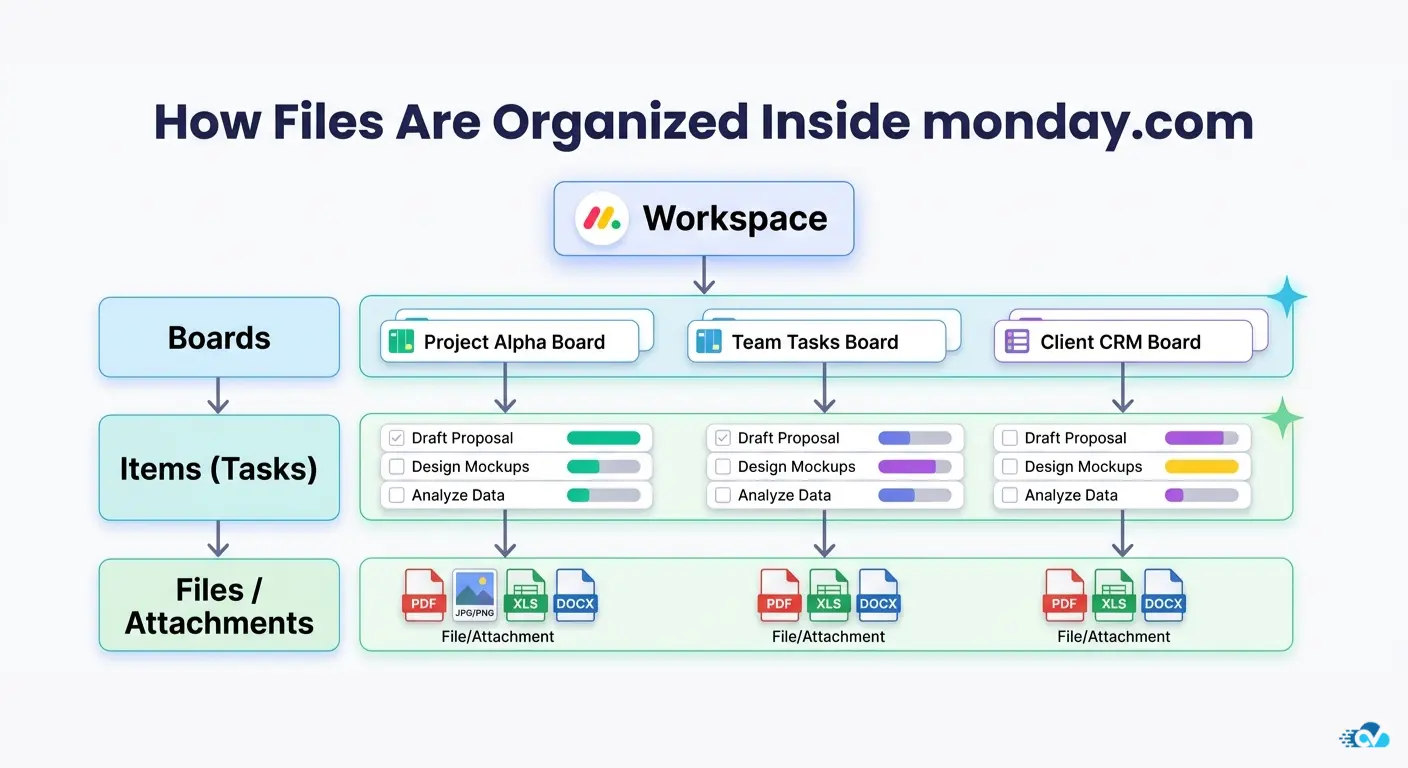
You upload a document to a task, attach design files to a request, or share a contract inside an update. The files stay connected to the work itself, which makes collaboration incredibly intuitive. Team members can open a task and immediately see the files related to that specific piece of work.
For small projects or single-board workflows, this system works beautifully.
But as teams grow and projects become more complex, something subtle begins to happen.
Work starts spreading across multiple boards.
A marketing campaign might have:
- a planning board
- a design production board
- a content approval board
- a client delivery board
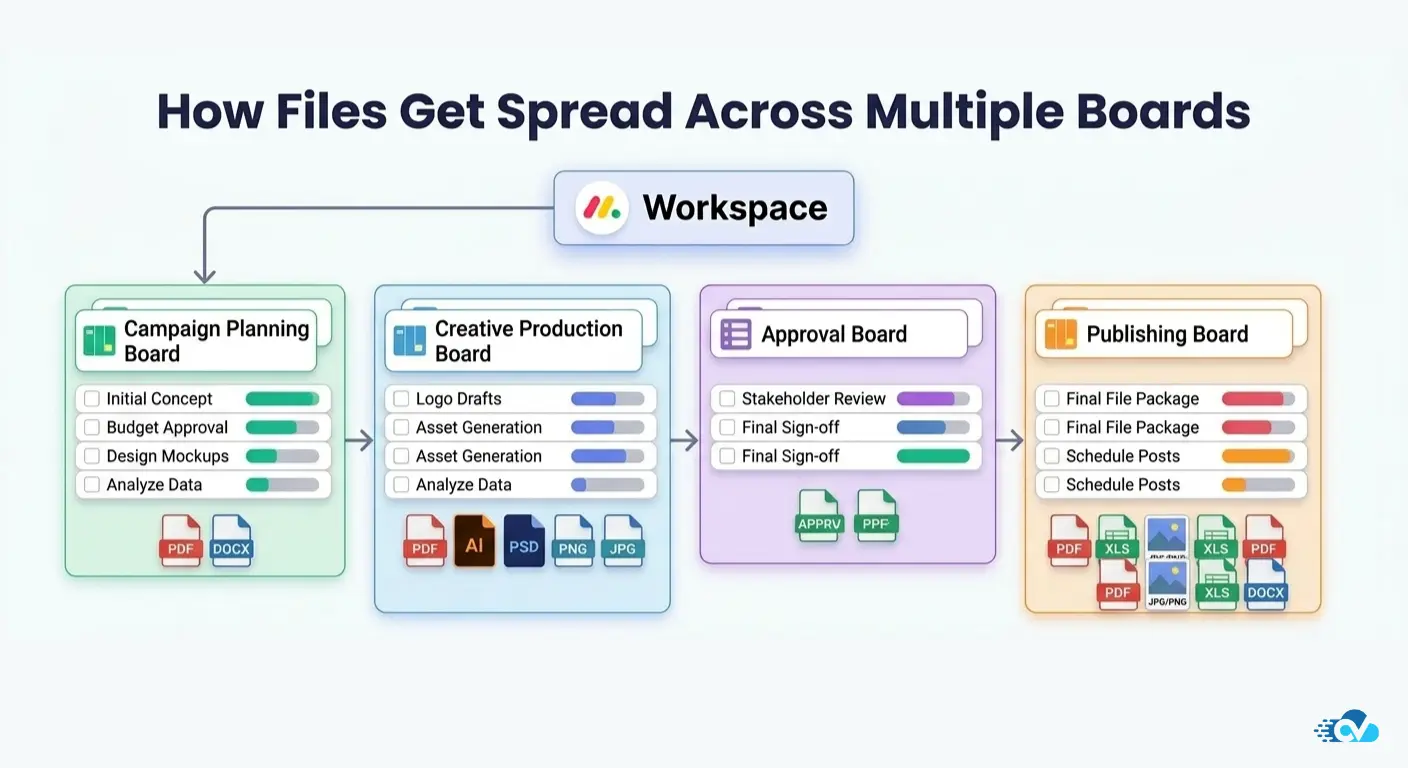
Each board contains its own tasks, updates, and attachments. Files are uploaded everywhere, but they remain tied to the specific items where they were originally attached.
Eventually someone asks a very simple question:
“Where can I see all the files related to this project?”
That’s when many monday.com users begin searching for ways to view files across multiple boards.
In this guide, we’ll walk through:
- how file management works in monday.com
- how the native Files Gallery View helps organize attachments
- why teams sometimes struggle to see files across boards
- and how you can create a centralized file gallery experience for your workspace.
If you’ve ever tried to track down a file uploaded somewhere in your monday.com workspace, this article will likely feel very familiar.
Why Do Files Start Getting Lost in monday.com Projects?
One of the reasons monday.com is so effective as a project management platform is its item-centric design.
Every task lives as an item inside a board. Conversations happen in updates, and files are attached directly to the work being done. This structure keeps information contextual, which is exactly what teams need when collaborating.
For example, imagine a design team managing a website redesign project.
Each design request appears as an item:
- Homepage layout
- Product page design
- Mobile responsiveness update
The designer uploads mockups directly to the item, the marketing manager reviews them in the update section, and feedback stays connected to that task.
In this scenario, files are easy to find because they live exactly where the work happens.
However, most real-world workflows don’t stay inside a single board forever.
As projects evolve, teams begin creating separate boards for different stages of work. A request board might capture incoming tasks, a production board might manage active work, and a review board might track approvals.
When this happens, files start spreading across multiple boards.
The design mockup might live in one board, the approved version might appear in another board, and the final deliverable might be attached to a client delivery task somewhere else.
Individually, each file is still perfectly organized.
But collectively, they become much harder to see in one place.
This is usually the moment when teams begin asking:
“Is there a way to view all files in monday.com without opening every board?”
To answer that question properly, it helps to understand how monday.com’s file system works under the hood.
How Does File Management Actually Work in monday.com?
In monday.com, files are not stored as a separate document library the way they might be in tools like Google Drive or SharePoint.
Instead, files are connected directly to the work items inside boards.
You’ll typically find attachments in three main places:
1. Files Column
The Files column is the most common place to store attachments. Team members can upload documents, images, videos, and other assets directly to an item so that everything related to that task stays together.
For example:
- a proposal document attached to a sales opportunity
- design files attached to a creative task
- invoices attached to finance workflows
Because the files sit inside the column, they remain visible to anyone working on that item.
2. Updates Section
Files can also be uploaded inside the Updates section of an item. This often happens during conversations or when someone shares a quick document during collaboration.
For instance, a team member might comment:
“Here’s the revised version of the presentation.”
…and attach the updated file directly inside the update.
While this is convenient for discussions, it can make files slightly harder to locate later if there are many updates.
3. Files Gallery View
monday.com also provides a Files Gallery View, which allows users to see all attachments from a board in a visual gallery format.
Instead of opening each item individually, the gallery collects files from the board and displays them together.
This is extremely helpful when teams want to:
- quickly preview design assets
- browse uploaded documents
- review visual content from multiple tasks
For many teams, the Files Gallery View becomes the easiest way to see all files inside a board at once.
However, there is one important detail.
The gallery only shows files from that specific board.
And that’s where things start becoming more complicated when projects involve multiple boards.
Is There a Way to View All Files in a monday.com Board at Once?
Yes, and this is where monday.com already provides a very helpful native feature.
If you’ve ever uploaded multiple files to tasks within a board, you might have noticed that opening each item one by one to locate attachments can become time-consuming. monday anticipated this need and introduced a feature called the Files Gallery View.
The Files Gallery View essentially gathers all files attached to items within a board and displays them together in a visual layout. Instead of navigating through individual tasks, you can open a single view and quickly browse every attachment that exists on that board.
For many teams, this instantly improves file visibility.
You can scroll through images, preview documents, and quickly identify which task a file belongs to. If your board contains design assets, marketing creatives, or documents that need quick access, the gallery view becomes a convenient way to review everything without digging through individual items.
Adding this view is also straightforward. Inside any board, you can create a new view and select Files Gallery. Once enabled, the board automatically collects attachments from the Files columns and updates section, organizing them visually.
For teams that primarily work within a single project board, this feature often solves the file visibility problem entirely.
Why the Files Gallery View Is Actually Very Useful
The Files Gallery View is one of those features that many monday.com users discover later, and once they start using it, it becomes surprisingly helpful.
Think about situations where files play a central role in your workflow.
For example:
A design team might upload visual assets for each task.
A marketing team might attach campaign graphics and social media images.
A construction team might store site photos and documentation for different work stages.
Without the gallery view, finding these files would require opening each task individually.
With the gallery view, the board turns into something that feels closer to a visual asset library. Files appear in a grid layout where you can quickly preview images, open documents, and jump directly to the item where the file was uploaded.
This creates several advantages.
First, it improves file discovery. Instead of searching through updates or task descriptions, team members can visually scan the gallery and locate files faster.
Second, it simplifies review workflows. Managers or stakeholders who only want to review uploaded assets don’t need to navigate through every task. They can open the gallery and immediately see what has been uploaded.
Third, it helps maintain context. Each file still remains connected to the task where it originated, which means conversations, comments, and status updates stay organized.
For boards where all the work happens in one place, the Files Gallery View often feels like the perfect solution.
But most real-world workflows don’t stay contained within a single board forever.
What Happens When Work Is Spread Across Multiple Boards?
This is where things begin to change.
As teams grow and workflows mature, it becomes common to split projects into multiple boards. This is usually done to keep processes organized and prevent boards from becoming too complex.
For example, a marketing team managing campaigns might organize their workspace like this:
• A Campaign Planning Board where ideas and strategies are defined
• A Content Production Board where writers and designers create assets
• A Approval Board where stakeholders review deliverables
• A Publishing Board where final content is scheduled and launched
Each board represents a different stage of the workflow.
Files naturally get uploaded at every step.
Design drafts appear in the production board. Revised graphics might be uploaded in the approval board. Final assets could be attached to the publishing board.
Individually, each board still has its own Files Gallery View, which means you can see all attachments from that specific board.
However, there’s one thing many users begin to notice.
If you want to see all project files across the entire workflow, you now have to open multiple boards.
You might check the gallery in the production board, then switch to the approval board, then open another board to locate the final files.
For smaller projects this isn’t a major problem.
But as teams manage dozens of boards across departments, clients, or project stages, file visibility becomes much harder.
This is usually the moment when people start asking a very common question in the monday community:
“Is there a way to see files from multiple boards in one place?”
Can You See Files From Different Boards in One Place?
This is one of the most common questions monday.com users eventually ask.
Once teams begin working across multiple boards, they naturally expect some way to view all project files in a single place. After all, most document management systems allow users to browse files from a centralized location.
But monday.com was not originally designed as a traditional document repository.
Instead, it follows a different philosophy.
Files are meant to live next to the work they belong to. A document attached to a task should remain tied to that specific task, keeping context, comments, and collaboration connected.
This approach works extremely well for task management.
However, when people want to browse files across multiple boards, the experience becomes less straightforward.
At the moment, monday.com does not provide a native workspace-level file gallery that automatically collects files from different boards.
Each board can show its own attachments using the Files Gallery View, but those galleries remain isolated within their individual boards.
So if your project spans several boards, finding files across the entire workflow can require switching between boards and opening multiple galleries.
For small teams this might be manageable.
But for larger teams managing dozens of boards, it can quickly become inefficient.Why Many Teams Expect a Workspace-Wide File View
The expectation for a centralized file view usually comes from how teams structure their workflows.
In many organizations, work rarely stays within a single board.
For example, a creative agency might structure projects like this:
Incoming Requests Board
Where new design or content requests are submitted.
Production Board
Where designers, writers, or developers complete the work.
Review Board
Where managers or clients approve deliverables.
Delivery Board
Where final files are prepared for publishing or client handoff.
Each stage contains different tasks and different attachments.
At any given moment, files might exist in several places:
- early drafts uploaded during production
- revised versions attached during review
- final files uploaded during delivery
From a workflow perspective, this structure makes perfect sense.
But from a file visibility perspective, things become fragmented.
If someone wants to quickly browse every design file for the project, they might need to check three or four different boards.
This is where users often begin wishing for something like:
• a workspace-level file gallery
• a central document library
• a way to visually browse files from multiple boards
In other words, they want to see their project’s files as a collection, not just as individual task attachments.
The Real Challenge: Files Are Tied to Items and Boards
To understand why this happens, it helps to look at how monday.com organizes information.
In monday.com, everything revolves around items inside boards.
Tasks, conversations, updates, statuses, and attachments all belong to specific items. This structure keeps collaboration highly contextual and organized.
But it also means files are stored within that same structure.
When a file is uploaded, it is attached to:
• a specific item
• inside a specific board
The platform does not automatically aggregate those files across the entire workspace.
As a result, files remain distributed across the boards where the work happened.
This design is intentional.
It ensures that documents stay connected to the work they support, preventing files from becoming detached from their context.
However, when teams start working across many boards, the lack of a centralized browsing experience becomes more noticeable.
Users can still find files, but doing so often requires navigating through multiple boards and tasks.
This is why questions about viewing files across boards appear frequently in community discussions and user forums.
Teams aren’t trying to change how monday.com organizes work.
They simply want an easier way to see all their project files in one place.
What Problems Do Teams Face When Files Are Spread Across Boards?
When projects grow across multiple boards, the challenge isn’t that files disappear. They are still stored safely within their respective items.
The real issue is visibility.
Files become distributed across different boards, and locating them quickly can become frustrating. Teams often find themselves clicking through several boards just to find a single document.
Over time, a few common problems start appearing.
1. Files Become Harder to Discover
Imagine you are looking for the latest version of a design asset. You remember it was uploaded somewhere during the production stage, but you’re not entirely sure which board it was attached to.
Was it uploaded during the design phase?
Was it shared again during the review stage?
Or was the final version attached to the publishing board?
Instead of browsing files in one place, you may end up opening multiple boards and checking their galleries individually.
2. Duplicate Files Start Appearing
When teams cannot easily locate existing files, they often upload the same document again.
For example, a designer might attach the same image in both the production board and the review board so stakeholders can access it easily. Over time, this creates multiple copies of the same file across different boards.
This not only increases clutter but also makes it harder to determine which version is the latest one.
3. Teams Lose Track of File Versions
Version confusion is another common issue.
A file might be uploaded as an initial draft in one board, updated in another board, and finalized somewhere else. Without a centralized way to browse files, teams sometimes struggle to identify the correct version quickly.
This is especially noticeable in workflows involving:
- design revisions
- proposal documents
- campaign assets
- product documentation
4. Stakeholders Need Quick Access to Files
Managers or clients often want to review files without navigating through every task or board.
For example, a marketing director might simply want to see all campaign graphics, or a client might want to quickly review all design deliverables.
Without a centralized file gallery, this process can involve opening several boards and scanning through multiple tasks.
What Do People Usually Try First to Fix This?
When teams encounter these challenges, they often try a few common workarounds.
Some of these approaches help temporarily, but they rarely solve the underlying problem completely.
Linking Boards Together
Many users try linking boards so related work stays connected. While board connections are extremely helpful for syncing data such as statuses or timelines, they don’t automatically combine files from multiple boards into a single gallery.
Files still remain attached to the original items.
Manually Uploading Files to Multiple Boards
Another common approach is simply uploading the same file in different boards.
For example, someone might attach a document in both the production board and the review board to ensure everyone can access it.
While this improves accessibility in the short term, it can quickly lead to duplicated files and version confusion.
Using External Cloud Storage Links
Some teams store files in external platforms like Google Drive or OneDrive and then share the links inside monday.com tasks.
This approach can work well for organizations that prefer centralized document storage, but it also means that files are now stored outside the monday.com workspace.
Team members often end up switching between tools to locate the right document.
If you’re interested in deeper strategies for managing cloud storage integrations with monday.com, you can explore our detailed guide on integrating monday.com with Google Drive or OneDrive.
Why Most Workarounds Don’t Fully Solve the Problem
Each of these approaches can improve file accessibility in certain situations, but they don’t fully address the original challenge.
The core issue is that files remain scattered across multiple boards.
Linking boards helps connect data, but it doesn’t merge file galleries.
Uploading the same file in several boards improves accessibility, but it creates duplication.
External storage platforms provide centralized folders, but they separate files from the tasks where the work actually happens.
What many teams are really looking for is something slightly different.
They want a way to browse files visually across multiple boards, while still keeping those files connected to the tasks and workflows where they belong.
In other words, they want the convenience of a centralized file gallery without losing the context that makes monday.com so effective for collaboration.
This is exactly where new approaches to file visibility inside monday.com start becoming useful.
Different Ways Teams Manage Files Across Boards
Once teams start feeling the friction of scattered files, they usually begin exploring ways to make file visibility easier.
There isn’t just one solution. Different organizations solve this problem in different ways depending on how they structure their workflows.
Some focus on better organization inside boards, while others rely on external storage integrations or workflow automation to keep files synchronized across tasks.
Before we look at how to view files from multiple boards in one place, it’s helpful to understand some of the strategies teams already use.
Organizing Files More Intentionally Inside Boards
The simplest improvement many teams make is reorganizing how they upload and manage files within their boards.
When files are attached randomly across tasks and updates, they quickly become difficult to locate. But when teams establish a consistent structure, finding files becomes easier even before introducing additional tools.
For example, some teams create dedicated tasks specifically for storing important documents.
A marketing board might include items such as:
- Brand Assets
- Campaign Graphics
- Approved Content
- Client Deliverables
By attaching files to clearly labeled tasks, teams create small file hubs within the board.
Others rely on consistent naming conventions when uploading files. Instead of uploading documents with generic names like final_version.pdf, they include project names, dates, or version numbers.
While this approach improves organization, it still doesn’t completely solve the challenge of browsing files across multiple boards.
Teams still need to open different boards if they want to see attachments from different stages of a workflow.
Using Cloud Storage Integrations for Centralized Files
Another approach many organizations take is storing files in external cloud platforms while using monday.com primarily for project management.
Tools like Google Drive and Microsoft OneDrive are widely used for centralized document storage because they offer features like:
- shared folders
- version history
- permission management
- structured folder hierarchies
In this setup, monday.com tasks often contain links to files stored in those cloud platforms.
Some teams go further by integrating monday.com with their storage systems so files uploaded in tasks automatically sync with folders in Google Drive or OneDrive.
This allows the organization to maintain a central document repository while still keeping files connected to project workflows.
If you’re interested in learning more about how cloud storage integrations work with monday.com, you can explore our detailed guides on:
- integrating Google Drive with monday.com
- connecting OneDrive to monday.com for document workflows
These approaches can help organizations maintain structured document storage, especially when files need to be shared across departments.
However, even with cloud storage integrations, teams still often want an easier way to visually browse files within their monday workspace itself.
Automating File Movement Between Boards
Another strategy some teams use is automating how files move between boards.
In workflows where items progress through different stages, files often need to follow the work as it moves.
For example, a request might begin in a Design Requests board, move to a Production board, and later appear in a Client Review board.
Ideally, the attachments associated with that task should move with the item so the team doesn’t have to upload the same files repeatedly.
Automation tools can help achieve this by copying, syncing, or moving attachments when items change boards or statuses.
These types of workflows reduce manual work and ensure files stay aligned with the tasks they belong to.
If you’d like to explore how file automation works inside monday.com workflows, we’ve covered it in detail in our guide:
“Automate File Workflows in monday.com: Complete Guide.”
While automation can help ensure files follow the work, many teams still face one remaining challenge:
They want a single place where they can visually browse files from multiple boards.
That’s where a centralized file gallery becomes extremely valuable.
Is There a Way to See Files From Multiple Boards in One Place?
At this point, many monday.com users start looking for something similar to the Files Gallery View, but at a broader level.
They want a view that allows them to:
- browse attachments visually
- preview images and documents
- locate files quickly
- access files from multiple boards
In other words, they want the convenience of the Files Gallery View without being limited to just one board.
This is where tools designed specifically for file visibility across boards begin to make a difference.
Files Gallery Pro was created to address exactly this challenge.
Instead of browsing files one board at a time, it allows teams to create a centralized gallery where attachments from multiple workflows can be viewed more easily.
This means teams can:
• visually browse files across projects
• quickly locate assets without switching boards
• review attachments in a gallery-style layout
• maintain the connection between files and the tasks they belong to
Rather than replacing how monday.com organizes files, the tool enhances visibility by making it easier to explore attachments across your workspace.
For teams managing multiple boards, this creates a much smoother experience when searching for project assets, design files, or documentation.
A Real Case Study: How a Growing monday.com Team Struggled With File Visibility
Over the past few years, we’ve worked closely with many teams using monday.com to manage complex workflows. One particular team we’ve collaborated with for nearly three years offers a great example of how file visibility challenges naturally emerge as organizations scale their operations.
This team runs marketing and creative operations for a fast-growing company. When they first adopted monday.com, their workspace was relatively simple. Most of their work happened inside just a few boards, and files were easy to locate because everything lived in a single place.
But as their operations expanded, their monday.com workspace evolved.
They created separate boards to organize different stages of their projects:
- Campaign Planning Board for strategy and timelines
- Creative Production Board where designers uploaded visual assets
- Content Review Board for stakeholder approvals and feedback
- Publishing Board where final assets were prepared for release
This structure worked extremely well for workflow management. Each team knew exactly where to focus their work, and monday.com provided clear visibility into project progress.
However, as the number of boards increased, another challenge began to surface.
Files were now spread across multiple boards.
Designers uploaded graphics in the production board. Managers attached revised documents in the review board. Final deliverables were uploaded again in the publishing board.
Over time, the team accumulated hundreds of attachments across several boards for each campaign.
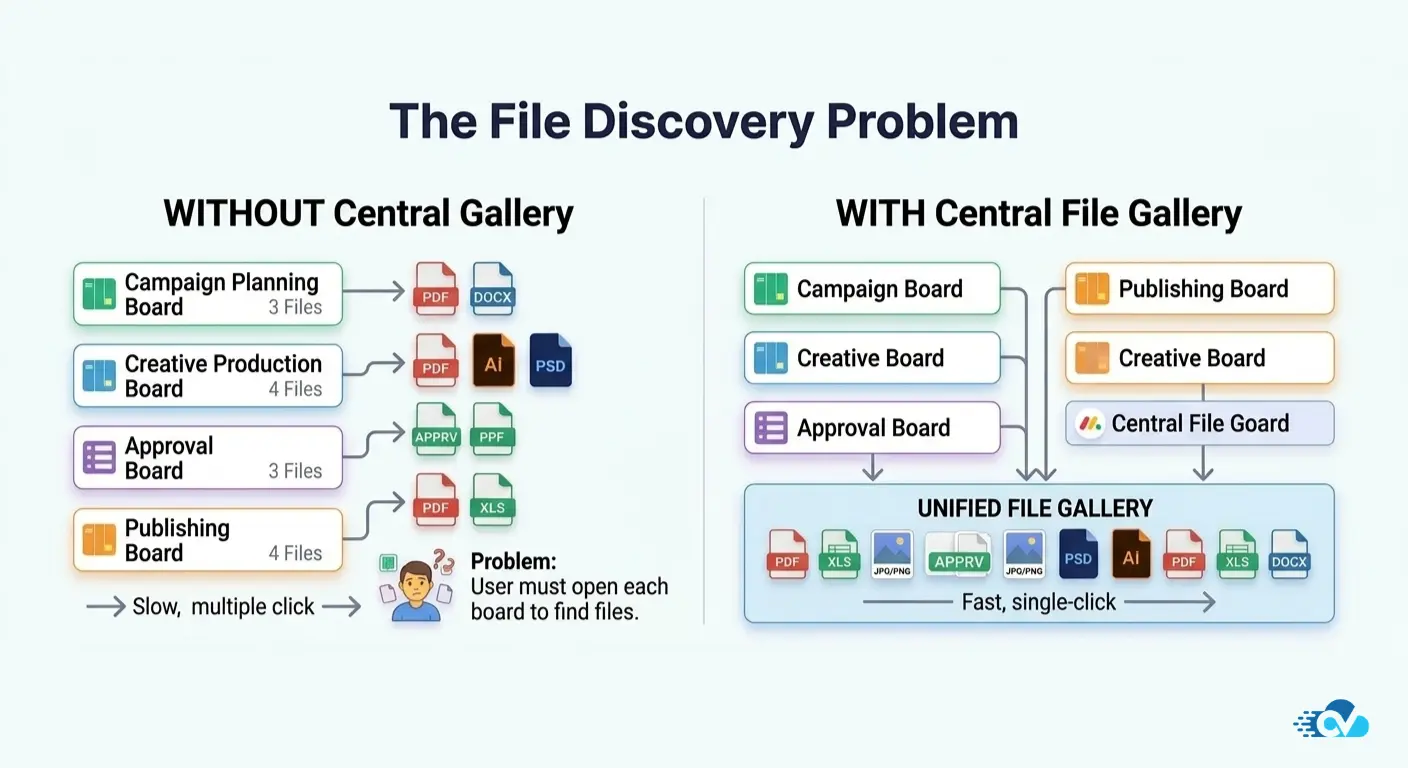
When someone needed to quickly find a specific file, the process often looked like this:
- Open the production board and check its Files Gallery.
- If the file isn’t there, open the review board and check again.
- If it still isn’t found, check the publishing board.
While the files were always stored safely within their respective tasks, browsing them quickly became difficult.
One marketing manager on the team described the experience perfectly:
“We knew the files were in monday somewhere. The problem wasn’t losing them. The problem was figuring out which board they were attached to.”
This is a situation many growing monday.com teams eventually encounter.
As workflows become more structured and distributed across boards, files also become distributed across those boards.
The team didn’t want to change how their workflows were organized. Their board structure worked extremely well.
What they needed instead was a better way to see files across those boards without disrupting their existing workflows.
That’s exactly where centralized file gallery solutions started becoming extremely valuable.
Where the Native File Gallery View Starts Reaching Its Limits
The team we mentioned earlier actually relied heavily on monday.com’s Files Gallery View during the early stages of their workflow.
Within each board, the gallery worked exactly as expected. It collected all attachments uploaded to that board and displayed them in a clean visual layout. Designers could quickly browse images, documents were easy to preview, and stakeholders didn’t need to open every task individually.
For a single board, it was incredibly convenient.
In fact, this is one of the most underutilized features inside monday.com. Many teams don’t realize how useful the Files Gallery View can be for reviewing assets within a project board.
But as the marketing team’s workspace grew and their projects expanded across multiple boards, a subtle limitation started appearing.
Each board had its own gallery.
The production board had one gallery.
The review board had another.
The publishing board had its own as well.
This meant that whenever someone wanted to browse all campaign assets, they had to jump between multiple boards and open each gallery individually.
The feature itself worked perfectly within each board. The challenge was simply that files were now distributed across several boards, and the galleries were not connected.
Over time, the team began wishing for something slightly different.
Not a replacement for the Files Gallery View, but an extension of it.
Something that would allow them to browse files from multiple boards in one place, while still keeping those files connected to the tasks where they were originally uploaded.
That’s when they started exploring tools designed specifically to improve file visibility across boards.
One of the most effective solutions we introduced to them was Files Gallery Pro.
Where the Native File Gallery View Starts Reaching Its Limits
The team we mentioned earlier actually relied heavily on monday.com’s Files Gallery View during the early stages of their workflow.
Within each board, the gallery worked exactly as expected. It collected all attachments uploaded to that board and displayed them in a clean visual layout. Designers could quickly browse images, documents were easy to preview, and stakeholders didn’t need to open every task individually.
For a single board, it was incredibly convenient.
In fact, this is one of the most underutilized features inside monday.com. Many teams don’t realize how useful the Files Gallery View can be for reviewing assets within a project board.
But as the marketing team’s workspace grew and their projects expanded across multiple boards, a subtle limitation started appearing.
Each board had its own gallery.
The production board had one gallery.
The review board had another.
The publishing board had its own as well.
This meant that whenever someone wanted to browse all campaign assets, they had to jump between multiple boards and open each gallery individually.
The feature itself worked perfectly within each board. The challenge was simply that files were now distributed across several boards, and the galleries were not connected.
Over time, the team began wishing for something slightly different.
Not a replacement for the Files Gallery View, but an extension of it.
Something that would allow them to browse files from multiple boards in one place, while still keeping those files connected to the tasks where they were originally uploaded.
That’s when they started exploring tools designed specifically to improve file visibility across boards.
One of the most effective solutions they discovered was Files Gallery Pro.
How Files Gallery Pro Helps Teams View Files Across Multiple Boards
When the team we mentioned earlier began looking for a better way to browse their campaign assets, their goal wasn’t to replace monday.com’s native file management system.
They simply wanted a more convenient way to see their files across boards.
Their workflows were already working well. Each board had a clear purpose, and files were properly attached to the tasks where work was happening.
What they needed was a layer of visibility on top of that structure.
That’s when we introduced Files Gallery Pro into the picture.
Instead of browsing files one board at a time, the team was able to create a centralized file gallery that collected attachments from multiple boards and displayed them in one visual view.
This meant they could now browse files in a way that felt much closer to a traditional document gallery, while still keeping the files connected to their original tasks.
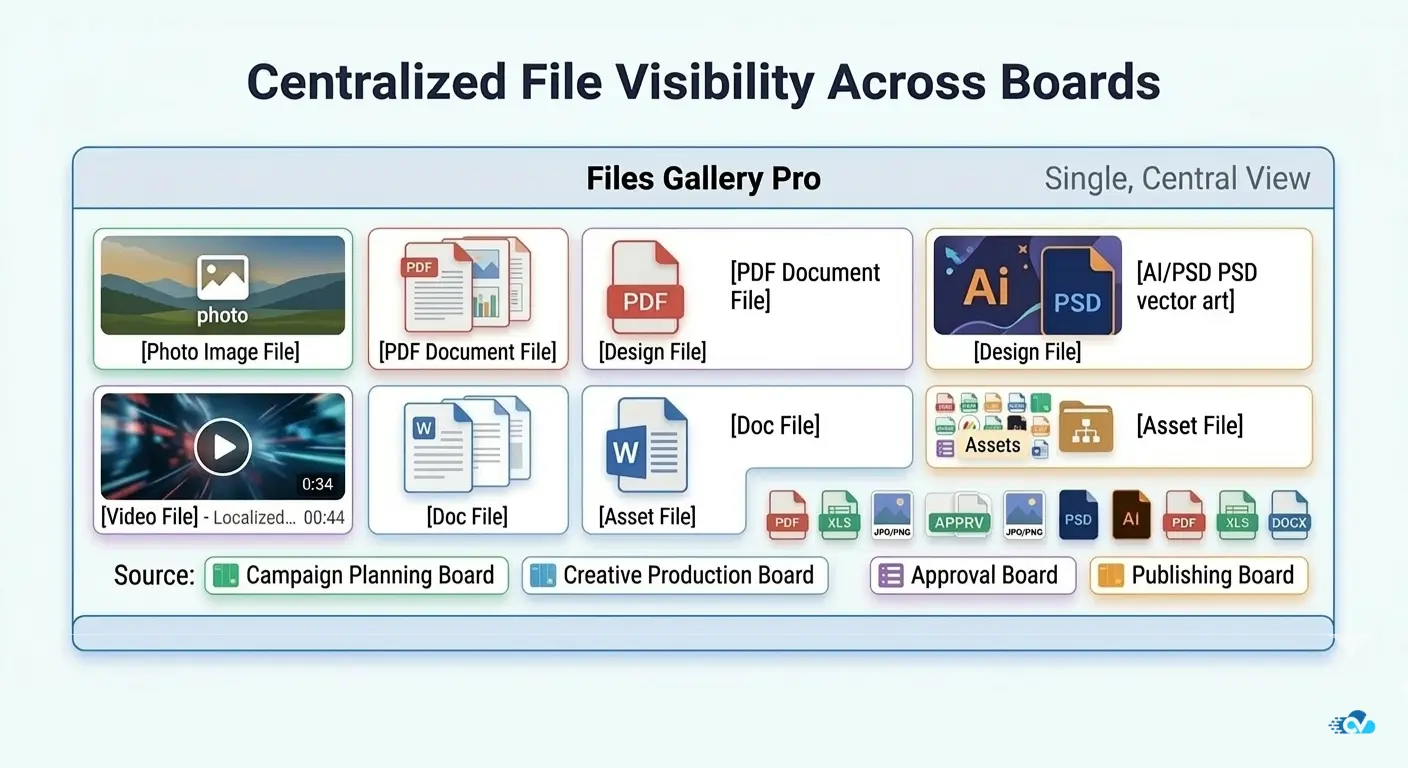
For example, the marketing team could open a single gallery and instantly see:
- campaign graphics uploaded by designers
- presentation decks shared during reviews
- final assets prepared for publishing
- supporting documents attached to tasks
Instead of navigating through several boards, they could visually browse these assets in one place.
The files themselves still remained attached to their respective items inside monday.com, preserving the context of the work.
But from a discovery perspective, the experience became dramatically faster.
What Makes Files Gallery Pro Different
What makes a centralized gallery approach powerful is not just file collection, but how files can be explored visually across workflows.
Teams often manage hundreds or even thousands of attachments inside their monday workspace. Without a visual overview, locating the right file can take longer than it should.
Files Gallery Pro addresses this by creating a gallery-style browsing experience that allows users to quickly scan project assets.
Teams can:
• view files across multiple boards in one place
• visually browse images and documents
• locate project assets faster
• reduce time spent searching for attachments
For teams managing creative work, marketing assets, product documentation, or project deliverables, this type of visibility can significantly improve productivity.
Instead of hunting for files task by task, teams can simply browse their assets visually.
When a Centralized File Gallery Becomes Most Useful
While smaller teams may manage files comfortably within individual boards, centralized file visibility becomes increasingly valuable as workspaces grow.
In our experience working with monday.com teams, file galleries across boards become especially helpful in scenarios like:
Creative and Design Teams
Designers often upload assets across several boards during production and review stages. A centralized gallery helps teams quickly locate graphics, illustrations, and campaign visuals.
Marketing Campaign Management
Campaigns often involve multiple boards for planning, production, approvals, and publishing. A unified gallery makes it easier to browse campaign assets.
Agencies Managing Client Deliverables
Agencies frequently organize client work across several boards. A visual file gallery helps teams quickly review deliverables without opening each board individually.
Product Development Teams
Product documentation, UI mockups, and supporting materials often appear in multiple boards during development cycles.
In all of these scenarios, the challenge isn’t that files are lost.
It’s simply that files become distributed across workflows.
A centralized gallery helps teams bring that visibility back.
Bringing Better File Visibility to Your monday Workspace
monday.com is designed to keep work structured and contextual, which is why files naturally live inside the tasks and boards where work happens.
Features like the Files Gallery View already provide an excellent way to browse attachments within a single board.
But as teams grow and workflows expand across multiple boards, browsing files can require navigating through several galleries.
Many organizations eventually look for ways to make file discovery easier without changing how their boards are organized.
Solutions like Files Gallery Pro provide that extra layer of visibility by allowing teams to explore their attachments across workflows while still preserving the structure that makes monday.com effective.
For teams managing large volumes of files, that additional visibility can make a significant difference in how quickly project assets can be found, reviewed, and share
As teams grow their workflows inside monday.com, files naturally become distributed across different boards.
While attachments remain connected to the tasks where work happens, browsing files across multiple boards can become time-consuming.
The Files Gallery View helps teams review attachments within a single board, but it doesn’t combine files from multiple boards into one gallery.
To improve visibility, many teams explore strategies such as better file organization, cloud storage integrations, workflow automation, or centralized gallery tools.
For organizations managing large volumes of project assets, creating a central place to visually browse files can make file discovery faster and collaboration smoother.
FAQs
Can you view files from multiple boards in monday.com?
By default, monday.com allows users to browse files within a single board using the Files Gallery View. Files from different boards must typically be accessed by opening each board individually.
What does the Files Gallery View do?
The Files Gallery View collects all attachments uploaded to a board and displays them in a visual layout. This makes it easier to review files without opening individual tasks.
Why are files spread across different boards?
In monday.com, files are attached to items inside boards. This structure ensures that attachments stay connected to the tasks and conversations where the work takes place.
How do teams manage files across multiple boards?
Teams often use a combination of board organization strategies, cloud storage integrations, automation workflows, or centralized gallery tools to improve file visibility.
What is the easiest way to browse project files in monday.com?
For teams managing large projects across multiple boards, using a centralized file gallery can make it easier to browse and locate attachments quickly.
File visibility is one of those challenges that quietly grows as teams scale their workflows inside monday.com.
What starts as a simple attachment system eventually becomes a broader need to locate and browse project assets efficiently.
Understanding how monday.com structures files is the first step. From there, teams can adopt the right tools and workflows to keep their documents organized, accessible, and easy to discover.
Enjoyed This Article?
If this guide helped you better understand file management in monday.com, you might enjoy The CloudVandana Weekly.
We share practical tips, platform updates, and workflow ideas to help teams get more out of monday.com.
Consider subscribing to stay updated with new insights and resources.

He is the founder of CloudVandana and is an 8X Salesforce Certified Professional dedicated to crafting custom Salesforce solutions for businesses worldwide. His deep expertise ensures seamless digital transformation and scalable growth for global enterprises.
cloudvandana.com ->Salesforce Experts and IT Services
Appexchange apps
monday.com apps