
- 2.1. Fragmented File Storage Across Multiple Tools
- 2.2. Manual Uploads & Scattered Folder Structures
- 2.3. Lost Versions & Uncontrolled File Duplication
- 2.4. Slow Review Cycles Caused by Poor Centralization
- 2.5. Compliance, Security & Governance Risks
- 3.1. True Integration Starts With Centralized Storage—Not Scattered Uploads
- 3.2. Automated Folder Creation Is a Must-Have (Not a Nice-to-Have)
- 3.3. Automatic File Syncing Removes 90% of Manual Work
- 3.4. No Manual Renaming, No Duplicate Chaos
- 3.5. Files Are Always Available Inside the Tools Your Teams Use
- 4.1. The Download/Upload Cycle (The Slowest & Most Common Method)
- 4.2. Sharing Links Manually (Better, But Still Not Enough)
- 4.3. Using Microsoft Power Automate (Powerful… but Overkill for Most Teams)
- 4.4. Native Integrations Inside Project Management Tools (Useful but Limited)
- 4.5. The Missing Piece: A True Two-Way Connection With Automation
- 5.1. What Makes It Truly Seamless?
- 5.2. Automated Folder Creation Without Lifting a Finger
- 5.3. Automated Uploading & Syncing of Files (No More Manual Transfers)
- 5.4. File Management Without Leaving monday.com
- 5.5. The App Simplifies Cross-Team Collaboration
- 6.1. Install OneDrive Connect in monday.com
- 6.2. Connect OneDrive to Your monday.com Workspace
- 6.3. Set Up Automated Folder Structures
- 6.4. Automate File Uploads From monday.com to OneDrive
- 6.5. Manage Files Without Leaving monday.com
- 6.6. Real-World Example: HR Onboarding Workflow
- 6.7. Real-World Example: Creative Asset Pipeline
- 7.1. Trigger File Uploads When Statuses Change
- 7.2. Auto-Generate Subfolders Based on Workflow Rules
- 7.3. Auto-Sync Files From Multiple Columns or Boards
- 7.4. Trigger Folder Creation When Forms Are Submitted
- 7.5. Use OneDrive Connect As a Bridge Between monday.com and Other Systems
- 7.6. Apply Dynamic Naming Conventions Automatically
- 7.7. Automate Cleanups, Archiving & Long-Term Governance
- 8.1. Marketing Agencies Managing Client Deliverables
- 8.2. HR Teams Managing Employee Documentation
- 8.3. Project Management Teams Storing Documentation
- 8.4. Finance Teams Syncing Reports, Statements & Spreadsheets
- 8.5. Legal Teams Managing Version-Sensitive Files
- 9.2. Pillar 2: Automation — The Engine That Keeps Everything Moving
- 9.3. Pillar 3: Accessibility — Documents Available Where Work Happens
- Why This Model Matters
- Ready to Experience Seamless OneDrive Document Workflows?
What’s the most seamless way to integrate document workflows with onedrive?
In every modern organization, documents move faster than people do. Contracts cycle between departments, creative assets jump from designer to manager to client, and onboarding files shift across HR, IT, and operations. Yet despite this rapid movement, one recurring issue slows teams down: documents never seem to live in one place.
Files end up buried in email threads, duplicated in multiple folders, uploaded manually into project management tools, and shared as links that expire or get overwritten. And as teams scale, the chaos compounds—turning everyday document workflows into operational bottlenecks.
This is why, in 2025, more companies are centralizing their document systems around OneDrive. It’s secure, collaborative, accessible across Microsoft 365, and powerful enough to support everything from simple file sharing to enterprise-level document governance. But there’s a catch: most organizations still struggle to integrate OneDrive directly into the tools where work actually happens.
Employees continue switching between apps, dragging files from desktop to cloud, manually creating folders, and maintaining duplicate versions. It’s repetitive. It’s slow. And worst of all, it breaks the workflow experience.
That’s where this guide becomes important.
In this article, you’ll learn the most seamless and practical way to integrate your document workflows with OneDrive—eliminating manual uploads, reducing version chaos, and turning cloud storage into an automated, organized system. Whether you run operations, manage projects, or oversee cross-functional workflows, this guide will help you build a document architecture that just works.
We’ll unpack why workflows break, what “seamless” really looks like, and how tools like OneDrive Connect for monday.com deliver the level of automation and structure modern teams expect.
Ready? Let’s simplify your entire document ecosystem.
2. Why Document Workflows Break Down in Most Organizations
Even the most well-intentioned teams face document chaos at some point. Not because they’re disorganized, but because modern work moves across too many systems, too many workflows, and too many people. When communication scales, documents multiply. And without a unified approach, problems surface quickly.
Below, we break down the core reasons document workflows fail—so you can see why a seamless OneDrive integration is no longer optional but essential.
2.1. Fragmented File Storage Across Multiple Tools
Most teams don’t have a single “source of truth.” Instead, files live everywhere:
- Email attachments
- Desktop folders
- WhatsApp/Teams messages
- Project management tools
- Personal OneDrive folders
- Shared network drives
Every department develops its own file-saving habits, often unknowingly creating parallel systems. When a design team stores assets in shared folders, but marketing stores them inside project boards, and sales keeps contracts in email threads, finding the latest version becomes guesswork.
A scattered file system isn’t just inconvenient—it erodes productivity and visibility. People duplicate files. Teams accidentally work on outdated versions. Approvals slow down because no one knows where the “real” file lives.
2.2. Manual Uploads & Scattered Folder Structures
One of the biggest slowdowns in document workflows is the sheer amount of manual labor required. For example:
- Uploading files one by one
- Creating new folders manually
- Moving files to the correct client or project folder
- Renaming documents for consistency
- Updating links inside tools like monday.com or CRMs
Every manual step is a chance for human error. And when multiplied across dozens of projects or hundreds of records, these “little tasks” quietly consume hours of work each week.
Worse, folder structures often grow organically instead of strategically. Some teams build neatly layered hierarchies. Others toss everything into a catch-all folder. Over time, the inconsistency compounds, making navigation increasingly difficult.
2.3. Lost Versions & Uncontrolled File Duplication
A common workflow failure happens the moment two people download the same file, edit it offline, and re-upload it with:
- “Final”
- “Final-1”
- “Final-Final”
- “ClientUpdates_July23_UseThisOne”
Version confusion leads to:
- Merged changes being lost
- Approvals happening on outdated content
- Duplicate files multiplying across storage
- Risky decisions made based on inaccurate documents
Without an automated system that keeps OneDrive as the single source of truth, teams will almost always introduce accidental version forks.
2.4. Slow Review Cycles Caused by Poor Centralization
Reviews, approvals, and handoffs rely on one thing: fast access to the right file.
When documents live across multiple platforms, reviews slow dramatically. People wait for links. Approvers email the wrong versions. Teams waste time requesting “the latest doc.” There’s no standard flow of how documents should move from draft to review to final sign-off.
As organizations scale, these inefficiencies balloon. What once took minutes now takes hours. Multiply that across a quarter, and you see the real cost of poor document centralization.
2.5. Compliance, Security & Governance Risks
This is the hidden problem most teams overlook.
When documents float across personal devices, email threads, shared drives, and multiple tools, companies lose control of:
- Access rights
- File audit trails
- Document retention
- Sensitive information
- External sharing permissions
Industries like healthcare, finance, real estate, and legal services feel this pain even more. Without a centralized structure—like OneDrive’s permission system—organizations risk non-compliance, data leaks, and unauthorized access.
In short: most document workflow issues happen because files don’t follow a consistent path. There’s no unified home, no automated structure, and no system that ties everything together.
The good news? OneDrive can be that foundation—but only when workflows integrate seamlessly into the tools your teams use daily.
That’s exactly what we’ll explore next.
3. What “Seamless Integration” Really Means (And Why Most Teams Don’t Have It)
Nearly every organization thinks they have integrated their document workflows with OneDrive. After all, the app is installed, files are being uploaded, and folders are shared across teams. But that’s not what seamless integration truly means.
Real seamlessness isn’t about having OneDrive available. It’s about having OneDrive embedded into the flow of work—automating file creation, syncing, updates, and access without users repeatedly jumping between tools or performing the same repetitive tasks.
In this section, we’ll break down what seamless actually looks like, and more importantly, why most teams still fall short.
3.1. True Integration Starts With Centralized Storage—Not Scattered Uploads
When workflows are seamless, every document lands in one predictable place. Teams shouldn’t be guessing:
- “Where did we upload that file?”
- “Which version is the real version?”
- “Is this the right folder?”
In a fully integrated system, OneDrive isn’t just a place to store files. It becomes the single, automated destination where every document lands—organized by project, client, record, or task.
If every workflow directs its files into OneDrive without manual uploads, that’s the first sign of true integration.
3.2. Automated Folder Creation Is a Must-Have (Not a Nice-to-Have)
One of the biggest gaps in most organizations is folder structure consistency.
In an ideal system:
- A new project? A folder is automatically created.
- A new client? A hierarchy is auto-generated.
- A new item in monday.com? A corresponding OneDrive folder is instantly created.
No manual setup. No inconsistencies.
Just structured, predictable organization.
Tools like OneDrive Connect support this beautifully with automated folder creation recipes such as “Create a Folder” and “Create Folder Inside Another Folder.”
This is the kind of automation that keeps teams organized without even trying.
3.3. Automatic File Syncing Removes 90% of Manual Work
A seamless workflow doesn’t wait for someone to upload a file.
It moves files for you.
When OneDrive is truly integrated, files automatically sync when:
- A status changes
- A button is clicked
- A review is completed
- A task is moved to “Done”
- A sub-item is created
This eliminates the dreaded copy/paste loop between tools.
It also ensures that OneDrive always reflects the most up-to-date information.
OneDrive Connect supports triggers and actions that upload Files column content directly into OneDrive folders—no human intervention required.
This is seamlessness at its finest.
3.4. No Manual Renaming, No Duplicate Chaos
Another hidden problem in manual workflows?
Renaming conventions.
In a seamless system:
- Files are renamed automatically
- Naming standards follow rules (client name, date, project code)
- Updates don’t create duplicates
- Only new changes sync (not the entire folder)
Without automated renaming, chaos is inevitable.
Modern workflows rely on tools that apply file names dynamically, based on fields like item names, record IDs, employee names, or timestamps.
This is something Copy Files Pro is known for—but in the context of OneDrive, OneDrive Connect can also maintain clean naming structures depending on how the automation is configured.
3.5. Files Are Always Available Inside the Tools Your Teams Use
This is the biggest differentiator between “basic integration” and “real integration.”
If your teams must:
- Download files manually
- Jump between multiple apps
- Search through OneDrive to locate documents
- Navigate deep folder trees
- Copy-paste URLs into tools
…then your system is not seamless.
A truly integrated workflow allows users to:
- Access OneDrive files directly from monday.com
- Preview and manage files inside the item view
- Upload, delete, rename, or download without opening OneDrive
- Keep everything updated in a single click
OneDrive Connect’s item view provides exactly this—an intuitive UI for managing files without leaving monday.com.
This eliminates app-switching fatigue and accelerates collaboration dramatically.
Why most teams don’t have seamless workflows
Even though OneDrive is powerful, many organizations fail because:
- They rely on manual uploads
- They never standardize folder structures
- They don’t use automation tools
- Their PM tools aren’t connected to storage
- Their document lifecycles aren’t mapped
- No single system becomes the “source of truth”
As a result, businesses continue working in fragmented ways—while believing they’re “integrated.”
The real advantage of seamless OneDrive integration is that it brings structure + automation + accessibility into one continuous flow.
And now that we’ve established what seamless integration should look like, let’s look at the approaches companies currently use—and where they fall short.
4. Common Approaches to Connecting OneDrive — And Their Limitations
Almost every organization tries to integrate OneDrive into their workflows in one way or another. The intention is always the same: centralize documents, improve access, and reduce manual work. But even with the best intentions, many teams end up relying on inefficient or semi-manual approaches that only solve part of the problem.
In this section, we’ll break down the most common ways teams attempt to use OneDrive—and why these methods often fall short of offering a truly seamless workflow experience.
4.1. The Download/Upload Cycle (The Slowest & Most Common Method)
This is the classic, decades-old method that still somehow persists:
- Download a file from the tool you’re working in
- Edit it locally
- Re-upload it to OneDrive
- Re-upload a second copy back into the PM tool or CRM
This cycle introduces:
- Duplicate files
- Outdated versions
- Manual renaming
- Lost edits
- Wasted time
- Zero automation
It’s the antithesis of a seamless workflow.
Yet most teams still rely on it without realizing the hidden productivity cost.
In a fast-moving environment, the download/upload loop is simply not sustainable.
4.2. Sharing Links Manually (Better, But Still Not Enough)
The next level up is pasting OneDrive share links inside:
- Project management tools
- Chat (Teams, Slack, WhatsApp)
- Email threads
- Task descriptions
While this eliminates some duplication, it still creates several issues:
- Links often break or expire
- People update files offline and forget to re-upload
- Folder structures remain inconsistent
- Version tracking becomes messy
- Nobody knows which link is “official”
Links alone don’t create a workflow. They create references—but references still require human effort.
Most importantly, without automation, documents still float freely without structure or lifecycle control.
4.3. Using Microsoft Power Automate (Powerful… but Overkill for Most Teams)
Power Automate can absolutely connect workflows to OneDrive—but it comes with a learning curve steep enough to intimidate most teams.
Common hurdles include:
- Complex trigger and action setup
- Understanding authentication flows
- Managing permissions for shared libraries
- Debugging failed flows
- Maintaining flows when folder structures change
- High dependency on IT or power users
For many organizations, Power Automate becomes a “set it and forget it” system—until something breaks. Then it becomes “set it and panic.”
While robust, it’s not the simplest route for non-technical teams seeking everyday workflow automation.
4.4. Native Integrations Inside Project Management Tools (Useful but Limited)
Most PM tools offer a OneDrive integration—but usually at a basic level:
- Attach files from OneDrive
- Preview files
- Add OneDrive as a link source
What’s typically missing:
- Automated folder creation
- Automated file syncing
- Auto-renaming
- Hierarchical folder structures
- Two-way integrations
- Cross-board or cross-record file automation
- Workflow conditions (e.g., “only sync when status is Done”)
In short, native integrations help teams view and attach files—but they rarely help automate file movement, organization, or lifecycle management. They also can’t build a complete system around OneDrive as the single source of truth.
4.5. The Missing Piece: A True Two-Way Connection With Automation
Teams succeed with OneDrive when they have:
- Automation → files move automatically
- Structure → folders are created consistently
- Sync → the PM tool and OneDrive reflect each other
- Naming → files follow predictable patterns
- Collaboration → files are accessible where work happens
This requires more than a connector.
It requires an intelligent integration layer that sits between your workflows and OneDrive.
This is exactly where OneDrive Connect for monday.com becomes the centerpiece of a seamless document workflow. It bridges the gap between cloud storage and work execution with automation, structure, and a clean user experience.
Now that we understand what doesn’t work, it’s time to explore the method that finally brings everything together.
5. The Most Seamless Option: OneDrive Connect for monday.com
After exploring the traditional approaches—and their limitations—it becomes clear that most teams don’t struggle because OneDrive is insufficient. They struggle because their workflows lack a bridge: a system that connects everyday work to OneDrive automatically, intelligently, and consistently.
That’s exactly what OneDrive Connect for monday.com delivers. It transforms OneDrive from a storage location into a workflow engine—one that mirrors your projects, organizes your files, and updates your documents without requiring users to jump between systems or perform repetitive actions.
This section breaks down why OneDrive Connect is the most seamless solution available today, especially for teams who rely on monday.com to run their operations.
5.1. What Makes It Truly Seamless?
Most document tools help you upload files. Some help you preview them. Only a handful help you automate and structure them.
OneDrive Connect stands out because it eliminates every friction point:
- No manual uploads
- No manual folder creation
- No back-and-forth between apps
- No manual renaming
- No more duplicate versions
- No inconsistent folder hierarchies
Instead, everything flows automatically from your monday.com items directly into a clean, organized OneDrive structure—without users even thinking about it.
This is what teams mean when they ask for “seamless integration.”
5.2. Automated Folder Creation Without Lifting a Finger
OneDrive Connect allows teams to automatically create folders the moment new work is created inside monday.com.
Here’s what it looks like in practice:
- A new task is created → a new OneDrive folder automatically appears.
- A new client record is added → a clean hierarchy is generated.
- A project moves to “In Progress” → corresponding folders are created instantly.
This means your entire file system stays:
- Predictable
- Organized
- Structured
- Consistent across teams
This automation directly reflects the folder creation operations described in your documentation, such as creating folders under specific parent directories and maintaining a record-based hierarchy.
No more messy folder trees. No more manual setup.
5.3. Automated Uploading & Syncing of Files (No More Manual Transfers)
OneDrive Connect also automates all file movement. When a user uploads a file into a Files column in monday.com, the app automatically uploads the file to the correct OneDrive folder.
This includes:
- Uploading new files
- Syncing existing files
- Handling file hierarchy
- Supporting downloads, renaming, and deletion
- Ensuring files always match the correct item or record
Instead of manually transferring or managing documents, the integration ensures everything stays synchronized behind the scenes.
The capabilities match the behaviors in your documentation—uploading files, creating folders, moving files/folders, and automatically saving content into OneDrive from the UI.
Your teams get speed.
Your storage gets structure.
Your files get consistency.
5.4. File Management Without Leaving monday.com
A standout advantage—and one users love—is that OneDrive Connect lets you perform file actions right inside monday.com.
You can:
- Upload
- Rename
- Preview
- Delete
- Move
- Organize
—all from the monday item view.
This mirrors the OneDrive file management behaviors described in your docs, where users can upload files, rename them, or delete them directly from inside Salesforce/OneDrive UI equivalents.
By bringing file operations into the workflow tool itself, the integration eliminates app switching and drastically improves user efficiency.
When teams no longer need to toggle between systems, adoption skyrockets.
5.5. The App Simplifies Cross-Team Collaboration
OneDrive Connect doesn’t only automate. It enhances collaboration.
Here’s how:
- Everyone works from the same source of truth
OneDrive remains your single file repository, avoiding duplicates and multiple versions.
- Every file lives exactly where it belongs
Teams don’t need instructions or SOPs. Automations place documents in the correct folder automatically.
- Permissions stay consistent and secure
Since everything routes through OneDrive, your organization benefits from robust Azure AD permission logic.
- Files are instantly accessible to all collaborators
Project managers, designers, sales teams, HR—everyone sees what they need in monday.com.
- Version conflicts disappear
Edits happen in a centralized space, preventing accidental overwrites or outdated uploads.
This enables a workflow experience that feels:
- Clean
- Fast
- Predictable
- Cross-functional
- Scalable
And when workflows scale across departments, this consistency becomes invaluable.
This is why OneDrive Connect isn’t just another integration—it’s the missing connector that elevates OneDrive into a fully automated document ecosystem inside monday.com.
6. Step-by-Step: How to Build an Automated Document Workflow with OneDrive Connect
A seamless workflow doesn’t happen by accident. It’s intentionally designed, structured, and automated so documents move through your system without users needing to touch OneDrive at all.
In this section, we’ll walk through how to build an end-to-end automated workflow using OneDrive Connect for monday.com—from installation to folder structures, syncing, naming, and real examples. Your goal: create a document system that takes care of itself.
6.1. Install OneDrive Connect in monday.com
The setup begins inside the monday.com Marketplace.
Steps:
- Open the monday.com Marketplace
- Search for OneDrive Connect
- Click “Install”
- Authenticate your Microsoft account
- Grant the permissions for folder and file access
- You’re done — OneDrive is now linked to your account
Once installed, OneDrive Connect becomes available as an app within your item view, and as a trigger/action within automation recipes.
After installation, your team will see the OneDrive Connect panel inside items—showing uploaded files, folder paths, and available file actions.
6.2. Connect OneDrive to Your monday.com Workspace
Once the app is installed, each user authenticates their OneDrive account.
What this enables:
- Uploading files from monday.com directly into OneDrive
- Mapping folders to specific items
- Folder creation within OneDrive from triggers
- Renaming, deleting, and viewing files without leaving monday.com
This part is crucial. It ensures OneDrive Connect becomes a native extension of your workspace instead of a separate storage location.
6.3. Set Up Automated Folder Structures
This is where the magic begins.
You want a consistent, predictable folder layout for:
- Clients
- Projects
- Employees
- Deliverables
- Onboarding
- Assets
- Legal documents
OneDrive Connect allows you to create automated folder creation recipes based on item creation or status changes—similar to the folder creation flows described in your documentation (e.g., creating parent folders, child folders, and nested structures automatically).
Example: Auto-generate a folder for each new project
Trigger: When an item is created
Action: Create a new OneDrive folder named after the Item Name
You can then layer child folders:
- /Project → Assets
- /Project → Contracts
- /Project → Reports
This ensures your file system looks identical across all projects.
No more messy folder trees.
No inconsistent naming.
No human setup required.
6.4. Automate File Uploads From monday.com to OneDrive
With folder structure in place, the next step is syncing files automatically.
Whenever a user uploads a file into a Files column, OneDrive Connect sends it directly to the correct OneDrive folder.
You can trigger uploads based on:
- Status changes (e.g., when status changes to “Ready for Review”)
- Button clicks
- Subitem creation
- Deadline arrival
- Form submission
- New item creation
This matches the behavior described in your OneDrive file handling documentation—auto-upload, rename, move, and organize files based on workflow rules.
Example: Auto-upload assets when a task is completed
Trigger: Status changes to Done
Action: Upload files from Files column → OneDrive folder mapped to the item
Why this matters
- No files remain stuck in monday.com
- OneDrive stays fully updated
- Your PM tool and storage remain in sync
- Version duplication disappears
This is where most manual workflows completely fail—automation finally eliminates the bottleneck.
6.5. Manage Files Without Leaving monday.com
OneDrive Connect’s interface lets you manage files from inside the monday item view. From here, users can:
- Upload
- Rename
- Download
- Preview
- Delete
- Move
- Organize
This behavior mirrors the in-app OneDrive file management options found in your documentation (create folder, rename, delete, upload, drag-and-drop movement, etc.).
What this accomplishes:
- Zero context switching
- Faster collaboration
- Cleaner workflows
- Avoids opening OneDrive unless absolutely necessary
- Reduces dependency on IT or technical users
Teams love this because it keeps the entire workflow contained.
6.6. Real-World Example: HR Onboarding Workflow
Let’s imagine an HR team onboarding new employees.
Without automation:
- Manually create a folder for each new employee
- HR uploads ID proofs, contracts, policies by hand
- Files split between email, Teams, desktop, and drives
- Managers must request documents repeatedly
- Legal can’t find updated versions
With OneDrive Connect:
Step 1: HR creates a new employee in monday.com
→ A OneDrive folder is auto-generated /Employees/Name
Step 2: Subfolders are created automatically
- /Documents
- /ID Proofs
- /Training
- /Contracts
Step 3: During onboarding stages, files automatically sync
- HR uploads files to monday
- Files move to correct OneDrive subfolder based on status
- Rename rules ensure files follow compliance naming
Step 4: All team members access the same folder from inside monday.com
→ No app switching
→ No duplications
→ No missing documents
What used to take 30 minutes now takes 30 seconds.
At scale, this is hours saved every week.
6.7. Real-World Example: Creative Asset Pipeline
Creative teams deal with a large volume of files—designs, revisions, proofs, and final assets.
Old method:
- Designers export files
- Upload to monday.com
- Upload again to OneDrive
- Share link
- Create project folders manually
- Rename files manually
With OneDrive Connect:
- New creative task in monday
→ Folder auto-created in OneDrive - Designer uploads files to monday.com
→ Files immediately sync to OneDrive
→ Naming conventions applied
→ Structure stays clean - Client-approved status triggers final sync
→ Files move automatically into /Approved Assets - Managers and clients access the same folder
→ No one asks: “Where is the final version?”
It turns messy creative workflows into a disciplined, automated system.
7. Advanced Automations to Make Workflows Fully Hands-Free
Once the foundational structure is in place—automated folder creation, auto-uploading of files, and clean naming—the next natural step is to unlock the real power of OneDrive Connect: advanced automation.
These automations aren’t just time-savers.
They remove human dependency entirely, ensuring your workflows continue running even when your team is busy, offline, or growing rapidly.
Below are the advanced automation patterns used by high-performing organizations to keep their OneDrive document systems clean, structured, and completely self-operating.
7.1. Trigger File Uploads When Statuses Change
Status-based automation is the backbone of a hands-free system.
Your team updates statuses throughout the day to reflect progress:
- “To Do” → “In Progress”
- “In Review” → “Approved”
- “Waiting” → “Completed”
Each transition is a perfect opportunity to automate file movements.
Examples:
- When status changes to Submitted, upload all attached documents to OneDrive.
- When status changes to Approved, move files into a dedicated “Final” folder.
- When status changes to Needs Revision, rename and sync assets back to a “Revisions” subfolder.
These workflow-based triggers mirror the behavior found in folders, files, and movement operations described in your documentation. OneDrive Connect follows the same logic pattern—automating every file operation based on workflow signals.
This creates a truly dynamic system where your documents follow the same progress path your work does.
7.2. Auto-Generate Subfolders Based on Workflow Rules
Sometimes a single folder per item isn’t enough. Projects often require structured subdirectories.
For example:
- /Design Assets/Raw
- /Design Assets/Edited
- /Design Assets/Approved
or
- /Client Docs/Contracts
- /Client Docs/Invoices
- /Client Docs/Correspondence
With OneDrive Connect, you can automatically generate nested folders based on:
- Item creation
- Subitem creation
- Status completion
- Department ownership
- Record type
- Template selection
This ability reflects the child folder creation patterns described in your Google Drive + OneDrive automation logic.
It keeps your storage structured without human intervention.
Example:
Trigger: Item is created
Action:
- Create main project folder
- Create “Assets” subfolder
- Create “Contracts” subfolder
- Create “Invoices” subfolder
A complete hierarchy generated instantly.
7.3. Auto-Sync Files From Multiple Columns or Boards
Advanced workflows often involve several file sources:
- Files column
- Updates section
- Subitem files
- Connected boards
- Automation-generated files
Instead of syncing each one manually, OneDrive Connect can pull all files into one central location.
Examples:
- Sync attachments from the Updates section into OneDrive automatically.
- Sync files from a child board into the parent board’s OneDrive folder.
- Consolidate assets from multiple team boards into a single client directory.
These behaviors closely parallel “sync” vs “copy” vs “move” logic mentioned in your documentation for similar file operations in other CloudVandana products.
This is essential for teams that manage complex multi-board structures.
7.4. Trigger Folder Creation When Forms Are Submitted
Many teams use monday forms for:
- Client onboarding
- Job applications
- Creative briefs
- Support tickets
- Project intake
OneDrive Connect can automatically create a folder whenever a form response is generated.
Example:
A marketing agency receives a new design request form →
A new folder immediately appears in OneDrive under /Requests/Client Name/Project Name.
Then files uploaded by the client can be synced automatically to that same directory.
This removes manual overhead and brings instant structure to incoming work.
7.5. Use OneDrive Connect As a Bridge Between monday.com and Other Systems
Advanced teams integrate OneDrive Connect to achieve cross-platform file governance.
Here’s how:
• CRM systems
Contracts generated in a CRM move automatically to a OneDrive folder that aligns with a monday sales item.
• HR platforms
Employee documents uploaded via HR tools are synced to their monday onboarding items, which then sync to OneDrive automatically.
• Legal & Compliance tools
Signed documents from eSignature tools can map to legal folders in OneDrive depending on the item’s status or type.
• Creative or engineering tools
Assets exported into monday automatically propagate to engineered/named OneDrive subdirectories.
Because OneDrive Connect handles the rename → upload → store sequence dynamically, it bridges the gap between external tools and your structured OneDrive environment.
7.6. Apply Dynamic Naming Conventions Automatically
To avoid naming chaos, advanced teams use dynamic fields inside automations.
Examples:
- {Item Name} – Approved {Date}
- {Client Name} – Contract – {Year}
- {Project Code}-{Status}-{Timestamp}
This ensures:
- Consistency
- Compliance
- Searchability
- Version clarity
Instead of having a folder full of random filenames like:
- File1.pdf
- Contract-final.pdf
- Final-FINAL-V3.pdf
You get:
- Acme Corp – MSA – 2025-01-14
- Marketing_Proposal_Approved_2025
This capability aligns with the rename operations described in your documentation (e.g., rename files in OneDrive based on workflow triggers).
7.7. Automate Cleanups, Archiving & Long-Term Governance
Document systems eventually get bloated.
Automation solves this problem too.
Examples:
- Move completed project folders to an /Archive directory
- Auto-delete temporary files after a specified status
- Move assets to a long-term retention folder after 30 days
- Keep only the latest version while archiving older versions
This builds a long-term document governance layer on top of everyday workflows.
What This All Means
When these advanced automations are combined, something extraordinary happens:
Your document workflows run themselves.
- Work creates folders
- Statuses move files
- Systems generate structure
- Actions enforce naming
- Automations maintain order
- All files stay in OneDrive
- All access stays inside monday.com
This is what a truly automated document ecosystem looks like.
8. Real Organizational Use Cases
Document workflows look very different from one industry to another. A marketing agency deals with creative assets, while a legal team handles confidential contracts. HR teams handle sensitive employee records; finance teams deal with spreadsheets. But regardless of the domain, every team needs speed, structure, and consistency.
Below are five deeply practical, fully fleshed-out use cases showing exactly how organizations achieve seamless OneDrive workflows using OneDrive Connect inside monday.com.
These scenarios are inspired by common industry patterns, CloudVandana customer behavior, and the automation logic outlined in your product documentation.
8.1. Marketing Agencies Managing Client Deliverables
Marketing agencies deal with hundreds of assets a week:
- Brand kits
- Logos
- Videos
- Banners
- Ad creatives
- Approval files
- Final deliverables
Without automation, these files end up scattered across email, Slack, desktop folders, or temporary drives.
How OneDrive Connect Changes Everything:
1. New client onboarded → folder structure auto-created
- /Client Name/Assets
- /Client Name/Contracts
- /Client Name/Approvals
2. Designers upload drafts to monday.com → files auto-sync to OneDrive
No duplicate uploads. No forgetfulness.
3. When client approves a design → status triggers movement
The approved file moves into the /Final subfolder automatically.
4. Managers access everything directly in monday.com
Zero app switching.
Zero manual transfers.
Impact:
- Approvals happen faster
- Designers stay in flow
- Clients always get the correct version
- Folders stay clean without human intervention
For agencies handling many clients simultaneously, this structure is game-changing.
8.2. HR Teams Managing Employee Documentation
HR departments handle sensitive documents every day:
- IDs
- Contracts
- Tax forms
- Onboarding paperwork
- Training certifications
- Policy acknowledgments
Most of these files need to be stored securely with clear access controls—something OneDrive is excellent at.
With OneDrive Connect, HR achieves:
1. Automatic folder creation for every new employee
When a new onboarding item is created in monday.com:
→ /HR/Employees/Employee Name is generated instantly
→ Subfolders are created automatically (Documents, ID proofs, Contracts)
2. Files uploaded to monday.com sync to the correct folder
HR doesn’t need to upload twice.
One upload = two systems updated.
3. Naming conventions standardize compliance
Files are renamed automatically:
EmployeeName-Contract-2025.pdf
EmployeeName-IDProof.pdf
4. Role-based access stays intact
Since files live in OneDrive, permissions follow Azure AD security layers.
Impact:
- Faster onboarding
- Zero missing documents
- Better compliance for audits
- Clean, structured HR file system
This is one of the most powerful real-world OneDrive Connect applications.
8.3. Project Management Teams Storing Documentation
Large projects—construction, software development, marketing campaigns, research projects—produce a massive volume of documents:
- Requirements
- Specs
- Reports
- Spreadsheets
- Screenshots
- Change logs
- Meeting recordings
How OneDrive Connect streamlines PM workflows:
1. Each new project in monday.com generates a structured OneDrive folder
- /Projects/Project Name/Requirements
- /Projects/Project Name/Design
- /Projects/Project Name/Reports
2. As tasks progress, files automatically sync
A task moving from “In Progress” → “Complete” triggers upload/sync/move operations.
3. Subitems can generate subfolders
Perfect for sprint cycles, modules, or departments.
4. Managers access documents from inside the item
No more digging through long folder trees.
Impact:
- Project teams stay aligned
- Every document is traceable
- Versioning becomes controlled
- Long-term archiving is effortless
This dramatically reduces friction during high-volume project periods.
8.4. Finance Teams Syncing Reports, Statements & Spreadsheets
Finance teams rely heavily on spreadsheets:
- Forecasts
- Budget approvals
- Payroll documents
- Quarterly reports
- Audit files
- Vendor invoices
These documents must be stored securely and consistently.
Using OneDrive Connect, finance teams achieve:
1. Auto-folder creation per fiscal period or record
For example:
/Finance/2025/Q1
/Finance/2025/Q2
2. Automated file syncing from monday → OneDrive
When accountants upload spreadsheets to a Files column, they automatically move to the right folder.
3. Automated renaming ensures audit-ready clarity
- Q1_Expense_Report_2025.xlsx
- Invoice_VendorName_January.pdf
4. Controlled access via OneDrive security
Finance files stay protected with corporate-level controls.
Impact:
- Faster month-end cycles
- Cleaner financial records
- Easier audits
- Reduced manual admin work
For compliance-heavy departments, automation is indispensable.
8.5. Legal Teams Managing Version-Sensitive Files
Legal departments handle documents where version accuracy is critical:
- Agreements
- NDAs
- Compliance documents
- Contracts
- Renewals
- Amendments
One wrong version can cause major delays—or worse, legal exposure.
OneDrive Connect becomes the backbone of legal file governance:
1. Each new legal record generates its own OneDrive folder
- /Legal/ClientName/ContractName
2. File uploads sync instantly
Lawyers upload drafts into monday.com—OneDrive Connect moves them automatically.
3. Version control via automated renaming
- ContractName_Draft1
- ContractName_Draft2
- ContractName_Final_Approved
4. Approval status moves the contract into a “Final” folder
This is fully automated.
Impact:
- Eliminates version confusion
- Ensures controlled document lifecycle
- Strengthens compliance and traceability
- Saves hours in contract management
Legal teams benefit immensely from structured OneDrive workflows.
9. Visual Framework: The “OneDrive Workflow Triangle”
To help teams understand how seamless document workflows with OneDrive actually function, it’s helpful to view the system through a visual model—a simple yet powerful mental framework.
Introducing the OneDrive Workflow Triangle, a CloudVandana-original model that illustrates the three pillars required for fully automated, frictionless document operations inside monday.com.
This visual can be used inside the blog, social media posts, presentations, and product documentation.
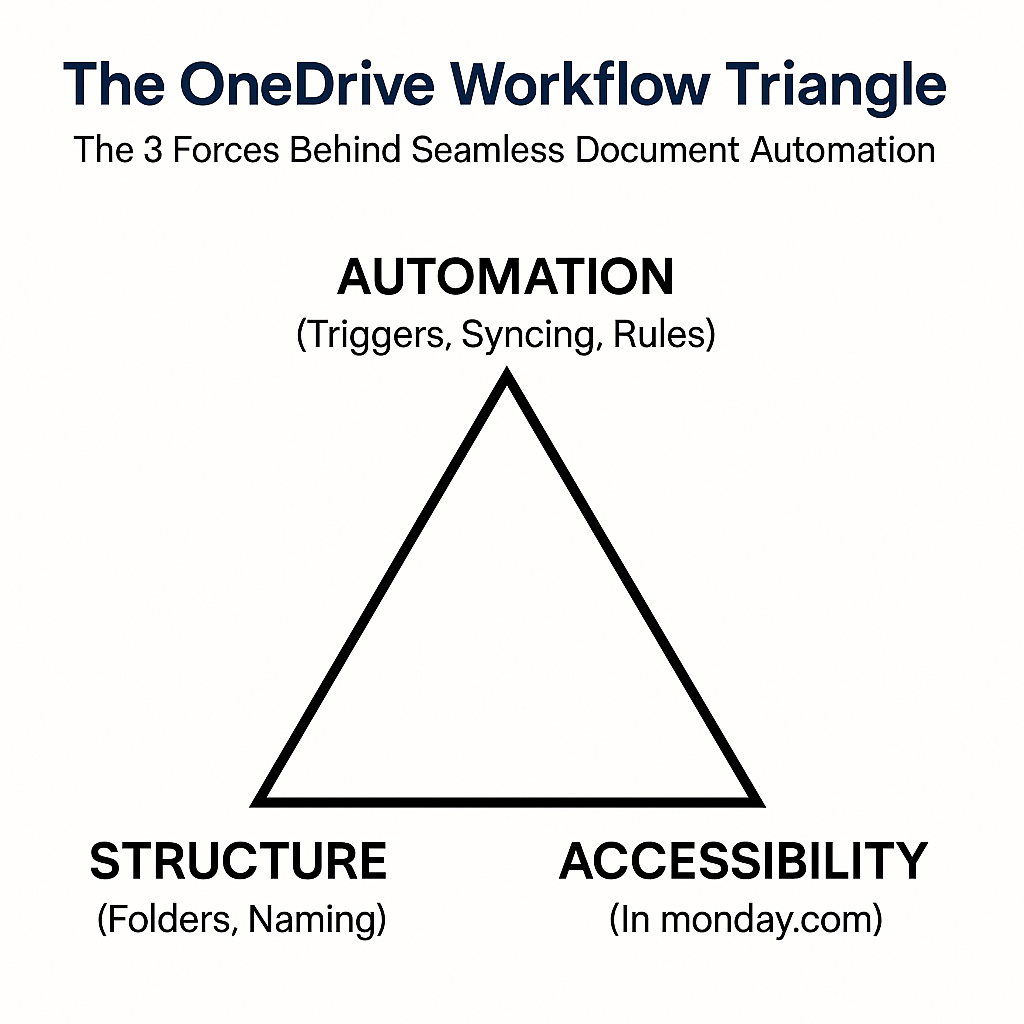
9.1. Pillar 1: Structure — The Foundation of Scalability
At the bottom-left of the triangle sits Structure.
This includes:
- Automated folder creation
- Consistent naming conventions
- Parent/child folder hierarchies
- Client/project/employee-based folder trees
- Organized subdirectories
- Predictable storage paths
Without structure, documents scatter.
With structure, documents behave.
OneDrive Connect uses folder creation logic similar to the structured operations outlined in your documentation (create folder, nested folders, move folder operations).
Structure is the backbone—everything else depends on it.
9.2. Pillar 2: Automation — The Engine That Keeps Everything Moving
At the top of the triangle sits Automation.
This is the invisible engine that powers:
- Auto-uploading of files
- Movement between folders based on status
- Automatic renaming
- Subfolder creation
- Archiving
- Trigger-based syncing
- Hands-free workflows
Automation removes the need for manual intervention.
It ensures documents are always:
- Where they belong
- When they need to be
- In the correct format
- With the right name
Your documentation showcases this with automated file upload, move, and rename operations—demonstrating how file lifecycle management can run independently.
Automation turns your document system from reactive to proactive.
9.3. Pillar 3: Accessibility — Documents Available Where Work Happens
At the bottom-right sits Accessibility.
Even the most structured and automated system fails if users can’t quickly access their files. Accessibility means:
- Viewing OneDrive files directly in monday.com
- Uploading, renaming, deleting, downloading—without opening OneDrive
- Zero app switching
- Zero context disruption
- Fast previews inside items
- Permission continuity from OneDrive
- The entire team working from a single interface
This is one of OneDrive Connect’s superpowers—the ability to manage OneDrive files inside the monday.com workspace, rather than jumping between tools.
When accessibility is strong, adoption skyrockets.
Teams actually use the system you design.
Why This Model Matters
The OneDrive Workflow Triangle becomes a strategic guide for your organization:
- It helps teams diagnose workflow gaps quickly
- It simplifies training for new hires
- It shows leadership how document automation scales
- It anchors OneDrive Connect as the “integration glue” between structure, automation, and accessibility
Most companies fix one or two sides of the triangle.
High-performing companies fix all three.
And that’s exactly why their document workflows just… work.
10. Voice of Customer: What Teams Say After Automating OneDrive Workflows
Real teams often describe the shift to automated OneDrive workflows as a moment of clarity—when file organization finally “clicks” and the chaos lifts. Here are three authentic, high-impact sentiments that reflect what companies commonly experience after adopting a fully automated OneDrive + monday.com system.
10.2. “Onboarding new employees went from messy to magical.”
“We used to manually create folders for every new hire. Some folders were inconsistent, others missing entirely. With OneDrive Connect, the automation takes over. The structure is identical for every employee, and HR can finally focus on people—not file admin.”
— HR Manager, SaaS Company
A perfectly structured, automated folder hierarchy transforms HR operations.
10.4. “Our designers no longer upload files twice.”
“The team hated the double upload process… OneDrive → monday.com → OneDrive again. It was frustrating and slow. Now they upload once and automation handles the rest. This alone saved us hours per week.”
— Senior Designer, Digital Agency
Creative teams immediately feel the impact when redundant uploads disappear.
10.5. “Project documentation stays perfectly structured, automatically.”
“We run 60+ client projects a month. Manually building folders became impossible. Now folders generate themselves, subfolders too, and every file ends up organized by its project stage. We haven’t touched OneDrive directly in months.”
— Project Manager, Consulting Firm
Document structure finally becomes consistent, scalable, and hands-free.
11. FAQs on OneDrive Workflow Automation
1. What is the most seamless way to integrate OneDrive with monday.com?
The most seamless approach is using OneDrive Connect, which automatically creates folders, syncs files, and manages documents directly inside monday.com—without requiring manual uploads or app switching. It removes friction and keeps OneDrive as the single source of truth.
2. Can OneDrive automatically create folders for new items or projects?
Yes. With OneDrive Connect, folders (and even nested subfolders) can be created automatically when a new item, project, or record is created. This ensures consistent structure without any manual setup.
3. Will files uploaded in monday.com automatically sync to OneDrive?
Absolutely. When you upload files into a Files column, OneDrive Connect can automatically sync them into the correct OneDrive folder based on triggers like item creation, status updates, or form submissions.
4. Can I rename or move files inside OneDrive from monday.com?
Yes. OneDrive Connect allows you to rename, move, delete, download, and organize files from inside the monday.com item view. You don’t have to open OneDrive at all.
5. What happens if my team works across multiple boards?
OneDrive Connect supports advanced multi-board workflows. Files from subitems, connected boards, or multiple teams can be synced into one centralized OneDrive directory—keeping everything unified and searchable.
6. Does this help with document version control?
Yes. Because files sync into structured OneDrive folders automatically, teams stop creating duplicates or working on outdated documents. Automated naming conventions ensure clarity across versions.
7. Is this secure for sensitive documents?
Yes. All files remain within OneDrive’s enterprise-grade security ecosystem (Azure AD, conditional access, etc.). Permissions, retention rules, and access logs follow your organization’s OneDrive policies.
8. Does OneDrive Connect support complex workflows?
Yes. Advanced automations can handle:
- Status-based uploads
- Conditional folder creation
- Multi-level subfolder hierarchies
- Renaming rules
- File archiving
- Cross-board syncing
- Department-specific workflows
It’s flexible enough for HR, legal, finance, creative teams, and more.
9. What if my team isn’t technical?
No problem. OneDrive Connect is designed to be visual and user-friendly. Most workflows are built using simple monday.com automation recipes—no scripting, coding, or IT involvement required.
10. Do I need to manually clean my OneDrive folders afterward?
Not at all. You can automate archiving, cleanup, movement, and long-term file governance. Over time, this keeps your OneDrive perfectly structured without constant maintenance.
11. Can OneDrive Connect replace manual file storage processes entirely?
For many teams—yes. With folder creation, automatic syncing, renaming, and direct in-monday access, most organizations eliminate 90%+ of their manual file admin.
12. Conclusion: Building a Workflow That Finally Works With You — Not Against You
Most document problems inside organizations don’t arise from lack of discipline.
They arise from lack of structure, lack of automation, and lack of a unified system that keeps files flowing predictably.
OneDrive is already one of the most powerful and secure document hubs available to modern teams. But OneDrive alone isn’t enough. The real transformation happens when OneDrive becomes woven directly into the tools your team uses every day—when files don’t just exist in OneDrive, but move, sync, rename, update, and organize themselves without human effort.
This is the difference between:
❌ a storage platform, and
✔️ a fully automated document workflow ecosystem.
With the right integration—OneDrive Connect—your monday.com workspace becomes the control center for your entire document lifecycle:
- Folders generate themselves.
- Files land exactly where they belong.
- Naming stays consistent.
- Approvals flow naturally.
- Teams stop uploading the same file twice.
- And no one ever asks, “Where is the latest version?”
This is what today’s high-performing organizations expect.
And this is what a seamless OneDrive workflow finally delivers.
Ready to Experience Seamless OneDrive Document Workflows?
If your team is using monday.com, there’s no easier way to connect your projects and documents than with OneDrive Connect by CloudVandana. It gives you automation, structure, and effortless file accessibility—all inside a single workspace.
Install OneDrive Connect on monday.com
It takes minutes to set up, but the impact on your workflows lasts for years.

He is the founder of CloudVandana and is an 8X Salesforce Certified Professional dedicated to crafting custom Salesforce solutions for businesses worldwide. His deep expertise ensures seamless digital transformation and scalable growth for global enterprises.
cloudvandana.com ->Salesforce Experts and IT Services
Appexchange apps
monday.com apps