
- 1. Should files be stored in monday.com or Google Drive?
- 2. Why do teams store files in Google Drive instead of monday.com?
- 3. Can monday.com integrate with Google Drive?
- 4. How do teams automatically create Google Drive folders from monday.com?
- 5. How do teams sync files from monday.com to Google Drive automatically?
- 6. What is DriveConnect for monday.com?
- 7. What can DriveConnect automate inside monday.com?
- 8. Why do teams connect monday.com and Google Drive using DriveConnect?
- 9. Is DriveConnect useful for project-based workflows?
- 10. What is the best file management setup for teams using monday.com?
- Enjoyed This Article?
The Top 5 Benefits of Storing Your Files in Google Drive Instead of monday.com
Over the past few years, monday.com has become the operational hub for many teams. Projects are planned there, tasks are assigned, timelines are tracked, and team communication happens inside boards and updates. For many organizations, monday.com is where work happens every day.
As teams become more comfortable using monday.com, they naturally start uploading files directly into boards. Documents get attached to items, designs are uploaded in updates, reports are stored in file columns, and presentations are shared within project boards. At first, this feels convenient because everything related to a task is stored in one place.
However, as months pass and projects accumulate, teams often start noticing a different problem. Files become scattered across boards and items, storage usage increases quickly, duplicate files appear, and finding the latest version of a document becomes difficult. Teams begin to spend more time searching for files instead of working on projects.
This usually leads to an important realization. monday.com is an excellent platform for managing work, but it is not designed to be a full document storage and file management system. Work management and file management are two different things, and they work best when handled by different systems.
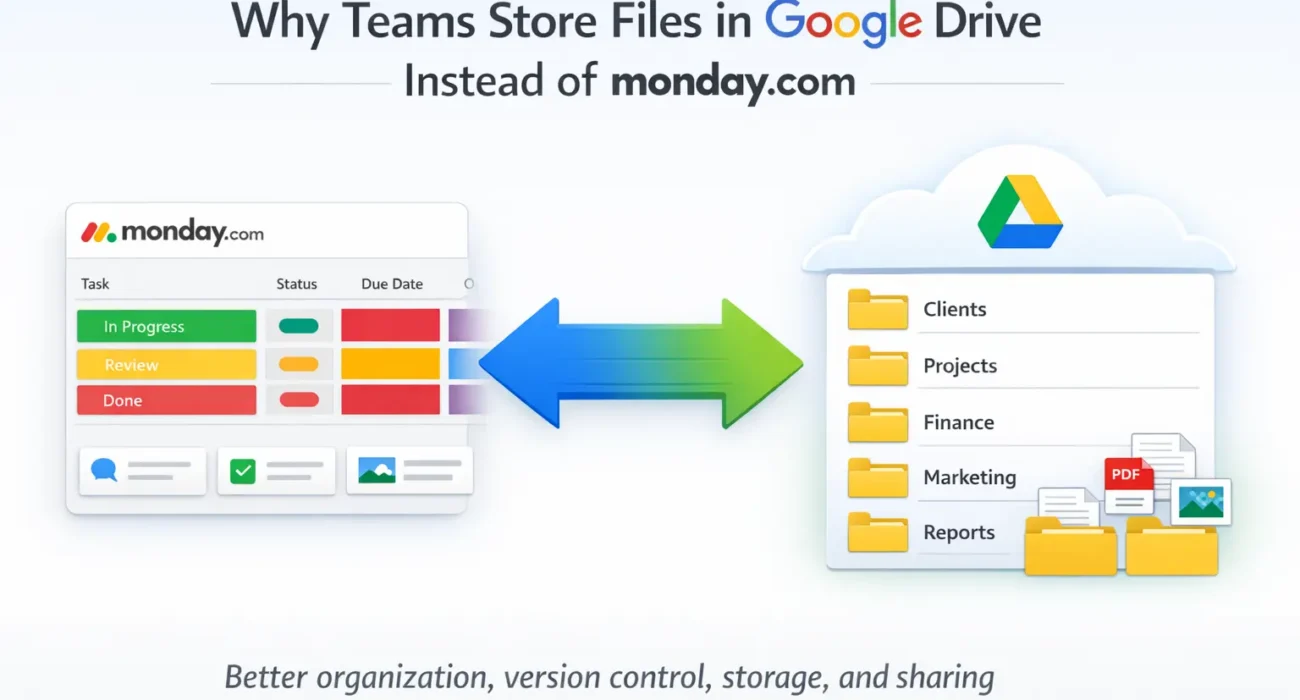
This is why many organizations adopt a more structured approach. They manage projects and workflows in monday.com, but store their files in Google Drive. In this setup, monday.com manages the work, and Google Drive manages the documents. This separation keeps projects organized, files structured, and storage under control.
In this article, we will look at the top five benefits of storing files in Google Drive instead of directly inside monday.com, and why this approach works better for growing teams.
Why File Management Becomes Difficult Inside monday.com
When teams first start using monday.com, file management usually isn’t a problem. Projects are new, boards are clean, and only a few files are uploaded for each task. Everything feels organized and easy to manage.
But as teams continue working in monday.com for months or years, the number of files grows quickly. Every project generates documents, presentations, images, PDFs, reports, contracts, and other assets. Each team uploads files in different places depending on how they work.
Some files are uploaded to file columns.
Some are attached to updates.
Some are uploaded to items.
Some are stored across multiple boards.
Over time, this creates a situation where files are technically stored inside monday.com, but they are not really organized in a structured way. They are simply attached to work items.
This leads to several common problems that many monday.com users eventually experience.
First, files become scattered across multiple boards and items. If someone needs to find a document from an old project, they often have to remember which board the project was on, then which item the file was attached to, and then scroll through updates or files to locate it. This process can take much longer than expected.
Second, duplicate files start appearing. Because there is no central document repository, teams often upload the same file multiple times in different boards or items. Over time, this creates confusion about which file is the latest version.
Third, storage usage increases quickly. Large files such as videos, design files, presentations, and product images consume storage space rapidly. Many teams eventually run into storage limits and have to either upgrade their plan or start deleting older files.
Fourth, sharing files with external clients or partners becomes inconvenient. Files stored inside boards are tied to monday.com users and permissions, which is not always ideal when working with external stakeholders.
None of these issues mean monday.com is doing something wrong. These issues happen because monday.com is designed to manage work, not to act as a document management system. When teams try to use one platform for both project management and long-term file storage, file organization usually becomes messy over time.
This is why many organizations separate the two functions:
- monday.com for managing work
- Google Drive for storing and organizing files
Once teams make this shift, file organization becomes much easier and projects become more manageable.
Benefit 1: Better File Organization with Folder Structure
One of the biggest advantages of storing files in Google Drive instead of directly inside monday.com is the ability to organize documents using a proper folder structure.
In monday.com, files are organized based on boards and items. This means files are tied to tasks and projects rather than to document categories. While this works well for collaboration during a project, it does not work as well for long-term document organization.
Google Drive allows teams to organize files based on how businesses actually operate. For example, a company might organize its Google Drive like this:
- Clients
- Projects
- Finance
- Marketing
- HR
- Legal
- Internal Documents
Inside each client or project folder, there can be subfolders for contracts, reports, presentations, deliverables, and invoices. This makes it much easier to find documents later, even after a project has been completed.
This is an important distinction. Projects are temporary, but documents often need to be stored for years. If files are only stored inside project boards, they become harder to locate once boards are archived or projects are completed.
Google Drive acts as a long-term document repository where files remain organized regardless of how projects change over time. monday.com continues to manage the work, while Google Drive manages the documents.
Separating these two functions creates a much cleaner and more scalable system for growing teams.
Benefit 2: Version Control and File History
As teams collaborate on documents, presentations, spreadsheets, and proposals, files rarely stay the same. Documents are edited, designs are revised, numbers are updated, and presentations are refined multiple times before they are finalized. Over time, this creates multiple versions of the same file.
When files are uploaded directly into monday.com every time a change is made, teams often end up with multiple files that look like this:
- Proposal_v1
- Proposal_v2
- Proposal_final
- Proposal_final_v2
- Proposal_final_latest
- Proposal_final_latest_new
This is a very common situation in many teams. Eventually, someone opens the wrong version, edits an older file, or sends the incorrect document to a client. Version confusion becomes a real operational problem, not just a small inconvenience.
Google Drive handles this situation much better through version history. Instead of uploading a new file every time something changes, teams can update the same file in Google Drive. The system automatically stores previous versions of the file and keeps a history of changes. Users can see who edited the file, when the changes were made, and even restore an older version if necessary.
This is especially useful for teams that work on shared documents such as marketing content, client proposals, contracts, financial reports, training materials, and project documentation. Instead of managing multiple copies of the same file, teams work on one file that evolves over time, with the history safely stored in the background.
Version control reduces confusion, prevents duplication, and ensures that teams are always working on the most recent version of a document. Over time, this alone can save a significant amount of time and prevent costly mistakes.
Benefit 3: Better Storage Management and Large File Handling
Storage is one of the most common challenges teams face when they upload all files directly into monday.com. At the beginning, storage usage is usually low, so teams don’t think about it too much. But as projects continue and more files are uploaded, storage usage increases quickly.
Teams often upload large files such as videos, design assets, presentations, product images, training recordings, and reports. These files consume storage space rapidly, especially for marketing teams, design teams, and product teams who work with large media files.
Once storage limits are reached, teams are forced to make decisions. They either upgrade their plan, delete older files, or move files somewhere else. This turns storage into an ongoing management problem rather than something that just works in the background.
Google Drive is designed specifically for file storage and long-term document management. Storage can be expanded easily, older files can be archived without affecting active projects, and teams can manage storage usage more efficiently. Large files can be stored without slowing down project boards or consuming project management storage limits.
Many organizations eventually adopt a simple principle:
Keep monday.com focused on workflows and project management, and keep Google Drive focused on file storage and document management.
This separation keeps project boards cleaner, prevents storage issues from becoming a recurring problem, and allows teams to manage documents more efficiently.
Benefit 4: Easier File Sharing with Clients and External Teams
One of the most practical advantages of storing files in Google Drive instead of directly inside monday.com is how easy it becomes to share files with external people. Most teams do not work only internally. They work with clients, vendors, partners, freelancers, consultants, and stakeholders who are not part of their monday.com account.
When files are stored directly inside monday.com, sharing them externally usually means downloading the file and sending it via email or uploading it somewhere else. This creates multiple versions of the same file and quickly leads to confusion about which version is the latest.
Google Drive solves this problem with simple sharing links and permission controls. Instead of sending files back and forth, teams can simply share a link and control whether the other person can view, comment, or edit the file. The file stays in one place, and everyone works on the same version.
This is especially useful for teams that regularly share:
- Proposals
- Contracts
- Reports
- Designs and creatives
- Project deliverables
- Training documents
- Presentations
- Financial documents
Instead of emailing attachments repeatedly, teams can just update the file in Google Drive and the shared link always shows the latest version. This reduces email clutter, avoids duplicate files, and ensures everyone is always looking at the most recent document.
For client-facing teams, this alone is often a strong reason to store files in Google Drive instead of only inside project management boards.
Benefit 5: Reduced Storage Usage Inside monday.com
Another important reason teams store files in Google Drive instead of directly inside monday.com is storage management.
Files uploaded to monday.com count toward the account’s storage limit. For teams that work with large files like images, videos, presentations, PDFs, or design assets, storage usage can increase very quickly. Many organizations reach storage limits faster than they expect.
Once storage limits are reached, companies usually have two options:
- Upgrade their monday.com plan for more storage
- Start deleting older files
Neither option is ideal. Upgrading plans increases costs, and deleting files can be risky because older project documents may still be needed later for reference, audits, or compliance.
Storing files in Google Drive instead solves this problem because Google Drive is designed specifically for file storage and document management. Teams can store large volumes of files there and keep monday.com focused on workflow and project tracking.
In many organizations, the most efficient setup looks like this:
- monday.com stores tasks, statuses, timelines, and project data
- Google Drive stores documents, files, and deliverables
This separation keeps both systems clean, fast, and organized.
How Teams Typically Use monday.com and Google Drive Together
This is where things become really interesting, because most teams don’t choose between monday.com and Google Drive. Instead, they use both together as part of the same workflow.
A common workflow looks like this:
- A project or task is created in monday.com
- A folder for that project is created in Google Drive
- All project documents are stored inside that folder
- The Google Drive link is connected to the item in monday.com
- Team members open the files from monday.com but the files are stored in Google Drive
- When the project is completed, files remain safely organized in Google Drive
This workflow combines the strengths of both platforms:
- monday.com for workflow management
- Google Drive for file storage and document organization
Without integration, however, teams often have to manually upload files to Google Drive and then manually add links back into monday.com. This adds extra steps and can slow down workflows.
So the real goal for most teams is not choosing one platform over the other, but connecting them so files and workflows move together.
When Should You Store Files in Google Drive Instead of monday.com?
Not every file needs to be stored in Google Drive. Some files are perfectly fine to keep inside monday.com, especially small files related to specific tasks.
However, storing files in Google Drive is usually better when:
- Files are large
- Files need version control
- Files need to be shared externally
- Files must be stored long-term
- Files belong to clients or projects
- Teams collaborate on documents frequently
- Storage usage is becoming a concern
- Files need structured folder organization
- Multiple teams need access to the same documents
In simple terms:
- Task-related files → monday.com
- Project and document storage → Google Drive
Teams that follow this approach usually have fewer file management issues and more organized project documentation.
Connecting monday.com and Google Drive Without Manual Work
By now, it should be clear that many teams prefer storing files in Google Drive while managing work in monday.com. The real challenge is not deciding where files should live, but how to connect both systems so folders and files stay organized automatically.
Without any integration, teams usually follow a manual process:
- Create a folder in Google Drive
- Copy the folder link
- Paste it into a Link column in monday.com
- Download files from monday.com
- Upload them again to Google Drive
- Move files into the correct folder
- Repeat this for every project
This process works in the beginning, but as the number of projects grows, it becomes slow and inconsistent. Folder structures become different for each project, files end up in the wrong locations, and teams spend too much time managing files instead of working on projects.
This is why many teams automate this workflow so folder creation and file syncing happen automatically.
Example: How Teams Use DriveConnect to Manage Files
Many teams connect monday.com and Google Drive using integrations such as DriveConnect, which allows teams to automate folder creation and file syncing between monday.com and Google Drive.
Instead of manually creating folders and uploading files, teams can set up workflows like:
- Quickly create a Google Drive folder when a button is clicked, when a column changes, or when a new item is created
- Automatically save the created folder URL in a Link column in monday.com
- Create folders inside another folder whose URL is already stored in a Link column
- Sync single or multiple files from a specific Files column to Google Drive
- Sync all Files column files of an item to Google Drive rapidly
This allows teams to build structured file workflows where every project automatically gets a folder and every file uploaded in monday.com is stored in the correct Google Drive location.
Instead of managing files manually, the system manages files automatically in the background.
A Simple Real-World Workflow Example
To understand this better, imagine a team managing client projects in monday.com.
When a new client project is created:
- A Google Drive project folder is created automatically
- The folder link is saved in the monday.com item
- Subfolders like Contracts, Reports, and Deliverables are created
- Team members upload files to monday.com
- Files are automatically synced to the correct Google Drive folder
- The team can open the folder directly from monday.com anytime
At the end of the project, all files are already organized in Google Drive, and the monday.com board still contains links to the project folders and documents.
This type of workflow keeps both project management and file storage organized without adding extra manual work for the team.
The Bigger Idea: Build a File System, Not Just Boards
One mistake many teams make is thinking only about boards, items, and tasks. But as organizations grow, they also need a file system, not just a project management system.
A scalable setup usually looks like this:
| Tool | Purpose |
| monday.com | Tasks, workflows, timelines, collaboration |
| Google Drive | File storage, folders, documents, sharing |
| Integration (DriveConnect) | Connect files and workflows |
When teams build systems this way, they avoid file chaos, reduce manual work, and create workflows that continue to work even as the company grows.
Frequently Asked Questions (FAQ)
1. Should files be stored in monday.com or Google Drive?
Most teams find that the best approach is to use both platforms for different purposes. monday.com is designed for project management, workflows, and collaboration, while Google Drive is designed for file storage, document organization, sharing, and version control.
Instead of choosing one over the other, many teams manage their work in monday.com and store their files in Google Drive. This allows projects to stay organized while files remain structured in folders.
2. Why do teams store files in Google Drive instead of monday.com?
Teams often store files in Google Drive because it offers better file organization, folder structures, version history, and easier external sharing. It is also better suited for long-term document storage and managing large numbers of files.
monday.com works very well for managing tasks and projects, but Google Drive works better as a document management and storage system.
3. Can monday.com integrate with Google Drive?
Yes, monday.com can be connected with Google Drive so teams can create folders, store links, and sync files between monday.com and Google Drive. This allows teams to manage work in monday.com while storing files in organized Google Drive folders.
Many teams use integrations to automate folder creation and file syncing so that files are automatically stored in the correct Google Drive folders.
4. How do teams automatically create Google Drive folders from monday.com?
Teams can automate folder creation so that a Google Drive folder is created when something happens in monday.com, such as:
- When a new item is created
- When a status changes
- When a button is clicked
- When a date arrives
- When a project moves to a new stage
The created folder link can then be automatically saved in a Link column so team members can open the project folder directly from monday.com.
5. How do teams sync files from monday.com to Google Drive automatically?
Instead of manually downloading files from monday.com and uploading them to Google Drive, teams can set up workflows to automatically sync files.
This can include:
- Syncing files from a specific Files column
- Syncing files from multiple Files columns
- Syncing all Files column files from an item to Google Drive
- Storing files in the correct project folder automatically
This helps teams keep files organized without manual work.
6. What is DriveConnect for monday.com?
DriveConnect is a monday.com integration that connects monday.com with Google Drive, allowing teams to create folders, store folder links, and sync files between monday.com and Google Drive automatically.
Instead of manually managing folders and files, teams can automate file workflows so that project folders and files are created and organized automatically in Google Drive while still being accessible from monday.com.
7. What can DriveConnect automate inside monday.com?
Teams typically use DriveConnect to automate workflows such as:
- Create a Google Drive folder when an item is created
- Create folders when a column value changes
- Create folders when a button is clicked
- Save the created folder URL in a Link column
- Create folders inside another folder whose URL is stored in a Link column
- Sync single or multiple files from a Files column to Google Drive
- Sync all Files column files of an item to Google Drive
These automations help teams maintain structured file organization across projects.
8. Why do teams connect monday.com and Google Drive using DriveConnect?
Teams connect monday.com and Google Drive to reduce manual work and keep files organized automatically. Without integration, teams often have to manually create folders, upload files, copy links, and organize documents.
With automation, folders and files are created and stored in the correct location automatically, which saves time and reduces file management issues.
9. Is DriveConnect useful for project-based workflows?
Yes, DriveConnect is especially useful for teams that manage projects and need structured file storage. For example:
- Marketing teams
- Construction projects
- Consulting projects
- Agencies
- Client delivery teams
- Implementation teams
- Design teams
- Documentation-heavy workflows
These teams often create a folder for each project and store all related files inside that folder automatically.
10. What is the best file management setup for teams using monday.com?
A common and effective setup used by many teams is:
- Use monday.com to manage projects, tasks, and workflows
- Automatically create a Google Drive folder for each project
- Store all project files inside the Google Drive folder
- Save the folder link in monday.com
- Sync files from monday.com to Google Drive automatically
This setup keeps projects organized, files easy to find, and storage structured.
The Best File Management Approach for monday.com Teams
When teams start using monday.com, file storage is usually not a major concern. Files are uploaded to items, attached to updates, and everything seems manageable in the beginning. But as projects increase and teams grow, file management becomes more complicated. Files get scattered across boards, duplicate documents appear, storage usage increases, and finding old project files becomes difficult.
This is why many teams eventually separate project management from file storage.
monday.com works best as a workflow and project management platform where teams manage tasks, timelines, communication, and project progress. Google Drive works best as a document storage system where teams organize files in folders, manage versions, and share documents with internal and external stakeholders.
Instead of choosing between monday.com and Google Drive, the most effective approach for most organizations is to use both together. Projects and workflows stay in monday.com, while files and documents are stored in structured Google Drive folders. When both systems are connected and automated, files remain organized, storage is easier to manage, and teams spend less time managing documents manually.
Many teams automate this process by automatically creating project folders, storing folder links in boards, and syncing files from monday.com to Google Drive so that files are always stored in the correct location. This type of setup creates a structured and scalable file management system that continues to work even as the number of projects and files grows.
In the long run, good file management is not just about where files are stored. It is about building workflows that are organized, scalable, and easy for teams to manage. When workflows and file storage are connected properly, teams can focus less on managing files and more on completing projects and delivering work.
Enjoyed This Article?
If this guide helped you better understand file management in monday.com, you might enjoy The CloudVandana Weekly. We share practical tips, platform updates, and workflow ideas to help teams get more out of monday.com. Consider subscribing to stay updated with new insights and resources.

He is the founder of CloudVandana and is an 8X Salesforce Certified Professional dedicated to crafting custom Salesforce solutions for businesses worldwide. His deep expertise ensures seamless digital transformation and scalable growth for global enterprises.
cloudvandana.com ->Salesforce Experts and IT Services
Appexchange apps
monday.com apps