
- How Salesforce File Storage Actually Works (And Why It Fills Up So Fast)
- The Compounding Cost: Why Salesforce Storage Scaled Faster Than Your Budget
- The Hidden Costs: Why the Real Price of Storage Isn't on Your Invoice
- The "Band-Aid" Trap: Why Traditional Fixes Keep Failing
- The Smarter Approach: Managing Files Without Storing Them
- The Gap: Why "Going External" is Harder Than It Looks
- The Modern Blueprint: Salesforce Efficiency Without the Storage Bill
- How to Actually Implement This in Salesforce (Without the Complexity)
- Salesforce vs. Cloud Storage: The Real Cost Comparison
- Frequently Asked Questions About Salesforce File Storage
- The Smarter Way Forward for Salesforce File Management
- Enjoyed This Article?
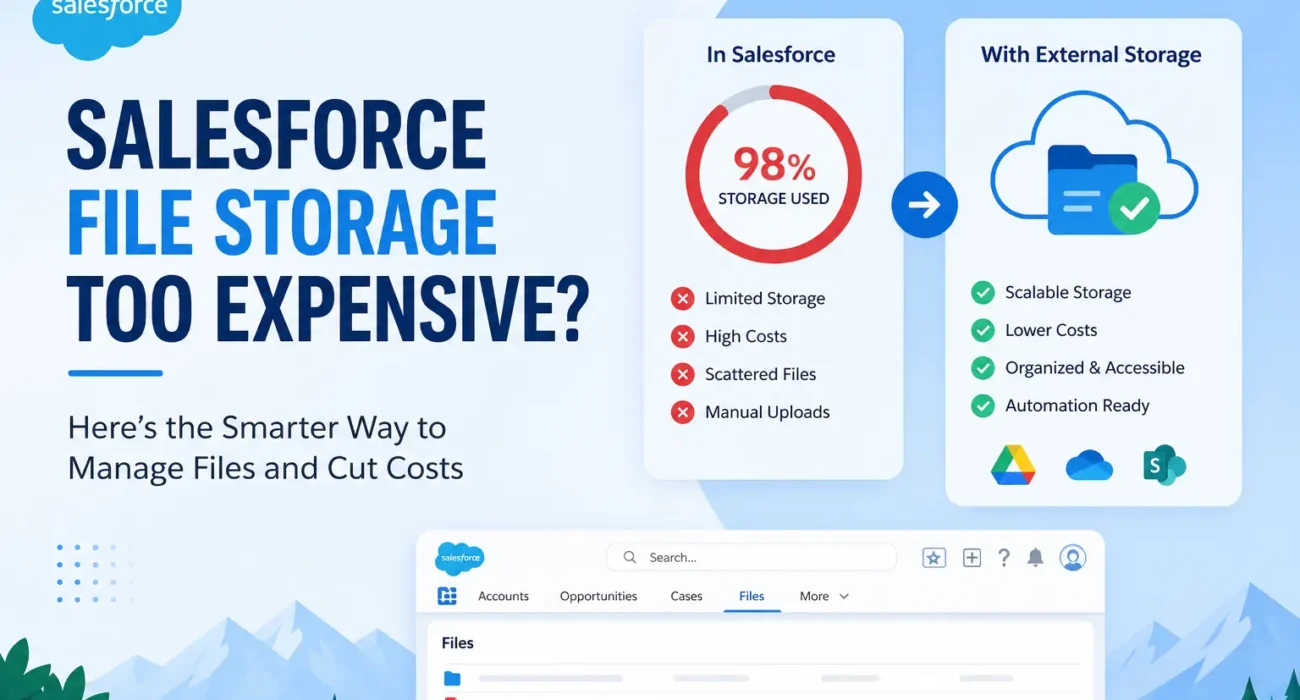
Why Salesforce File Storage Costs Are So High
We’ve all been there. You’re scaling fast, your team is closing deals, and Salesforce is humming along perfectly. Then, you see the notification: Your file storage is at 90% capacity.
Salesforce is arguably the most powerful CRM on the planet, but it has a “hidden” tax that catches even the most seasoned admins off guard. When your storage fills up, costs don’t just go up—they skyrocket. Suddenly, something as simple as a rep uploading a contract becomes a high-stakes business decision.
If you’re staring at a massive invoice for extra storage, here’s the reality: You don’t actually have a storage problem. You have an architecture problem.
Most organizations treat Salesforce like a digital filing cabinet. They upload PDFs to Accounts, attach slide decks to Opportunities, and duplicate assets across Cases. It works beautifully—until it doesn’t.
Over time, this “upload and forget” habit creates a silent bottleneck that hits you in three ways:
- The Budget Drain: Additional storage blocks in Salesforce are notoriously expensive compared to standard cloud providers.
- The Speed Trap: As storage hits its limit, document-heavy workflows start to lag.
- The Chaos Factor: Finding the “final” version of a file becomes a hunt through a maze of duplicates.
“Why is this so expensive?”
You aren’t alone in asking that. We hear it from teams every day: “We’re hitting our limits, but the cost to upgrade is astronomical. Is there a better way?”
The answer is yes, but it requires a shift in mindset. You don’t solve this by deleting old files or buying more space; you solve it by rethinking how files live within your CRM.
In this guide, we’re going to pull back the curtain on:
- The “Why”: Why Salesforce storage costs rise faster than your data growth.
- The Inefficiencies: The hidden habits that are eating your space.
- The Myths: Why traditional “fixes” (like manual deletion) are just Band-Aids.
- The Modern Playbook: How top-tier teams are offloading storage while keeping their files perfectly synced.
The goal isn’t just to trim your bill. It’s to build a CRM environment where your files are organized, your costs are predictable, and your system stays lean enough to actually perform.
How Salesforce File Storage Actually Works (And Why It Fills Up So Fast)
At first glance, Salesforce storage seems simple: You upload a file, it attaches to a record, and you’re done. But under the hood, the system is more complex—and less forgiving—than most teams realize.
If you want to get your budget under control, you first have to understand the “split” in how Salesforce handles your information.
📦 The Tale of Two Storages: Data vs. File
Salesforce doesn’t put everything in one bucket. It separates your usage into two distinct categories:
- Data Storage: Think of this as the “text” of your business. It includes your Accounts, Contacts, Opportunities, and Tasks. These records are tiny, and this limit usually lasts a long time.
- File Storage: This is the heavy lifter. It includes PDFs, slide decks, images, and email attachments.
While Data Storage grows gradually, File Storage grows aggressively. Why? Because a single PDF can be $1,000$ times larger than an Account record.
⚠️ Why File Storage Is a “Silent Killer” for Budgets
Most teams expect their storage usage to grow in a straight line. Instead, it tends to grow exponentially. This usually happens because of three common “growth traps”:
1. The Duplication Loop
Salesforce doesn’t naturally say, “Hey, you’ve already uploaded this!” If a sales rep attaches a proposal to an Opportunity, and then a support agent uploads that same proposal to a Case, you are now paying for that file twice. Multiply that across your entire organization, and you’re paying for a lot of “ghost” storage.
2. The Lack of Hierarchy
Unlike Google Drive or OneDrive, Salesforce isn’t built with a native folder structure. Files end up scattered across records like loose papers on a desk. Without a centralized system, teams often re-upload files simply because they can’t find the original version.
3. The “Forever” Problem
Salesforce doesn’t have a built-in “trash collector.” There is no native feature that automatically archives a $20$ MB presentation from five years ago. Without a lifecycle management strategy, your storage just keeps growing… and growing… and growing.
📉 The Hard Truth: Salesforce Isn’t a Filing Cabinet
Here is the core issue: Salesforce was designed to manage relationships, not to be a large-scale file repository.
When you treat it like a cloud drive, you’re forcing the platform to do something it wasn’t optimized for. Eventually, the cracks start to show. You’ll notice slower system performance, increased admin overhead, and—of course—those eye-watering invoices for extra storage blocks.
💡 The “One-Click” Habit
It starts small. A rep thinks, “I’ll just attach this document quickly so I don’t lose it.” It feels harmless in the moment. But when you multiply that “one-click” habit across dozens of users, multiple departments, and several years, you aren’t just storing files—you’re building an expensive, disorganized mountain of data that will eventually block your CRM’s performance.
The Compounding Cost: Why Salesforce Storage Scaled Faster Than Your Budget
Most teams don’t notice the storage monster until it knocks on their door. At first, everything feels manageable—files are uploaded, shared, and moved across teams without a hitch.
Then, you hit the limit. Suddenly, the “free” convenience of your CRM becomes a major line item on your budget. Here’s why the costs escalate so quickly.
📈 A Pricing Model That Doesn’t Scale
Salesforce is a world-class CRM, but it isn’t a commodity storage provider. You are given a fixed amount of file storage based on your edition and license count. Once you cross that line, your options are limited: You have to buy more.
Unlike Google Drive, Dropbox, or OneDrive—where storage is pennies on the dollar—Salesforce storage:
- Costs significantly more per GB than almost any other cloud provider.
- Doesn’t offer “bulk” discounts that meaningfully move the needle.
- Is sold in blocks, forcing you to pay for more than you might need right now.
🔁 The “Copy-Paste” Tax
Here’s a metric most teams forget to track: Redundancy. Because Salesforce doesn’t automatically deduplicate files, a single $10$ MB contract can easily become $50$ MB of storage usage. How?
- It’s uploaded to the Opportunity.
- It’s re-uploaded to the Case by a support rep.
- It’s attached to three different Emails during negotiations.
In Salesforce, each of those is a “new” file. You aren’t just paying to store your data; you’re paying a tax on your team’s communication.
📂 The “Wild West” of File Management
In a structured system like SharePoint or Google Drive, teams are forced into a hierarchy of folders and shared directories. Salesforce, by design, is fragmented. Files live inside Records, which live inside Objects, which live across Departments.
Without a centralized “source of truth,” teams stop looking for existing files. It’s simply faster to re-upload a document than to hunt through a maze of records to find where it was first attached. Inefficiency isn’t just a productivity killer—in Salesforce, it’s a storage killer.
⏳ The “Forever” File Problem
Think about your “Closed-Lost” opportunities from three years ago. Those proposals, pitch decks, and technical requirements are likely still sitting there, eating up premium storage space.
Salesforce has no “Auto-Archive” button. Without a strict (and often manual) cleanup process, your storage grows indefinitely. You end up paying 2026 storage prices for 2021’s clutter.
⚠️ The Hidden Costs: Beyond the Invoice
The price tag is only half the story. As your storage bloats, you’ll start to see secondary symptoms:
- Admin Burnout: Your admins spend hours running storage reports and “policing” users to delete files—a losing battle.
- System Lag: Massive file libraries can lead to longer retrieval times and increased backup complexity.
- Compliance Risks: The more duplicates you have, the harder it is to ensure you’re deleting sensitive data according to GDPR or CCPA standards.
📊 The Cycle of Temporary Fixes
Eventually, every growing org hits the same wall. They hit the limit, delete a few large files to stop the bleeding, and buy a small storage block to get through the quarter.
But because the behavior hasn’t changed, the problem returns a few months later. It’s a cycle that won’t stop until you change the way Salesforce interacts with your files.
The Hidden Costs: Why the Real Price of Storage Isn’t on Your Invoice
When teams talk about Salesforce storage, the conversation usually hits a wall at pricing: “How much is this extra GB going to cost us?”
But if you only look at the dollar amount, you’re missing the underwater portion of the iceberg. The real cost of poor file management isn’t just the bill—it’s the friction it injects into your entire company. Here is what you’re actually paying for when your storage is a mess.
⏱️ 1. The Productivity “Tax”
Every time a team member goes on a “treasure hunt” for a file, your company loses money.
- Sales Reps spend 20 minutes hunting for the latest proposal.
- Support Agents dig through old Cases to find a specific technical diagram.
- Operations struggles to locate the correct onboarding document.
When files are buried inside records with no consistent naming or structure, teams stop looking. They take the path of least resistance: They just re-upload or recreate the file. Now you’ve lost 20 minutes of productivity and doubled your storage cost for that one document.
🔁 2. Version Chaos (The Duplicate Norm)
Without a centralized file system, “version control” is a myth. Imagine two reps need the same contract template. Rep A can’t find it, so they upload a version they saved to their desktop. Rep B does the same. Now you have two “master” versions with different names. This isn’t just a storage issue—it’s a process breakdown that leads to outdated contracts being sent to customers.
📉 3. The “Slow Crawl” Phenomenon
Salesforce is a data thoroughbred, but file bloat is a heavy saddle. As your file storage hits its limit, you might notice:
- Slower record load times.
- Lag in system operations.
- A general sense that “Salesforce feels slower than it used to.”
It’s subtle, but file bloat is often the hidden culprit behind a sluggish CRM.
🧑💻 4. Admin Burnout (The “Janitor” Role)
Your Salesforce Admins are high-value architects. They should be building automations and optimizing your pipeline. Instead, poor file management turns them into digital janitors. They spend their weeks:
- Manually running storage reports.
- Begging users to “please delete your old PDFs.”
- Playing Whack-A-Mole with storage alerts.
Cleanup is reactive; optimization is proactive. If your Admin is stuck in a cleanup loop, your business isn’t moving forward.
🔐 5. The Permissions Minefield
Who has access to that file? If it’s attached to a Record, shared in a Chatter group, and duplicated in an Email, the answer is usually: “It’s complicated.” This creates a dual risk:
- Overexposure: Sensitive data living in places it shouldn’t.
- The Wall: Reps being unable to access the files they need to close a deal.
📊 6. The Death of the “Single Source of Truth”
The biggest invisible cost is the lack of clarity. When files are scattered, there is no “Master Version.” Decisions get made based on outdated decks, incorrect pricing sheets, or incomplete information.
When your CRM doesn’t have a centralized repository, your “Single Source of Truth” becomes a “Multiple Source of Confusion.”
💡 The Breaking Point
At this stage, most teams have an epiphany. They realize that buying more storage is like buying a bigger trash can when what they really need is a recycling system.
The conversation shifts from “We need more storage” to “We need a better architecture.”
The “Band-Aid” Trap: Why Traditional Fixes Keep Failing
When that “Storage Limit Reached” alert hits your inbox, the instinct is to react fast. Most teams scramble for the quickest way to turn the red bars green again.
On the surface, these quick fixes seem logical. In reality? They’re expensive Band-Aids that ignore the underlying wound. Here is why the “obvious” solutions usually backfire.
💸 1. The “Buy More” Loop
This is the path of least resistance. You hit the limit, you write a check to Salesforce for more storage, and the problem goes away—for about six months.
The issue is that buying more storage doesn’t change the behavior. Your team is still duplicating files, and your workflows are still bloated. You’re essentially paying a premium to keep a disorganized system. It’s not a solution; it’s a recurring subscription to a problem.
🧹 2. The “Spring Cleaning” Sisyphus
Some admins try to solve the issue by asking everyone to “please delete old files.”
It sounds practical, but it rarely works because:
- Data Hoarding is Real: Most users are terrified of deleting something they might need for a legal discovery or a customer check-in three years from now.
- No Ownership: If three people worked on a Case, who is responsible for deleting the 15 MB log file?
- The Inflow Problem: Your team is likely uploading new files $5\times$ faster than you can manually delete old ones. You’re trying to empty a bathtub with a teaspoon while the faucet is running full blast.
📦 3. Compressing the Problem
Trying to shrink file sizes (zipping folders or lowering PDF quality) is a classic “penny wise, pound foolish” move.
- It adds manual friction to a rep’s day.
- It creates version confusion (e.g., “Is ‘Contract_Final_Compressed.pdf’ the same as the original?”).
- Worst of all, it only delays the inevitable. You aren’t reducing the number of files; you’re just making the mountain slightly less tall.
🔁 4. The “Process and Prayer” Strategy
Many organizations try to solve storage through sheer willpower: “From now on, everyone must use this specific naming convention and only upload final versions!”
While well-intentioned, these SOPs (Standard Operating Procedures) almost always crumble under pressure. When a Sales Rep is trying to close a deal at 4:55 PM on a Friday, they aren’t going to check the “File Upload Guidelines” PDF. They’re going to hit Upload.
🔗 5. The “Manual Link” Mess
Some teams try to move files to Google Drive or SharePoint and then manually paste the links into Salesforce Chatter or a custom field.
Without a native integration, this creates a massive “Source of Truth” crisis:
- Links break.
- Permissions aren’t synced (someone has the link but can’t open the Google Doc).
- There is no folder structure, so your Google Drive becomes just as messy as your Salesforce org was.
⚠️ The Root Cause: Symptoms vs. Systems
The reason these fixes fail is simple: They focus on the symptoms, not the architecture. They try to reduce storage usage or delay the limit, but they don’t address the fundamental reality: Salesforce is a world-class CRM, but it’s a mediocre filing cabinet.
Until you change how your files are stored and surfaced, the cycle will repeat. Every few months, you’ll be back at the same wall, staring at the same storage alerts, and having the same budget meetings.
💡 The Architecture Shift
The teams that actually solve this problem don’t look for better ways to delete or compress. They look for a different way to exist.
They move toward a system where:
- Files live where they belong (in cost-effective, scalable cloud storage).
- Salesforce acts as the “Brain” (the control layer that knows which file belongs to which record).
- The User Experience is Seamless (the rep doesn’t even know the file isn’t “in” Salesforce).
The Smarter Approach: Managing Files Without Storing Them
Once you realize that traditional fixes are just stalling for time, the conversation changes. You stop asking, “How do we get more space?” and start asking a much more important question:
“Where should our files actually live?”
📌 The Core Idea: Store Outside, Manage Inside
The most successful Salesforce teams have moved away from the “all-in-one” storage model. Instead, they adopt a hybrid strategy:
- Cloud Storage Platforms (like Google Drive, OneDrive, or SharePoint) become your Backend.
- Salesforce remains your Interface.
By separating the “filing cabinet” from the “office,” you create a system where each platform does exactly what it was built for:
| Function | Best Platform | Why? |
| Data & Relationships | Salesforce | Unmatched at tracking pipelines, cases, and automation. |
| File Management | Google / Microsoft | Built for massive scale, folder hierarchies, and low-cost storage. |
💡 Why This Approach Works
Instead of forcing Salesforce to be a mediocre cloud drive, you let it be a world-class CRM.
Salesforce excels at managing structured data and driving workflows.
Cloud storage excels at handling bulk file volumes, managing complex permissions, and scaling cost-effectively.
When you stop treating Salesforce like a storage bin, the platform actually gets faster, and your bill gets significantly smaller.
📂 What This Looks Like in Practice
Let’s look at a real-world scenario—uploading a project proposal.
- The Old Way: You upload a $15$ MB PDF to an Opportunity. Later, you re-upload it to a Case. You’ve now used $30$ MB of “premium” Salesforce storage. The file is stuck inside Salesforce, making it hard for non-Salesforce users to see.
- The Modern Way: You upload the file once. It lives in a dedicated, structured folder in Google Drive or OneDrive, but it is seamlessly linked to your Salesforce Opportunity record.
The Result? Zero Salesforce storage consumed. One “Source of Truth” file. Everyone has access where they need it.
🔄 From “Storage” to “Access”
This is a critical mindset shift. You move from saying, “Let’s store everything in Salesforce,” to saying, “Let’s access everything through Salesforce.”
In this model, Salesforce becomes the Control Center. Your team doesn’t have to leave the CRM to find their files, but the files aren’t sitting there eating up your budget.
⚙️ The “Missing Piece”: Seamless Integration
Now, a word of caution: This strategy only works if it’s automatic.
If your reps have to manually copy and paste links from SharePoint into Salesforce, the system will break. Human error will creep in, links will be set to “private,” and the chaos will return. To make this “Smarter Approach” a reality, you need an integration that:
- Automates Folder Creation: Creates a Google Drive folder the moment an Opportunity is opened.
- Syncs Permissions: Ensures that if someone can see the Record, they can see the Files.
- Removes Friction: Allows users to drag-and-drop files directly into Salesforce and “magically” routes them to the external storage.
🧠 The Real Goal: Invisible Management
The ultimate goal isn’t just to save money—it’s to make file management invisible. You want a system where your teams don’t have to think about “where to upload.” They just do their jobs, and the architecture handles the rest.
Organizations that make this shift see more than just a lower bill; they see:
- A “clean” Salesforce org that stays fast.
- Total visibility across departments.
- Predictable, low-cost scaling for years to come.
The Gap: Why “Going External” is Harder Than It Looks
At this point, the strategy seems like a no-brainer: Move the files out, keep the data in. But here is where most teams hit a wall. When you try to set this up using only the native tools Salesforce provides, you quickly realize there is a massive gap between “possible” and “practical.” Salesforce wasn’t built to be a window into your other apps—and that creates a few major headaches.
🔗 1. The “Two-Tab” Friction
Salesforce offers some basic connectors, but the “native” experience is often clunky. Instead of a seamless workflow, your team ends up:
- Uploading a file to Google Drive.
- Copying the “Share” link.
- Switching tabs back to Salesforce.
- Pasting the link into a custom field or Chatter.
This isn’t an integration; it’s a manual workaround. And in a high-velocity environment, friction is the enemy of adoption.
⚙️ 2. The Lack of “Automated Routing”
In a perfect world, when you create a new “Acme Corp” Account, a folder named “Acme Corp” should instantly appear in your OneDrive. When you create a “2026 Renewal” Opportunity, a subfolder should be born inside it.
Natively, Salesforce doesn’t do this. Without automated routing, your external storage quickly becomes a “digital junk drawer” where files are dumped into random folders with no connection to the CRM record.
📂 3. The Mapping Nightmare
Think about your team’s folder structure. It usually looks like this: Accounts > [Account Name] > [Opportunity Name] > Contracts
Salesforce doesn’t natively “map” to this hierarchy. Without a specialized bridge, your cloud storage and your CRM stay in two different languages. Teams lose visibility, files go missing, and eventually, people just start uploading to Salesforce again because it’s “easier.”
🔄 4. The Sync Paradox
If a rep updates a proposal in Google Drive, does the version in Salesforce update? Usually, the answer is no.
Without real-time bidirectional sync, your systems fall out of step. You end up with “Version 2” in your cloud storage and “Version 1” linked in your CRM. This creates the exact “Source of Truth” crisis we were trying to avoid in the first place.
⏳ 5. Where Automation Goes to Die
Salesforce is the king of automation—except when it comes to external files. Natively, you can’t easily trigger actions like:
- Automatically renaming a file based on the Opportunity stage.
- Moving a “Signed Contract” from a temporary folder to a “Legal” folder.
- Dynamically linking files to records based on naming conventions.
To do this yourself, you’d need a mountain of custom Apex code and constant maintenance.
⚠️ The Result: The “Broken Bridge” Workflow
When the connection between Salesforce and your storage is manual, the system eventually breaks. You end up with:
- Scattered Files: Some in Salesforce, some in Drive, some on desktops.
- Low Adoption: Reps hate the “extra steps” and stop using the system.
- Data Silos: Information is trapped in one system or the other.
💡 The Missing Link
Most organizations know that external storage is the answer. They just don’t have the bridge to get there. They don’t need another “tab” to open; they need a system where the external storage feels like it’s a native part of the Salesforce UI.
They don’t just need a link. They need a fully connected ecosystem.
The Modern Blueprint: Salesforce Efficiency Without the Storage Bill
By now, the pattern is clear: Salesforce storage is a premium resource, and using it like a generic cloud drive is a recipe for budget bloat.
So, how do you implement the “Smarter Approach” we discussed earlier without making life harder for your users? The answer lies in creating a unified flow where your storage is external, but your experience is native.
🔄 What the Ideal System Actually Looks Like
To truly solve the problem, you don’t need more “tips and tricks.” You need an architecture that checks five specific boxes:
- Offloads the Weight: Stores files in cost-effective platforms (Google/Microsoft).
- Stays in Context: Keeps those files visible and accessible inside the Salesforce record.
- Automates the Admin: Automatically organizes folders based on your CRM hierarchy.
- Kills the Manual Step: Eliminates the “copy-paste link” dance.
- Enforces Order: Maintains a predictable folder structure across the entire company.
⚙️ The “Native Feel” Experience
In a well-oiled system, your team shouldn’t feel like they are “leaving” Salesforce. Their workflow looks like this:
- They drag a file onto a Salesforce record.
- The system instantly routes that file to a specific folder in Google Drive or OneDrive.
- A link is automatically generated and attached to the record.
- The file is organized into a folder structure (e.g., Account > Opportunity > Contracts) without the rep clicking a single button.
The result? The user stays in Salesforce, but the storage invoice stays in Google Drive.
📂 Organization on Autopilot
One of the biggest wins of a connected system is Structure by Default. Instead of a chaotic “list” of attachments, your files follow a predictable hierarchy that mirrors your business:
- Object Level: Accounts, Opportunities, Cases.
- Record Level: Specific deals or support tickets.
- Folder Level: Specific categories like “Signed Contracts” or “Onboarding Assets.”
Because the system creates these folders automatically, you never have to worry about a new rep “doing it wrong.” Consistency is baked into the code.
⚡ Automation: The Ultimate Game-Changer
This is where the real transformation happens. When your file management is connected to your Salesforce workflows, you can do things that were previously impossible:
- Stage-Based Movement: When an Opportunity moves to “Closed-Won,” the system can automatically move the proposal from a “Drafts” folder to a “Final” folder.
- Dynamic Renaming: Automatically rename uploaded files to match your company’s naming convention (e.g., [AccountName]_Contract_2026.pdf).
- Instant Linking: Use record data to ensure the right files are always surfaced to the right people at the right time.
🧠 From Manual Friction to Intelligent Systems
Compare the two worlds:
- The Old Way: Users decide where to upload, users manually create folders, and users hope they linked the right document.
- The Better Way: The system knows where the file goes, the structure is predefined, and the documents are exactly where the team expects them to be.
This isn’t just about saving money on storage—it’s about removing decision fatigue and reducing human error.
🔍 Connecting the Dots
At the end of the day, your team doesn’t need a bigger “trash can” or more “cleanup days.” You need a smarter bridge between where your work happens and where your files live.
By offloading your storage to the cloud and keeping your workflow in Salesforce, you aren’t just cutting costs—you’re building a CRM that is lean, fast, and ready to scale.
How to Actually Implement This in Salesforce (Without the Complexity)
Understanding the “Smarter Approach” is one thing; implementing it is another. Most teams hesitate because they fear a nightmare of custom coding, broken links, and confused users.
Without the right system, an external storage strategy can quickly devolve back into a manual, disorganized mess. This is exactly where CV Files comes in.
💡 The Missing Piece of the Salesforce Puzzle
Instead of forcing you to stitch together multiple tools or rely on your team to “remember” the new process, CV Files brings your cloud storage directly into the Salesforce interface.
It’s the bridge that allows you to offload the weight of your files while keeping them exactly where your team needs them.
🔗 What CV Files Does (In Simple Terms)
Think of CV Files as the “intelligence layer” between Salesforce and your Google Drive or OneDrive. It allows you to:
- Upload from Salesforce → Store in the Cloud: You drag a file into a Salesforce record, and it instantly routes to your external storage.
- Access Without Leaving: Your team views, opens, and manages files directly from the Salesforce record page.
- Protect Your Budget: Because the files live in your cloud storage, they consume zero Salesforce file storage space.
From a user’s perspective, nothing changes in their daily workflow. From a budget perspective, everything changes.
⚙️ Solving the Core Pain Points
Let’s see how this stacks up against the “big problems” we discussed earlier:
| The Problem | The CV Files Solution |
| 💸 Sky-High Costs | Files live in your cost-effective cloud storage. You’ll never have to buy another Salesforce storage block again. |
| 📂 Scattered Files | Every file and folder is linked directly to its specific Salesforce record. No more “treasure hunts.” |
| 🔁 Infinite Duplicates | One file, one source of truth. Access the same document from multiple records without re-uploading. |
| ⚡ Manual Drudgery | Automation handles folder creation, naming, and linking so your team doesn’t have to. |
📁 Structured Management, Out of the Box
With CV Files, you don’t just move files; you organize them. You can map specific Salesforce objects (like Accounts or Cases) to specific folder structures in your cloud storage.
The moment a new Opportunity is created, CV Files can automatically generate the folder hierarchy you’ve defined. By the time your sales rep opens the record, the “filing cabinet” is already set up and waiting for them.
🔄 Automation That Actually Works
The true power of CV Files lies in its deep integration with Salesforce Flow. This means you can build “intelligent” file workflows that trigger automatically:
- Create a Google Drive folder the second a Lead is converted.
- Move or rename files as an Opportunity moves from “Proposal” to “Contracting.”
- Link specific folders to records based on any criteria you choose.
🧠 The End Result: A System That Just Works
At the end of the day, you aren’t just looking for a way to save a few gigabytes of space. You’re looking for a scalable system that grows with your business.
With CV Files, you get a lean Salesforce org, predictable costs, and a team that is no longer bogged down by “digital janitor” work. It’s finally time to stop fighting Salesforce storage limits and start using a system that works with your CRM, not against it.
Salesforce vs. Cloud Storage: The Real Cost Comparison
By now, the strategic value is clear. But for most businesses, it eventually comes down to the bottom line: Is it actually cheaper to move files out of Salesforce?
The short answer is yes—but the difference is more than just a few dollars. It’s the difference between a scalable asset and a recurring liability.
📊 At a Glance: How the Systems Stack Up
When you compare premium CRM storage to specialized cloud storage, the gap is eye-opening.
| Feature | Salesforce File Storage | Google Drive / OneDrive |
| Cost per GB | High (Premium) | Low (Commodity) |
| Scalability | Expensive “Blocks” | Flexible & Cost-Effective |
| Bulk Handling | Not Optimized | Built for Large Scale |
| Folder Structure | Flat / Limited | Advanced & Multi-Level |
| Automation | Limited for Files | Native & Flexible |
| Performance | Can Lag the Org | Zero CRM Impact |
💸 Why is Salesforce Storage So Expensive?
It’s important to understand what you’re actually paying for. When you store a file in Salesforce, you aren’t just paying for disk space; you’re paying for CRM infrastructure. You are using high-performance, database-backed resources to store a PDF that might only be opened once a month. It’s like paying for a Five-Star hotel room just to store your luggage.
☁️ The Efficiency of Specialized Cloud Storage
Platforms like Google Drive and OneDrive are built for one thing: Massive file management. Because they operate at a global scale specifically for files, they offer:
- True Commodity Pricing: You pay for what you use, at a fraction of the cost.
- Advanced Collaboration: Features like real-time co-authoring and granular external sharing come standard.
- Independent Performance: Your CRM stays lean and fast because it isn’t “carrying the weight” of thousands of attachments.
📉 The Growth Trajectory: A Tale of Two Budgets
Think about your team’s growth over the next three years. As you close more deals and resolve more cases, your file volume will only go up.
- In the Salesforce-Only Model: You hit a limit, you buy a storage block, you hit the limit again. It’s a recurring “tax” on your success.
- In the Hybrid Model: Your storage scales independently. Because you’ve offloaded the files to a cloud provider, your Salesforce costs remain flat even as your document library grows by $500\%$.
💡 Architecture Optimization = Cost Optimization
This is the “aha!” moment for most IT leaders: Reducing storage costs isn’t about deleting files; it’s about changing where they live. When you shift your architecture, the savings happen naturally. You stop fighting the platform and start using it the way it was intended.
🧠 The Simple Summary: Brain vs. Memory
If you’re looking for a simple way to explain this to your stakeholders, think of it like this:
- Salesforce is the Brain: It handles the data, the logic, the relationships, and the “thinking.”
- Cloud Storage is the Memory: It stores the massive library of documents, assets, and history.
Trying to force the “Brain” to act as the “Memory” is where the inefficiency—and the astronomical cost—comes from. By letting each system do what it does best, you build a smarter, leaner, and much more affordable business engine.
Frequently Asked Questions About Salesforce File Storage
Navigating the complexities of CRM storage can be a headache. Here are the most common questions we hear from Salesforce Admins and IT leaders.
❓ Why is Salesforce file storage so expensive?
Salesforce storage is priced at a premium because it’s built on high-performance CRM infrastructure. Unlike “commodity” storage (like Google Drive), Salesforce storage is designed for complex data relationships. When you use it to store large PDFs or slide decks, you’re essentially paying for premium real-time database power to hold static files.
❓ What happens when Salesforce file storage is full?
When you hit $100\%$ capacity, your workflows hit a wall.
- Users will receive error messages when trying to upload new files.
- Automated processes (like email-to-case attachments) may fail.
- Admins are forced into a “reactive mode,” either deleting critical history or paying for emergency storage blocks to keep the business running.
❓ Can Salesforce integrate with Google Drive or OneDrive?
Yes, but native integration is often a “bare-bones” connection. While you can link the systems, you won’t get automated folder creation, real-time syncing, or advanced file routing without a specialized bridge like CV Files. To make the integration truly useful, you need a solution that makes the external storage feel like a native part of the Salesforce UI.
❓ Is it better to store files in Salesforce or externally?
For any organization looking to scale, external storage is the clear winner. Moving files to Google Drive or OneDrive reduces your Salesforce overhead, slashes your monthly storage bill, and provides your team with much better tools for document collaboration and version control.
❓ How can I reduce Salesforce storage costs immediately?
The fastest way to drop costs is to stop the inflow of new files. By implementing a hybrid storage strategy, you can route all new uploads to an external cloud provider. Once the “bleeding” stops, you can then migrate existing historical files out of Salesforce to reclaim your space.
❓ Does moving files out of Salesforce affect accessibility?
Not if you do it correctly. With a connected solution, your users won’t even know the file isn’t “in” Salesforce. They still see the file on the Account or Opportunity record, but when they click it, the file is served from your cloud storage. It’s the same accessibility without the Salesforce price tag.
❓ Can file management in Salesforce be automated?
Absolutely. Using Salesforce Flow in conjunction with an integration tool, you can automate the entire lifecycle of a document. You can trigger the system to create folders, rename files based on record names, and even move documents to “Archive” folders once a Case is closed—all without a human lifting a finger.
The Smarter Way Forward for Salesforce File Management
Salesforce is an world-class engine for growth. But even the best engine can be weighed down by too much cargo. As we’ve explored, Salesforce was never designed to be a bulk filing cabinet, and forcing it to act as one is a recipe for escalating costs and frustrated teams.
The cycle of hitting limits, buying more space, and performing manual cleanups isn’t just a nuisance—it’s a distraction from your core mission.
💡 The Real Shift
The most efficient organizations don’t fight Salesforce’s storage limits; they bypass them entirely. By shifting your architecture, you transform your CRM from a cluttered storage bin into a streamlined Control Center.
When you move your files to a scalable cloud platform like Google Drive or OneDrive—while keeping them seamlessly accessible inside Salesforce—you gain:
- Predictable Budgeting: Stop the cycle of “emergency” storage purchases.
- Instant Accessibility: Give your team the right files at the right time.
- Architecture that Scales: A system that remains just as fast and organized at 1,000 users as it was at 10.
🚀 Bringing It All Together
Strategic file management shouldn’t be a full-time job for your Admins or a series of extra clicks for your Sales reps. It should be invisible.
That is exactly why we built CV Files. We’ve bridged the gap between the world’s best CRM and the world’s most scalable cloud storage providers. CV Files gives you the power to:
- Automate the “Boring” Stuff: Folders are created and linked to records instantly.
- Zero Out Storage Bloat: Upload files from Salesforce and watch them “land” directly in your cloud storage.
- Stay in the Flow: Your team gets a completely native experience—no tab-switching, no broken links, no friction.
👉 Stop Paying the “Storage Tax”
Is your team running out of space? Are you tired of seeing storage costs climb every quarter? It’s time to move beyond the Band-Aid fixes and build a file management system that actually works for you.
Ready to reclaim your Salesforce storage and your budget?
Explore CV Files Today — Build a smarter, scalable, and cost-effective home for your files.
Enjoyed This Article?
If this guide helped you better understand file management in monday.com, you might enjoy The CloudVandana Weekly. We share practical tips, platform updates, and workflow ideas to help teams get more out of monday.com. Consider subscribing to stay updated with new insights and resources.

He is the founder of CloudVandana and is an 8X Salesforce Certified Professional dedicated to crafting custom Salesforce solutions for businesses worldwide. His deep expertise ensures seamless digital transformation and scalable growth for global enterprises.
cloudvandana.com ->Salesforce Experts and IT Services
Appexchange apps
monday.com apps