
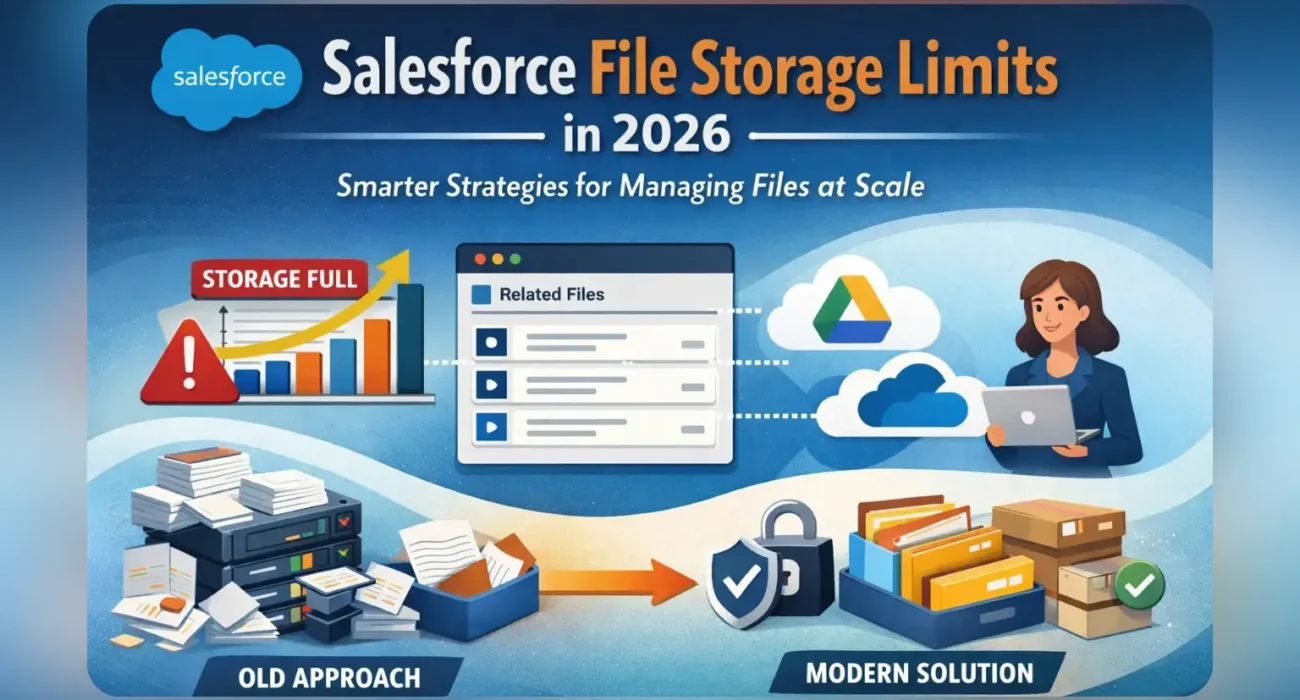
- Introduction: Why Salesforce File Storage Limits Matter More in 2026
- What Counts as File Storage in Salesforce (And What Most Teams Get Wrong)
- Salesforce File Storage Limits Explained (By Edition – 2026 Update)
- Why Teams Hit Salesforce File Storage Limits Faster Than Expected
- The Business Impact of Exceeding Salesforce File Storage Limits
- Salesforce Native Options to Manage File Storage (And Why They Fall Short)
- Why Buying More Salesforce File Storage Is Usually the Wrong First Move
- A Modern File Management Strategy for Salesforce (2026 View)
- Offloading Salesforce Files Securely Using External Storage (Best Practices)
- How CV Files Helps You Bypass Salesforce File Storage Limits (Without Breaking Workflows)
- Compliance, Security, and Audit Considerations When Offloading Salesforce Files
- Best Practices Checklist for Salesforce File Storage Management (2026)
- FAQs: Salesforce File Storage Limits (2026 Updated)
- 🔚 Final Thoughts: Designing Salesforce File Storage for Scale (2026)
Salesforce File Storage Limits (2026 Updated)
Introduction: Why Salesforce File Storage Limits Matter More in 2026
Salesforce has always been generous with features—but never with file storage. And in 2026, that tension is sharper than ever.
As organizations push more documents, proposals, contracts, invoices, call recordings, onboarding files, and AI-generated assets into Salesforce, file storage quietly becomes one of the fastest-growing operational risks. Not because teams are careless, but because Salesforce was never designed to be a primary document repository.
What makes this problem worse is that file growth in Salesforce is rarely intentional. Files accumulate organically:
- Sales teams attach decks and contracts to opportunities
- Support teams upload screenshots and logs to cases
- Marketing adds creatives to campaigns
- Automated processes generate PDFs and exports
Individually, these actions feel harmless. Collectively, they create a silent storage drain that most teams only notice when Salesforce sends the warning email—or worse, when uploads start failing.
In 2026, this issue compounds due to three shifts:
- Higher file volumes driven by remote work and AI-assisted content
- Greater compliance pressure requiring document retention
- Rising Salesforce storage costs, making overages painful rather than inconvenient
The result? File storage is no longer a “later” problem. It’s an architectural decision that directly impacts cost, scalability, and user experience.
This article breaks down:
- What actually counts toward Salesforce file storage
- Why limits are hit faster than expected
- And how modern teams are redesigning file strategies without breaking Salesforce workflows
A 2026-ready view of Salesforce file storage—so you can stay ahead of the limit instead of reacting to it.
What Counts as File Storage in Salesforce (And What Most Teams Get Wrong)
One of the biggest reasons teams misjudge Salesforce file storage usage is simple: it’s not obvious what actually counts.
On the surface, “file storage” sounds straightforward. In practice, Salesforce file storage is an umbrella category that includes multiple file types, legacy objects, and system behaviors that quietly add up over time.
Let’s break this down clearly.
Salesforce Files (The Primary Storage Consumer)
Salesforce Files are the default way users upload documents today. These include:
- Files uploaded directly to records (Opportunities, Cases, Accounts, etc.)
- Files shared via Chatter
- Files attached to tasks, events, or custom objects
Each file:
- Is stored once in Salesforce
- Counts fully toward your file storage limit
- Can be shared across multiple records without duplication (which is good)
However, the misconception is this:
“Sharing a file doesn’t increase storage, so we’re safe.”
While technically true, it ignores the bigger picture. The total number and size of files keeps growing, and Salesforce does not auto-archive or clean up unused content.
Legacy Attachments (Still Costing You Storage)
Attachments may be “legacy,” but they are far from gone.
Attachments include:
- Files uploaded using the old Notes & Attachments related list
- Files attached via older integrations or custom code
- Email attachments added through legacy email-to-case setups
Key problem:
- Attachments cannot be deduplicated
- Each attachment is a separate storage hit
- Many orgs still carry years of attachment data
In mature orgs, attachments alone can consume 30–40% of total file storage without anyone realizing it.
Chatter Files (Social, But Not Free)
Files uploaded to Chatter:
- Posts
- Comments
- Group discussions
- Feed-based automations
All of these count toward file storage.
What catches teams off guard is how casually Chatter is used:
- Screenshots for quick clarification
- Draft files shared “just for review”
- Temporary exports that never get deleted
Chatter encourages velocity, not discipline. Storage feels invisible until it isn’t.
Email Attachments (The Silent Multiplier)
Email-to-Case and Salesforce email integrations are another hidden contributor.
Every time:
- A customer replies with an attachment
- A support agent forwards files into Salesforce
- Automated emails store PDFs or logs
Those files are stored inside Salesforce unless explicitly offloaded.
Support-heavy orgs often discover that email attachments alone account for a massive chunk of their storage footprint.
What Does Not Count (Common Confusion)
To clarify, these do not count toward Salesforce file storage:
- Data stored in standard or custom object fields
- Text notes (not enhanced notes)
- URLs or external links
- Metadata references to external systems
This distinction is important, because it opens the door to external file strategies we’ll cover later.
Why Teams Get This Wrong
Most Salesforce users assume:
- “Files are small”
- “We’ll clean them up later”
- “Storage warnings are rare”
In reality:
- Files grow faster than records
- Cleanup is manual and risky
- Storage limits are enforced strictly
Salesforce treats file storage as a finite resource, not a convenience layer.
Understanding what counts is the foundation
Next, we’ll talk about how much storage you actually get and why those limits feel far smaller than expected.
Salesforce File Storage Limits Explained (By Edition – 2026 Update)
Once teams understand what counts as file storage, the next shock usually comes from how little storage is actually available.
Salesforce does not scale file storage generously with usage. In fact, compared to how modern teams work in 2026, the default limits feel intentionally conservative.
Let’s break this down clearly.
The Two Storage Types Salesforce Enforces
Before diving into numbers, it’s important to separate the two buckets Salesforce uses:
- Data Storage
Records, fields, automation metadata, logs, and structured data. - File Storage
Salesforce Files, legacy attachments, Chatter files, email attachments, enhanced notes, and content deliveries.
These limits are completely independent. You can have plenty of data storage and still hit a hard stop on file uploads.
This article focuses strictly on file storage, because that’s where most orgs feel the pain first.
Salesforce File Storage Limits by Edition (2026)
Below is a practical view of file storage limits as they stand in 2026. While Salesforce may adjust packaging slightly over time, the core model has remained consistent.
| Salesforce Edition | Included File Storage |
| Essentials | 10 GB total |
| Professional | 10 GB total |
| Enterprise | 10 GB + 2 GB per user |
| Unlimited | 10 GB + 2 GB per user |
| Performance | 10 GB + 2 GB per user |
On paper, this looks reasonable. In reality, it rarely is.
Why “Per User” Storage Is Misleading
The most common misunderstanding is the assumption that:
“More users = plenty of storage”
But here’s the catch:
- File usage does not scale evenly per user
- A handful of teams generate the majority of files
- Storage is pooled at the org level
For example:
- 50-user Enterprise org → ~110 GB file storage
- Sounds healthy, until:
- Support uploads screenshots daily
- Sales attaches proposals and contracts
- Finance stores invoices and statements
- Automation generates PDFs
That storage can disappear shockingly fast.
Salesforce Does Not Auto-Archive Files
This is critical.
Salesforce:
- Does not auto-delete old files
- Does not archive inactive content
- Does not differentiate “business critical” vs “historical”
Every file uploaded stays until someone:
- Deletes it manually
- Migrates it externally
- Or pays for more storage
This design choice is intentional and it’s one of the main reasons storage becomes a recurring cost center.
What Happens When You Hit the Limit?
Once you approach or exceed your file storage limit:
- Users can no longer upload files
- Automations that create files may fail
- Email-to-Case attachments may be blocked
- Salesforce will prompt you to purchase additional storage
There is no graceful degradation. Storage limits are hard enforcement points.
The Real Cost of Buying More Storage
This is where 2026 realities hit hard.
Additional Salesforce file storage:
- Is sold in fixed blocks
- Is priced at a premium
- Increases recurring subscription costs
- Does not improve file management or retrieval
You’re paying more to store the same unmanaged content.
For many orgs, this becomes a cycle:
Hit limit → buy storage → hit limit again → buy more storage
And none of it improves how teams actually work with files.
Why Storage Pressure Is Worse in 2026
Three trends amplify this problem today:
- Richer files
Screen recordings, design assets, call transcripts, AI-generated documents. - More automation
Salesforce Flow increasingly generates files, not just records. - Compliance retention
Files must be kept longer, even if rarely accessed.
Salesforce storage limits haven’t evolved at the same pace.
The problem isn’t misconfiguration.
It’s that Salesforce was never meant to be your long-term document vault.
Next, we’ll explore why teams hit these limits far faster than expected, even when they believe they’re being careful.
Why Teams Hit Salesforce File Storage Limits Faster Than Expected
Most teams don’t plan to hit Salesforce file storage limits.
They simply wake up one day and realize they already have.
That’s because file storage growth inside Salesforce is rarely driven by a single bad decision. It’s driven by many reasonable decisions, repeated daily, across teams, processes, and automations.
Here’s where things typically go off track.
File Growth Is Non-Linear (And Salesforce Doesn’t Warn You Early)
Record growth in Salesforce is gradual and predictable.
File growth is not.
A single change can accelerate storage usage overnight:
- A new support workflow that encourages screenshots
- A Flow that auto-generates PDFs
- A sales process that standardizes proposal uploads
- A new integration that syncs documents by default
Salesforce does not provide predictive alerts. By the time warnings appear, you’re already close to the edge.
A Small Group Creates a Disproportionate Storage Load
In most orgs:
- 10–20% of users generate 80% of files
- Support, sales ops, finance, and onboarding teams dominate usage
- Casual users contribute very little
Yet storage is pooled and unmanaged.
This means a few high-volume workflows quietly consume capacity for the entire org.
Admins often discover this imbalance after storage becomes a blocker.
Automation Is a Silent Storage Multiplier
Automation is one of the biggest accelerants of file usage.
Common examples:
- Flows that generate invoices, quotes, or summaries
- Scheduled jobs exporting reports as files
- Email services attaching PDFs to records
- Integrations that “store a copy just in case”
Each automation run feels harmless. At scale, it’s not.
Automation doesn’t forget, hesitate, or clean up after itself.
If it’s configured to create files, it will keep doing so indefinitely.
Email Attachments Add Up Faster Than You Expect
Support teams rarely think about storage when handling customer emails.
But consider this:
- Customers attach logs, screenshots, videos
- Every reply may include the full attachment chain
- Files are duplicated across cases and threads
Even modest ticket volumes can translate into gigabytes of file storage per month, especially in technical or enterprise support environments.
“We’ll Clean It Later” Rarely Happens
File cleanup inside Salesforce is:
- Manual
- Risky (what if someone still needs that file?)
- Poorly prioritized
There’s no native concept of:
- File expiration
- Archive tiers
- Usage-based cleanup
As a result, cleanup keeps getting postponed, while storage keeps growing.
Legacy Decisions Keep Costing You
Many orgs carry years of historical baggage:
- Legacy attachments from old processes
- Files created before better standards existed
- Content tied to deprecated objects or workflows
Even if today’s processes are clean, yesterday’s files are still counting.
Salesforce doesn’t forget them. And it certainly doesn’t discount them.
The Psychological Trap: Files Feel “Lightweight”
A record feels heavy.
A file feels disposable.
Users think:
- “It’s just a screenshot”
- “It’s only one PDF”
- “We can delete it later”
Multiply that mindset by thousands of actions per month, and you get runaway storage growth without a clear villain.
This isn’t a discipline problem.
It’s a system design problem.
Next, we’ll look at what actually happens to the business when file storage limits are exceeded, beyond just an admin headache.
The Business Impact of Exceeding Salesforce File Storage Limits
Hitting Salesforce file storage limits is often treated as a technical inconvenience. In reality, it’s a business disruption that ripples across teams, customers, and revenue operations.
And the damage rarely stays confined to admins.
Day-to-Day Work Comes to a Sudden Halt
When file storage limits are reached or nearly reached:
- Users can’t upload files to records
- Sales can’t attach proposals or contracts
- Support agents can’t add screenshots or logs
- Finance can’t store invoices or compliance documents
There’s no partial functionality. Salesforce doesn’t slow down uploads.
It simply stops them.
For frontline teams, this feels like a system outage, even though Salesforce itself is technically “up.”
Automation and Integrations Start Failing Quietly
This is where the problem becomes dangerous.
Many automations depend on file creation:
- Quote or invoice generation
- Report exports
- Case documentation
- Customer deliverables
When storage limits are hit:
- Some automations fail silently
- Others error out unpredictably
- Monitoring rarely flags file-related failures clearly
Teams assume the automation ran.
Weeks later, they discover missing documents.
That’s not just inefficiency. That’s operational risk.
Customer Experience Takes a Direct Hit
Customers don’t care about your storage limits. They only see outcomes.
Common scenarios:
- Support asks customers to resend files
- Deals stall because contracts can’t be uploaded
- Onboarding slows due to missing documentation
- Compliance reviews get delayed
From the customer’s perspective, Salesforce feels unreliable.
From the business perspective, trust erodes quietly.
Storage Firefighting Pulls Admins Off Strategic Work
Once limits are breached, admins are forced into reactive mode:
- Running emergency storage audits
- Deleting files without full context
- Asking teams to stop uploading temporarily
- Evaluating expensive storage add-ons under pressure
None of this is strategic work.
It’s damage control.
And it almost always happens at the worst possible time.
Buying More Storage Becomes the Default (And Costly) Response
Under pressure, leadership often approves additional storage because:
- It’s fast
- It restores functionality
- It avoids internal conflict
But this creates a dangerous precedent:
- Storage costs increase permanently
- No behavior or architecture changes
- The same problem resurfaces months later
In 2026, this approach is increasingly hard to justify.
Compliance and Audit Risks Increase
Ironically, when storage becomes tight, teams are more likely to:
- Delete files hastily
- Lose audit trails
- Remove documents without clear retention policies
This introduces compliance exposure, especially in regulated industries where proof of record integrity matters.
Storage pressure should never force risky cleanup decisions.
Yet that’s exactly what happens.
The Hidden Cost: Confidence in the Platform Drops
When file issues become frequent:
- Users lose confidence in Salesforce
- Teams create shadow systems
- Files move to email threads, local drives, or chat tools
At that point, Salesforce stops being the system of record for documents, even if leadership believes it still is.
Next, we’ll look at Salesforce’s native options for managing file storage—and why they fall short for most growing teams.
Salesforce Native Options to Manage File Storage (And Why They Fall Short)
When Salesforce file storage pressure starts building, most admins first look inward. Surely Salesforce must provide native tools to manage this, right?
It does—but they’re reactive, manual, and limited by design.
Let’s walk through the native options teams typically try, and where each one breaks down in real-world usage.
Storage Usage Monitoring (Visibility Without Control)
Salesforce provides a Storage Usage page that shows:
- Total file storage used
- Percentage consumed
- High-level object breakdown
This is useful for awareness, but that’s where it ends.
What you don’t get:
- File-level lifecycle controls
- Predictive alerts based on growth trends
- Context on which business process is driving growth
- Safe, automated cleanup options
In other words, Salesforce tells you that you have a problem—but not how to fix it sustainably.
Manual File Deletion (High Risk, Low Reward)
Admins can manually:
- Delete Salesforce Files
- Remove attachments
- Clean up Chatter content
In theory, this frees storage. In practice, it’s risky.
Challenges include:
- No easy way to know if a file is still needed
- Files often shared across multiple records
- Deleting one file can break historical context
- High chance of deleting compliance-relevant documents
Because of this, most teams either delete too little—or delete too aggressively and regret it later.
Attachment Cleanup (Legacy Debt With No Easy Exit)
Salesforce allows you to identify attachments, but:
- There’s no intelligent attachment migration
- No built-in deduplication
- No automatic conversion to modern file handling
Attachments are a legacy tax that Salesforce does not actively help you eliminate.
Many orgs carry years of attachment data simply because cleaning it feels too dangerous.
Buying Additional Storage (The Easiest, Least Strategic Option)
Salesforce makes it very easy to buy more file storage.
That’s not an accident.
While this:
- Resolves the immediate issue
- Restores uploads quickly
It also:
- Increases recurring costs
- Does not improve file organization
- Does not reduce future growth
- Encourages avoidance instead of architecture change
This is why many orgs end up paying more every year without ever fixing the root cause.
Why Native Tools Haven’t Evolved Much
Salesforce’s core strength is data and process management, not document storage.
Native file tools:
- Are intentionally minimal
- Assume files are supplementary
- Do not support full document lifecycle management
In 2026, when files are central to sales, support, onboarding, and compliance, this gap becomes impossible to ignore.
The Pattern Most Teams Fall Into
It usually looks like this:
- Storage warnings appear
- Admins investigate usage
- Manual cleanup is attempted
- Cleanup stalls due to risk
- Storage is purchased
- The cycle repeats
Each cycle costs more. None of them make Salesforce easier to use.
That’s why modern Salesforce architectures are shifting toward external file strategies instead of fighting storage limits internally.
Next, we’ll explore why “just buying more storage” is usually the wrong long-term decision, especially in 2026.
Why Buying More Salesforce File Storage Is Usually the Wrong First Move
When Salesforce file storage limits are reached, the fastest path to relief often seems obvious: buy more storage.
Salesforce even makes this decision feel frictionless. A conversation with your account executive, a line item added to the contract, and uploads start working again.
But in 2026, this is increasingly the least strategic option available.
Storage Add-Ons Treat the Symptom, Not the Cause
Buying additional file storage does exactly one thing:
- It increases the ceiling
What it does not do:
- Improve file organization
- Reduce duplication
- Control automation-driven file growth
- Introduce lifecycle management
- Prevent the same problem from recurring
If your file creation patterns stay the same, the math is brutal.
You will hit the new limit too—just a little later.
The Cost Curve Is Steeper Than It Looks
Salesforce file storage is:
- Sold in fixed blocks
- Priced at a premium
- Added permanently to your recurring spend
Unlike users or feature licenses, storage rarely goes down.
Once added, it becomes a long-term cost commitment.
For growing orgs, this turns file storage into an unplanned, compounding expense that delivers zero competitive advantage.
It Encourages Poor File Hygiene
When storage pressure disappears temporarily:
- Teams upload more freely
- Automation remains unchecked
- Cleanup is deprioritized again
In effect, buying storage removes the incentive to fix the underlying architecture.
This is how orgs drift into paying for hundreds of gigabytes of unmanaged content over time.
Storage Does Not Scale With Business Value
Not all files are equal:
- A signed contract is critical
- A temporary screenshot is not
- A generated PDF may never be opened again
Salesforce storage pricing does not reflect this reality.
You pay the same for high-value documents and low-value clutter.
That’s a poor alignment between cost and business value.
External File Systems Are Already Better at This
Modern businesses already rely on:
- Cloud storage platforms
- Folder hierarchies
- Version control
- Access policies
- Retention rules
Using Salesforce as the primary file repository duplicates functionality you’re already paying for elsewhere—often with worse controls and higher cost.
In 2026, that redundancy is hard to justify.
The Strategic Question Leaders Should Ask
Instead of:
“How much more storage do we need?”
The better question is:
“Which files actually need to live inside Salesforce?”
Once that question is asked honestly, the answer is usually: far fewer than you think.
Modern Salesforce teams are shifting from storage expansion to storage architecture.
Next, we’ll look at what that modern approach looks like—and how teams are redesigning file strategies without breaking Salesforce workflows.
A Modern File Management Strategy for Salesforce (2026 View)
By 2026, high-growth Salesforce orgs are no longer asking how to fit more files into Salesforce.
They’re asking a smarter question:
Which files should live in Salesforce, and which should not?
This shift in mindset is the foundation of modern file management.
The Core Principle: Salesforce as the Control Layer, Not the Storage Vault
Salesforce excels at:
- Managing relationships
- Driving workflows
- Enforcing permissions
- Triggering automation
- Acting as a system of record
It does not excel at:
- Long-term document storage
- Large file handling
- Version-heavy collaboration
- Cost-efficient archiving
Modern architectures respect this distinction.
In practice, this means:
- Salesforce stores references, context, and links
- Files live in systems built specifically for files
The “Link, Don’t Load” Approach
Instead of uploading every document into Salesforce, leading teams now:
- Upload files to an external storage system
- Link those files to Salesforce records
- Preserve full context without duplicating storage
From a user’s perspective:
- Files still appear directly on the record
- Access feels native
- Workflows remain uninterrupted
From an admin’s perspective:
- Salesforce file storage stops ballooning
- Costs stabilize
- File governance improves dramatically
Designing a Tiered File Strategy
A practical 2026 file strategy usually follows a tiered model:
Tier 1: Salesforce-Native Files
- Small, transactional files
- Files required for offline access
- Files tightly coupled to automation logic
Tier 2: External Active Files
- Proposals, contracts, onboarding docs
- Collaboration-heavy documents
- Versioned assets
Tier 3: External Archive
- Historical files
- Compliance retention documents
- Rarely accessed records
Salesforce remains the entry point for all three tiers, without being the storage sink for all of them.
Why This Strategy Works Better
This approach delivers multiple benefits at once:
- File storage growth slows dramatically
- Salesforce performance remains stable
- Users don’t need to change how they work
- Compliance controls improve
- Storage costs align with actual value
Most importantly, it’s future-proof. As file volumes increase, your architecture absorbs the growth instead of fighting it.
Automation Becomes Safer, Not Scarier
In a modern setup:
- Automations still generate documents
- But those documents are routed externally
- Salesforce retains metadata and links
- Storage limits stop being a constraint
This allows teams to embrace automation, rather than limiting it out of fear of storage overages.
The Cultural Shift That Makes This Work
This strategy isn’t just technical. It’s cultural.
Teams stop thinking:
“Upload everything to Salesforce so it’s safe.”
And start thinking:
“Store files where they belong, and surface them in Salesforce.”
Once that shift happens, storage stops being a recurring crisis and starts being a solved problem.
Next, we’ll go deeper into how offloading files securely actually works, and what to watch out for when integrating external storage with Salesforce.
Offloading Salesforce Files Securely Using External Storage (Best Practices)
Offloading files from Salesforce is no longer a fringe optimization. In 2026, it’s a core architectural pattern for orgs that want scale without spiraling storage costs.
But offloading doesn’t mean “dumping files somewhere else.”
Done poorly, it introduces security gaps, broken links, and user resistance. Done right, it becomes invisible to end users and rock-solid for admins.
Here’s what best-practice offloading actually looks like.
Choose External Storage Built for Enterprise Governance
Most Salesforce teams already use enterprise-grade storage like:
- Google Drive
- OneDrive
These platforms are designed for:
- Large file volumes
- Version control
- Granular access permissions
- Retention and legal holds
- Cost-efficient scaling
The goal is not to introduce a new tool, but to extend the systems you already trust into Salesforce workflows.
Keep Salesforce as the Single Point of Access
One of the biggest mistakes teams make is forcing users to:
- Leave Salesforce
- Search for files manually
- Copy-paste links across systems
Best-practice offloading avoids this entirely.
From the Salesforce record, users should be able to:
- Upload a file
- View linked documents
- Open files in external storage
- Rename or move them (with permissions)
When done correctly, users often don’t realize the file isn’t stored inside Salesforce.
Use Linking Instead of Duplication
A secure offloading strategy relies on linking, not copying.
That means:
- One authoritative file exists in external storage
- Salesforce stores a reference and metadata
- No duplicate versions live inside Salesforce storage
This immediately:
- Slows file storage growth
- Eliminates version confusion
- Reduces cleanup risk
And critically, it keeps Salesforce file storage lean without sacrificing context.
Respect Salesforce Permissions and Data Boundaries
Security cannot be an afterthought.
A proper offloading setup ensures:
- Only users with Salesforce access can see file links
- External storage permissions mirror Salesforce visibility
- Sensitive records don’t expose files unintentionally
- Access is auditable on both sides
This is why native APIs and purpose-built integrations matter. Ad-hoc links and shared folders almost always fail security reviews.
Automate File Routing Where It Makes Sense
In 2026, manual file handling doesn’t scale.
Best-practice orgs automate:
- Folder creation based on records (Account, Opportunity, Case)
- File naming using record metadata
- Routing generated files to the correct external location
- Linking files back to Salesforce automatically
Automation ensures consistency and removes human error from file management.
Plan for Compliance and Retention Upfront
External storage platforms provide:
- Retention policies
- Legal hold capabilities
- Audit trails
- Regional data residency controls
By offloading files there while keeping Salesforce as the reference layer, orgs get the best of both worlds:
- Compliance-grade storage
- CRM-driven context and traceability
This becomes especially important for industries with strict retention and audit requirements.
What Secure Offloading Is Not
To be clear, secure offloading is not:
- Manually pasting Drive links into description fields
- Sharing folders publicly and hoping for the best
- Letting each team invent their own file system
- Breaking user workflows in the name of “optimization”
Those approaches trade storage problems for governance problems.
With the right setup, file storage stops being a constraint—and becomes an invisible, scalable layer of your Salesforce architecture.
Next, we’ll look at how this approach comes together in practice, and how teams use purpose-built solutions to implement it without custom code.
How CV Files Helps You Bypass Salesforce File Storage Limits (Without Breaking Workflows)
By this point, one thing should be clear:
the problem isn’t Salesforce itself, it’s where the files live.
This is exactly the gap CV Files is designed to solve.
Instead of forcing teams to choose between Salesforce usability and storage sanity, CV Files allows you to keep Salesforce as the workspace while moving file storage where it belongs.
Salesforce Stays the Front Door
With CV Files, users continue to work entirely inside Salesforce.
From any supported record:
- Upload files
- View all related documents
- Open files instantly
- Rename, move, or organize folders
- Trigger file actions via Flow
The difference is invisible to users but critical architecturally:
📌 Files are stored in external cloud storage, not inside Salesforce file storage.
Native Integration with Google Drive and OneDrive
CV Files connects Salesforce directly with:
- Google Drive
- OneDrive
This means:
- No duplicate file uploads
- No manual linking
- No broken permissions
- No shadow folders created by users
Files live where your organization already collaborates, versions, and governs documents.
Automatic Folder Structures Based on Salesforce Records
One of the fastest ways file chaos returns is inconsistent folder naming.
CV Files solves this with automation:
- Folders are created automatically per record
- Hierarchies follow object → record → subfolder logic
- Naming can use Salesforce fields dynamically
- The correct folder is always selected by default
This eliminates human guesswork and keeps storage clean from day one.
Files Are Linked, Not Copied
This is the most important technical detail.
With CV Files:
- A file exists once in Drive or OneDrive
- Salesforce stores the reference and metadata
- Multiple records can link to the same file
- No Salesforce file storage is consumed
You immediately reduce:
- Storage growth rate
- Cleanup risk
- Version duplication
- Long-term storage costs
Built for Salesforce Automation and Flow
Modern Salesforce orgs run on automation.
CV Files supports:
- Folder creation via Salesforce Flow
- File uploads triggered by automation
- File moves and renames as part of workflows
- Structured document generation pipelines
This allows teams to scale automation without worrying about storage limits, which is one of the biggest blockers admins face today.
Security and Compliance Are Preserved
Offloading files does not mean weakening governance.
With CV Files:
- Access respects Salesforce visibility
- External storage permissions are enforced
- Audit trails remain intact
- Files stay within enterprise-approved storage systems
This is especially important for regulated industries where deleting or duplicating files inside Salesforce introduces unnecessary risk.
Where CV Files Fits Strategically
CV Files is not a “nice-to-have” add-on.
It becomes part of your Salesforce architecture.
It’s ideal when:
- File storage warnings keep returning
- Automation generates documents at scale
- Compliance requires structured retention
- Buying more Salesforce storage feels wasteful
- Teams already rely on Drive or OneDrive
Instead of fighting Salesforce file limits, you design around them intelligently.
Compliance, Security, and Audit Considerations When Offloading Salesforce Files
One of the most common objections to offloading files from Salesforce is security.
The concern usually sounds like this:
“If the file isn’t inside Salesforce, are we still compliant?”
In 2026, the reality is almost the opposite. Well-designed offloading often improves compliance, not weakens it.
Salesforce Is a CRM, Not a Compliance Archive
Salesforce excels at:
- Data relationships
- Process enforcement
- Access control at the record level
- Audit logs for user actions
But it was never designed to be:
- A long-term document archive
- A legal hold system
- A high-volume evidence repository
Trying to force Salesforce into that role is where compliance risk quietly grows.
Enterprise Cloud Storage Is Built for Governance
Platforms like:
- Google Drive
- OneDrive
are purpose-built for:
- Retention policies
- Legal holds
- Version history
- Access audits
- Regional data residency
When files live there, compliance teams gain native controls that Salesforce file storage simply doesn’t offer.
Salesforce Still Controls Who Sees the File
A common misconception is that offloading bypasses Salesforce security.
With a proper integration:
- Salesforce record visibility determines file access
- Users can only open files they’re authorized to see
- File actions are initiated from Salesforce
- Access events are logged externally
Salesforce remains the policy gatekeeper, even if it’s not the storage layer.
Audit Trails Become Clearer, Not Murkier
When files are stored externally:
- File access logs live where the file actually exists
- Version changes are tracked natively
- Downloads, renames, and deletions are auditable
- Retention actions are enforceable
Salesforce retains:
- The record context
- The linkage history
- The business process trail
Auditors prefer this separation because responsibilities are explicit rather than implied.
Retention Policies Are Easier to Enforce
Inside Salesforce:
- File retention is largely manual
- Deletion is permanent and risky
- Automation around retention is limited
In external storage:
- Files can be retained for fixed durations
- Deletion can be delayed or reviewed
- Legal holds override cleanup
- Policies apply consistently across systems
This dramatically reduces the chance of accidental non-compliance during storage cleanups.
Data Residency and Regulatory Alignment
For global orgs, data residency is no longer optional.
External storage platforms allow:
- Region-specific storage
- Policy-driven residency rules
- Alignment with local regulations
Salesforce file storage offers far less flexibility in this area, especially at scale.
The Real Compliance Risk to Avoid
The biggest compliance risk isn’t offloading.
It’s panic-driven deletion inside Salesforce when storage limits are reached.
That’s how:
- Evidence disappears
- Audit trails break
- Legal exposure increases
A planned offloading strategy removes that pressure entirely.
Best Practices Checklist for Salesforce File Storage Management (2026)
By now, it should be clear that Salesforce file storage issues aren’t solved with one-off fixes. They’re solved with repeatable practices that align people, processes, and architecture.
Below is a 2026-ready checklist you can use as a reference point—whether you’re cleaning up an existing org or designing a new one.
✅ 1. Define What Must Live Inside Salesforce
Not every file deserves Salesforce storage.
Best practice:
- Keep only small, transactional, workflow-critical files inside Salesforce
- Avoid storing large, version-heavy, or long-lived documents internally
- Document this policy clearly for teams
This single decision dramatically slows storage growth.
✅ 2. Treat Salesforce as the System of Context, Not the Vault
Use Salesforce to:
- Associate files with records
- Control access and visibility
- Trigger workflows and automation
But let external storage handle the actual file weight.
This separation is the foundation of scalable file management.
✅ 3. Standardize Folder Structures Early
Unstructured storage creates chaos fast.
Best practice:
- Enforce record-based folder hierarchies (Object → Record → Subfolders)
- Use Salesforce fields to drive naming
- Eliminate free-form folder creation by users
Consistency prevents both duplication and cleanup pain later.
✅ 4. Automate File Handling Wherever Possible
Manual file management doesn’t scale.
Look for automation opportunities such as:
- Auto-creating folders on record creation
- Routing generated documents externally
- Linking files back to Salesforce automatically
- Renaming files using record metadata
Automation reduces human error and enforces standards silently.
✅ 5. Monitor Storage Trends, Not Just Usage
Static storage numbers don’t tell the full story.
Admins should:
- Track month-over-month file growth
- Identify which teams or processes generate the most files
- Flag new automations that create documents
Trend awareness allows you to intervene before limits are hit.
✅ 6. Minimize Legacy Attachments Over Time
Attachments are storage debt.
Best practice:
- Avoid creating new attachments entirely
- Gradually migrate or deprecate legacy attachment-heavy processes
- Prevent old integrations from reintroducing attachments
You don’t need to fix everything at once—but you do need a direction.
✅ 7. Align File Strategy With Compliance Requirements
Storage decisions should never be made in isolation.
Ensure:
- Retention policies are defined before cleanup
- Legal holds are respected
- Audit requirements are understood
- Deletion rules are explicit, not ad-hoc
A compliant strategy removes fear from storage management.
✅ 8. Educate Users Without Burdening Them
The best systems don’t rely on perfect user behavior.
Instead:
- Make the “right” action the easiest one
- Remove manual decisions from file storage
- Let automation and defaults guide behavior
If users have to think about storage, the system is already failing.
✅ 9. Review File Architecture Every 6–12 Months
File usage evolves as businesses evolve.
Set a recurring review to:
- Reassess file growth patterns
- Review automation outputs
- Validate folder structures
- Adjust policies as teams change
This keeps storage from becoming tomorrow’s surprise.
FAQs: Salesforce File Storage Limits (2026 Updated)
This section is intentionally written in natural-language Q&A format to support Featured Snippets, voice search, and AI-generated answers.
❓ How much file storage do I get in Salesforce in 2026?
Salesforce file storage depends on your edition. Most orgs start with 10 GB base storage, plus 2 GB per user for Enterprise, Unlimited, and Performance editions. This storage is shared across the entire org and includes Salesforce Files, attachments, Chatter files, and email attachments.
❓ What happens when Salesforce file storage is full?
When file storage limits are reached:
- Users cannot upload new files
- Automations that generate files may fail
- Email-to-Case attachments can be blocked
- Salesforce prompts you to purchase additional storage
There is no automatic cleanup or graceful fallback.
❓ Do Salesforce Files and Attachments count toward the same limit?
Yes. Salesforce Files, legacy attachments, Chatter files, and most email attachments all count toward the same file storage limit, even though they behave differently in the UI.
❓ Does linking a file increase Salesforce file storage?
No. Linking external files (for example, from Google Drive or OneDrive) does not consume Salesforce file storage. Only files physically uploaded and stored inside Salesforce count toward your limit.
❓ Can I delete files safely to free up storage?
You can delete files, but it’s risky without a clear retention and usage policy. Files may be shared across multiple records, referenced in audits, or needed historically. Panic-driven deletion is one of the biggest compliance risks when storage runs out.
❓ Is buying more Salesforce file storage worth it?
Buying more storage fixes the immediate problem but does not prevent it from happening again. It increases recurring costs and does not improve file organization, automation safety, or governance. For most growing orgs, it’s a short-term fix, not a long-term strategy.
❓ What’s the best way to reduce Salesforce file storage usage?
The most effective approach is offloading files to external storage while keeping Salesforce as the system of context. This reduces storage growth, preserves workflows, and improves compliance without disrupting users.
❓ Is offloading files from Salesforce secure?
Yes, when done correctly. Using enterprise-grade platforms like Google Drive or OneDrive, combined with Salesforce-controlled access, often improves security, auditability, and retention compared to storing everything natively.
❓ Can Salesforce automation still work if files are stored externally?
Absolutely. Modern integrations allow Salesforce Flow to create folders, upload files, move documents, and link them back to records automatically—without consuming Salesforce file storage.
❓ Is Salesforce meant to be a document management system?
No. Salesforce is designed as a CRM and workflow platform. While it supports files, it was never built to be a long-term document vault. Treating it as one is what leads to storage pressure and rising costs.
❓ How often should we review Salesforce file storage usage?
Best practice is every 6–12 months, or sooner if:
- New automations are introduced
- Support or sales volume increases
- Compliance requirements change
Regular reviews prevent surprise overages.
🔚 Final Thoughts: Designing Salesforce File Storage for Scale (2026)
Salesforce file storage limits aren’t a bug.
They’re a signal.
A signal that Salesforce was never meant to store everything forever—and that modern teams need a more intentional file strategy.
In 2026, scalable Salesforce orgs:
- Keep Salesforce as the system of context
- Store files where they belong
- Link instead of duplicate
- Automate instead of manually cleaning up
- Design for compliance, not panic
By treating file storage as an architectural decision rather than an afterthought, you avoid recurring costs, protect user workflows, and future-proof your Salesforce environment.
If Salesforce file storage warnings are becoming a pattern rather than an exception, it’s time to rethink where your files live, not just how much space you have left.
🚀 A Practical Next Step
If you want to explore a smarter way to manage Salesforce files without increasing storage costs, take a look at CV Files. It’s designed specifically to help Salesforce teams work seamlessly with Google Drive and OneDrive while keeping Salesforce file storage under control.
And if you found this article useful, subscribe to our newsletters for more practical Salesforce and monday.com insights, real-world architecture guidance, and updates like this—delivered without fluff, straight to your inbox.

He is the founder of CloudVandana and is an 8X Salesforce Certified Professional dedicated to crafting custom Salesforce solutions for businesses worldwide. His deep expertise ensures seamless digital transformation and scalable growth for global enterprises.
cloudvandana.com ->Salesforce Experts and IT Services
Appexchange apps
monday.com apps